
Ultimate Guide to Video File Formats
Choosing the right video file format matters. It impacts quality, file size, and compatibility across devices. Here's the quick breakdown:
- Formats like MP4 are ideal for sharing due to wide compatibility.
- MOV and ProRes are perfect for professional editing.
- WebM excels for web use, while MKV is great for archiving.
- Codecs (e.g., H.264, H.265) compress video to balance quality and size.
Key takeaway: MP4 with H.264 is the safest bet for most needs, but specialized formats like MOV or MKV suit specific tasks. Compression, metadata, and compatibility should guide your decision. Tools like ConvertHub simplify format conversion, ensuring your videos play smoothly everywhere.
Understanding Video File Format Components
Containers vs. Codecs
Think of a container as a shipping box - it holds everything together, like video, audio, subtitles, and metadata (examples include .mp4, .mov, and .mkv). On the other hand, a codec is the algorithm that compresses raw video data, making it manageable for storage and sharing. Common codecs include H.264, HEVC, and VP9.
"A codec is simply the software that compresses your video, so it can be stored and played back on a device." – Adobe
Why does this distinction matter? Because raw, uncompressed video is MASSIVE. For example, a high-definition video at 1920×1080 resolution and 30 frames per second takes up around 249 MB per second. That’s nearly 15 GB for just one minute of footage and a staggering 1.79 TB for a two-hour movie. Codecs drastically shrink these file sizes, while containers ensure everything stays in sync for smooth playback.
Interestingly, a single container can work with multiple codecs, though some containers are designed for specific ones. For instance, WebM is tailored to VP8 and VP9 codecs. If you’re sharing videos broadly, the MP4 container paired with the H.264 codec is the go-to combination - it’s compatible with most social media platforms, mobile devices, and web browsers.
Next, let’s dive into how compression plays a role in balancing file size and quality.
Compression and Quality Trade-offs
Compression is all about finding the sweet spot between file size and video quality. Codecs use two main techniques: spatial compression, which eliminates redundant data within a single frame, and temporal compression, which focuses on changes between frames.
There are two types of compression:
- Lossy compression (like H.264 and HEVC): Permanently removes some data to reduce file size.
- Lossless compression (like ProRes 4444): Keeps all original data intact but results in much larger files.
The quality of a video is also influenced by its bitrate - measured in Mbps. Higher bitrates mean better quality but also larger file sizes. For instance, H.265 (HEVC) can deliver the same visual quality as H.264 while cutting the file size in half. A 10-minute 4K video encoded with H.264 might be about 1.2 GB, but with HEVC, it could drop to just 360 MB. However, advanced codecs like HEVC and AV1 require more processing power, often relying on hardware acceleration on modern devices to ensure smooth playback.
For personal 4K videos, using HEVC with a bitrate of 12–15 Mbps is a good compromise between quality and storage efficiency. For professional editing, lightly compressed formats like ProRes are preferred because they’re easier for editing software to handle compared to heavily compressed delivery formats.
While compression is essential, metadata also plays a key role in organizing and synchronizing video files.
Metadata in Video Files
Metadata is like the brain behind your video file. It’s the "data about data" stored in the video container alongside the actual video and audio streams. This includes technical details like resolution, frame rate, bit depth, and codec information, which tell media players how to decode and display the content properly. Metadata also provides descriptive tags - such as the title, author, creation date, and copyright details - that help with file organization.
"The container format is responsible for encapsulating and organizing the coded video and audio data, as well as managing the synchronization between the different media components." – MPB
Beyond the basics, metadata enables features like subtitles, closed captions, chapter markers, and bookmarks. Some containers, like Matroska (.mkv) and MP4, support extensive metadata, even allowing attachments like custom subtitle fonts. Meanwhile, older formats like AVI have more limited capabilities. In industry terms, the actual video and audio content is called the "essence", while everything else - like metadata - is extra information.
With these components working together, video files achieve the perfect blend of functionality, quality, and usability.
sbb-itb-ba72479
Video Formats, Codecs and Containers (Explained)
Common Video File Formats and Their Uses
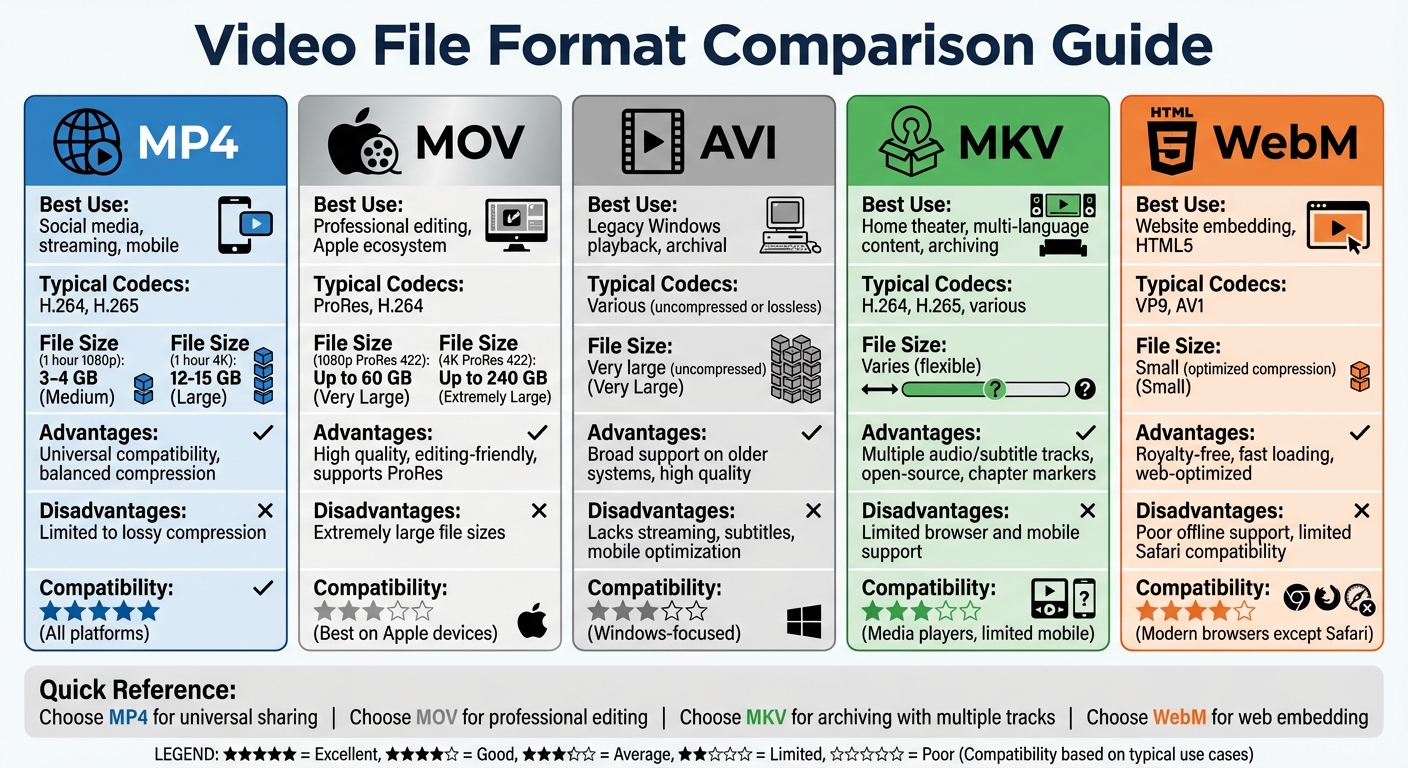
Video File Format Comparison Guide: MP4, MOV, AVI, MKV, and WebM
Understanding the basics of containers, codecs, and compression is essential, but knowing how to apply them in real-world scenarios is just as important. Here’s a breakdown of commonly used video formats and their practical applications.
MP4: The Universal Standard
MP4 (MPEG-4 Part 14) is one of the most widely used video formats today. It strikes a great balance between quality, compression, and compatibility, making it work seamlessly across devices, browsers, and social media platforms. MP4 typically uses H.264 or H.265 codecs, which help maintain high-quality video while keeping file sizes manageable. This versatility makes it the go-to format for online sharing.
"MP4 remains the best all-purpose video format for compatibility, compression, and online sharing" – Podcastle
For reference, a one-hour 1080p MP4 video usually takes up 3–4 GB of storage, while 4K videos can range between 12–15 GB. Social media platforms like TikTok impose specific file size limits depending on the device - for example, 287.6 MB on iOS, 72 MB on Android, and 500 MB via desktop uploads.
MOV: Best for Apple Devices
MOV (QuickTime Movie) was developed by Apple and is a favorite for professional video editing. It supports advanced codecs like ProRes, which are designed to preserve quality even after multiple rounds of editing. While MOV files offer excellent quality, they come with a trade-off: significantly larger file sizes.
"ProRes has become a widely adopted codec in the professional video industry, particularly in workflows involving Apple's Final Cut Pro and other video editing software." – MPB
For example, a 1080p video in ProRes 422 can take up to 60 GB, while a 4K video might require as much as 240 GB. MOV is ideal for professionals working within the Apple ecosystem, where maintaining video quality is more important than minimizing file size.
AVI: Traditional Format with Wide Support
AVI (Audio Video Interleave), a format created by Microsoft, has been around for decades. It’s known for its broad compatibility, especially on older Windows systems. AVI files can store uncompressed or lossless video, which ensures high-quality playback but results in very large file sizes. However, AVI lacks support for modern features like streaming, subtitles, and optimized playback on mobile devices. Despite its limitations, it’s still useful for simple playback on desktop systems or archival purposes.
MKV: The Open-Source Option
MKV (Matroska Video) is an open-source format that’s highly flexible and great for archiving. It’s capable of storing multiple audio tracks, subtitles, and chapter markers within a single file. This makes MKV an excellent choice for home theater setups or movies with multiple language options. Many media players from brands like Samsung, LG, Asus, and OPPO Digital support MKV files. However, its native compatibility with mobile devices and browsers is limited, which can be a drawback for some users.
WebM: Built for the Web
WebM was created by Google specifically for web-based video content and HTML5 playback. It’s a lightweight, royalty-free format designed for fast loading in modern browsers. WebM uses efficient codecs like VP9 and AV1, which provide excellent compression without requiring licensing fees. While it’s perfect for embedding videos on websites, it struggles with offline support and isn’t fully compatible with Apple Safari. Because of this, many developers pair WebM with an MP4 fallback to ensure accessibility.
| Format | Best Use Case | Advantage | Disadvantage |
|---|---|---|---|
| MP4 | Social media, streaming, mobile | Works across nearly all platforms | Limited to lossy compression |
| MOV | Professional editing, Apple ecosystem | High-quality video, editing-friendly | Extremely large file sizes |
| AVI | Legacy Windows playback, archival | Broad support on older systems | Lacks modern features like streaming |
| MKV | Home theater, multi-language content | Handles multiple tracks and subtitles | Limited browser and mobile support |
| WebM | Website embedding, HTML5 | Free and optimized for fast loading | Struggles with offline playback |
Each of these formats is tailored to specific needs, from casual online sharing to professional editing or archiving, giving you the tools to choose the right format or convert your files for your project.
How to Choose the Right Video File Format
Factors to Consider
Selecting the right video format depends on what you need it for. Based on our earlier discussion about containers, codecs, and compression, here are some key considerations to help you decide. First, think about where the video will be used. For social media or streaming, MP4 with H.264 is a safe choice because it's compatible with almost everything. If you're working on professional editing, formats like MOV with ProRes or DNxHD are better since they maintain high quality through multiple edits.
File size is another important factor, especially if storage or bandwidth is limited. Higher bitrates mean better quality but larger files. For example, YouTube suggests 35–45 Mbps for standard 4K video at 30fps, while 8K resolutions may need 80–160 Mbps. Using efficient codecs like H.265 can help reduce file sizes without compromising too much on quality, as long as the playback devices support it.
Compatibility is crucial too. While MP4 works almost everywhere, formats like MOV might need QuickTime on Windows, and MKV isn't always supported on mobile devices or some browsers. If you need to store multiple audio tracks or subtitles, MKV is an excellent choice because it's open-source and supports unlimited tracks. For embedding videos on websites, WebM is a smart pick as it loads quickly and works natively in Chrome, Firefox, and Edge. However, Safari users may require a WEBM to MP4 fallback.
"The choice of container format can significantly influence the performance, compatibility, and feature set of the video content." – MPB Content Hub
For advanced editing, consider technical details like color depth and chroma subsampling. 8-bit files handle 16.7 million colors, while 10-bit files can display over 1 billion, which is essential for tasks like color grading. If you're working on green-screen effects or heavy post-production, look for codecs that support 4:2:2 or 4:4:4 subsampling, as these provide finer color detail compared to the standard 4:2:0.
With these considerations in mind, let’s break down the best formats for specific needs.
Best Formats for Different Applications
For social media and online sharing, stick to MP4 with the H.264 codec and AAC audio. This format works seamlessly on platforms like YouTube, Instagram, TikTok, and Facebook. Keep in mind platform-specific rules - for example, TikTok limits uploads to 287.6 MB on iOS and 72 MB on Android. Also, use vertical aspect ratios (9:16) for mobile-first platforms.
If you're handling professional video editing, export your files as MOV using Apple ProRes or Avid DNxHD codecs. These formats use intra-frame compression, making them less taxing on your system while preserving visual quality throughout the editing process. ProRes remains a favorite because it’s widely supported in tools like Final Cut Pro and Adobe Premiere Pro, and it retains detail even after multiple edits.
For web embedding, choose WebM with VP9 or AV1 codecs for their fast loading times and native HTML5 support in modern browsers. Since Safari doesn’t fully support WebM, include an MP4 fallback to ensure compatibility. For transparent overlays or animations, use WebM (VP9) for Chrome and Firefox, and MP4 (HEVC with alpha) for Safari.
When archiving high-quality content, MKV is an excellent option. It can store multiple video, audio, and subtitle tracks in one file without licensing issues. For the highest quality, consider high-bitrate MOV files with ProRes 422, which balances quality with manageable file sizes. Avoid re-encoding compressed videos, as each "lossy" pass reduces quality and can introduce artifacts like posterization.
| Application | Recommended Format | Recommended Codec | Key Reason |
|---|---|---|---|
| Social Media | MP4 | H.264 | Universal compatibility and small file sizes |
| Professional Editing | MOV, MXF | ProRes, DNxHD | Intra-frame compression; maintains quality |
| Web Embedding | WebM, MP4 | VP9, H.264 | Fast loading; browser-friendly |
| Archiving | MKV, MOV | H.264, H.265, ProRes | Supports multiple tracks; high quality |
| Streaming (4K/8K) | MP4 | H.265, AV1 | Efficient compression for high resolutions |
These recommendations help align your video format choices with your specific needs. Next, we’ll dive deeper into how these formats perform in various scenarios.
Converting Video File Formats with ConvertHub
Features and Benefits of ConvertHub
Getting the right video format is crucial for ensuring top-notch quality and compatibility, and ConvertHub makes this process seamless. With support for over 800 format combinations, including popular ones like MP4, AVI, MKV, MOV, and WebM, it’s equipped to handle just about any conversion need. Plus, your files are safeguarded with top-tier security measures, including 256-bit end-to-end encryption and ISO 27001-certified data centers. ConvertHub also boasts a reliable 99.9% uptime.
Using ConvertHub is straightforward. Just upload your file, pick your desired format, and download the converted version. You don’t even need an account for basic conversions. However, signing up gives you perks like 10 free credits and access to your conversion history.
For those with more advanced needs, ConvertHub offers features like adjustable resolution and quality settings, presets tailored for platforms like YouTube and Instagram, and even audio extraction. If you’re working on multiple files, the batch processing feature lets you convert them all at once.
"I highly recommend giving ConvertHub a go. Used it in one of my recent projects and it works really well!" – Stefan Rows
Here’s how you can easily convert your videos.
Step-by-Step Guide to Converting Videos
Converting videos with ConvertHub is a breeze. Start by uploading your file - drag it onto the homepage, use the upload button, or paste a hosted video URL. After uploading, choose your target format from the dropdown menu. Popular options like MP4, MOV, and WebM are easy to find, and the full list of supported formats is also available.
Next, customize your settings. Adjust the resolution and quality, or use device-specific presets for platforms like Instagram or YouTube to automatically optimize your video. If you’re extracting audio, select formats like MP3 or AAC. Once everything is set, click "Convert" to start processing. Paid users enjoy faster processing speeds, and files are automatically deleted within 24 hours to ensure privacy.
Free users can convert one file per day (up to 100MB), while a $9 monthly subscription removes these limits, allowing unlimited conversions for files up to 2GB. If you only convert occasionally, the pay-as-you-go option costs $0.08 per conversion, with credits that never expire.
For businesses or developers needing more robust solutions, ConvertHub’s API has you covered.
B2B Solutions with ConvertHub API
ConvertHub’s RESTful API makes it easy for businesses to integrate video conversion directly into their apps. With access to the same 800+ format combinations available on the web platform, the API is both flexible and powerful. To get started, you’ll need a ConvertHub account, active credits, and an API key from your Developer Dashboard.
The API supports up to 60 requests per minute and allows batch processing, so you can convert multiple files at once and download them as a single ZIP archive. Conversions are credit-based: simple tasks cost 1 credit, while larger or more complex files (over 50MB) use a 3× multiplier. Subscription plans start at $9 per month for 300 credits, with unused credits rolling over as long as your plan stays active. Pay-as-you-go credits are also available, starting at $10 for 200 credits.
The API also includes codec-aware presets, which automatically optimize videos for specific devices or social platforms. Security remains a priority, with TLS/SSL encryption for transfers and automated file deletion policies. For extra-sensitive data, you can choose the "Delete immediately" option to remove files from the server as soon as they’re downloaded.
Conclusion
Understanding video file formats doesn’t have to be complicated. The main idea is this: containers like MP4 and MOV are essentially wrappers, while codecs such as H.264 and ProRes handle the actual compression. MP4 is a go-to choice for its versatility, while formats like MOV and MKV cater to more specialized needs, such as editing or archival purposes.
Each format serves a specific purpose. For example, YouTube prefers MP4 with H.264 for smooth playback, professional editors often turn to ProRes for detailed color grading, and WebM is a favorite for royalty-free streaming in web development. To handle these diverse requirements effectively, having a dependable video conversion tool is a game-changer.
ConvertHub takes the guesswork out of the process. It supports over 800 format combinations and offers presets tailored for platforms like YouTube and Instagram. Whether you’re converting a single file on a free plan or managing batch conversions through an API for your business, ConvertHub ensures your videos are optimized without needing you to master codec intricacies.
As video trends shift toward advanced codecs like H.265 and AV1 for high-resolution content, and vertical videos dominate mobile platforms, staying updated is crucial. A conversion tool that keeps pace with these changes ensures your videos remain compatible across all devices and platforms.
FAQs
Why is MP4 with H.264 the safest choice?
MP4 paired with the H.264 codec remains the go-to choice for video files due to its broad compatibility. It works effortlessly across nearly all devices, browsers, and media players. H.264 strikes a balance between quality and efficiency, delivering high-quality video at lower bit rates, which keeps file sizes manageable without compromising on clarity. While newer codecs like AV1 boast improved compression, they aren't universally supported yet. This makes MP4 with H.264 the most dependable option for streaming, social media uploads, and general video distribution.
When should I use H.265 (HEVC) instead of H.264?
H.265, also known as HEVC (High-Efficiency Video Coding), is a go-to choice when you need better compression efficiency. Whether you're aiming for smaller file sizes or higher quality at the same file size, this codec delivers. In fact, it provides 40–50% better compression compared to its predecessor, H.264.
This makes H.265 an excellent option for streaming 4K or 8K videos, especially in situations where bandwidth or storage is limited. However, keep in mind that playback compatibility can vary, as not all devices or hardware fully support HEVC decoding yet.
How do I choose between MOV and MKV for archiving?
Choosing between MOV and MKV comes down to what you need in terms of compatibility, features, and how you plan to use the file in the future.
If you're working within Apple-based systems or professional editing environments, MOV is a solid choice. It supports ProRes, handles timecodes well, and integrates seamlessly with Apple workflows.
On the other hand, MKV is an open format known for its flexibility. It can handle multiple audio tracks, subtitles, and supports modern codecs, making it an excellent option for long-term storage or projects that require versatility.
When deciding, think about playback compatibility, how much metadata you need, and how accessible the file will be in the future.