
How to Convert Video Files for Social Media
To make your videos perform well on platforms like Instagram, TikTok, Facebook, and YouTube, proper conversion is essential. Each platform has specific requirements for formats, resolutions, and aspect ratios. Here's how you can ensure your videos look great and meet platform standards:
- Use MP4 Format: Always export in MP4 with the H.264 codec for compatibility across devices.
- Resolution & Aspect Ratios:
- Vertical (9:16) for TikTok, Instagram Reels, and YouTube Shorts (1080 × 1920).
- Horizontal (16:9) for YouTube standard videos (1920 × 1080).
- Square (1:1) or Portrait (4:5) for Instagram Feed (1080 × 1080 or 1080 × 1350).
- Bitrate & Frame Rate: Aim for 5,000–10,000 kbps at 30 FPS for smooth playback.
- File Size: Keep file sizes within platform limits (e.g., 4GB for Instagram, 512MB for X).
- Compression: Use tools like ConvertHub to reduce file size without losing quality.
Pro Tip: Center key visuals and text to avoid cropping or UI overlays.
For creators managing content across platforms, batch processing tools like ConvertHub can save time by creating multiple versions of a video in one upload.
Turn Your YouTube Videos into Instagram Reels & TikToks FAST ⚡️ [Descript Tutorial]
Video Requirements for Each Platform
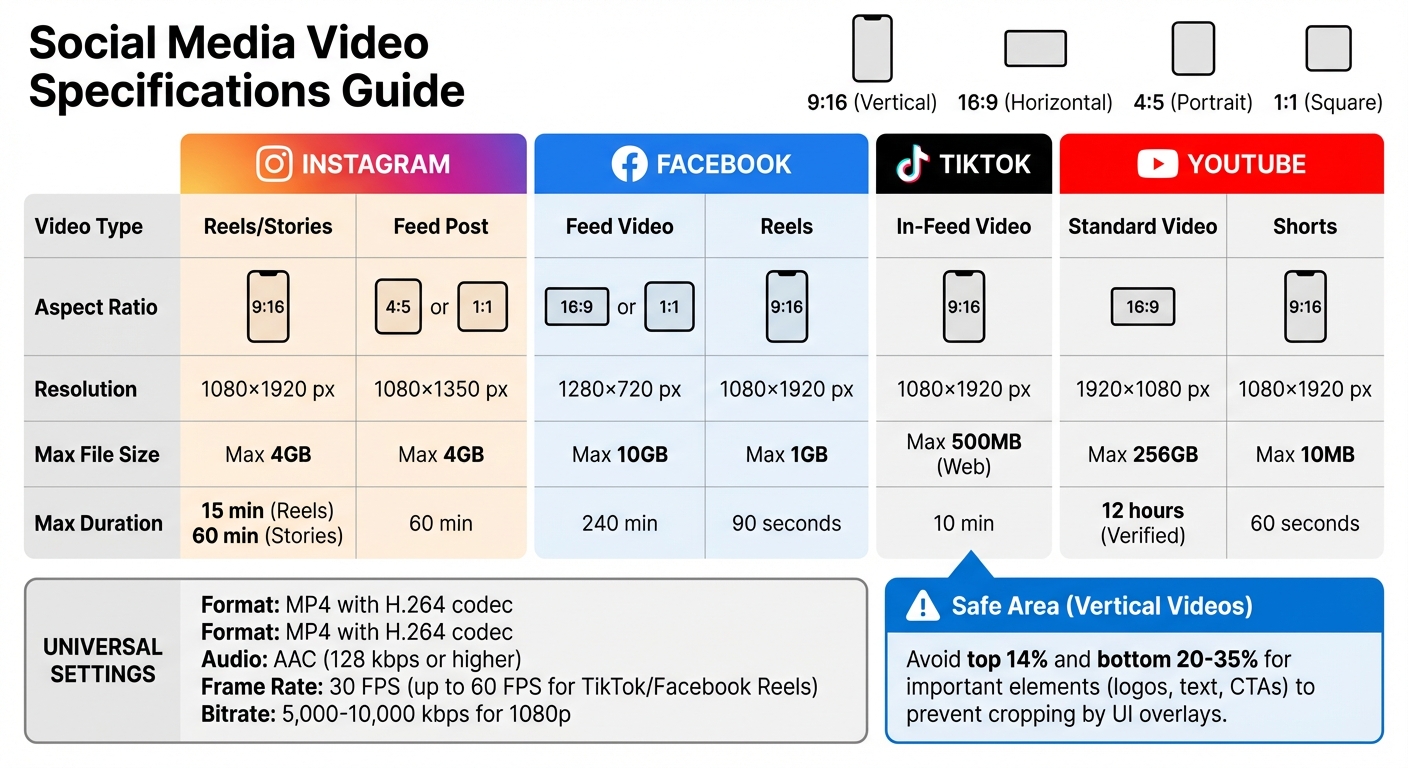
Social Media Video Specifications by Platform: Format, Resolution, and File Size Requirements
Before converting your videos, it's important to check both universal and platform-specific settings to make sure they perform well.
Standard Settings That Work Across Platforms
For most platforms, stick with MP4 or MOV formats using the H.264 video codec and AAC audio (128 kbps or higher). For resolution, 1080p (1920×1080 for horizontal or 1080×1920 for vertical) strikes the right balance between high-definition quality and manageable file sizes.
Set your frame rate to 30 FPS, though you can go up to 60 FPS for smoother motion on platforms like TikTok and Facebook Reels. As for bitrate, aim for 5,000 to 10,000 kbps for 1080p videos to maintain quality without bloating file sizes. These general settings provide a solid foundation for tweaking videos to meet each platform's specific needs.
"The MP4 format with H.264 codec is the gold standard... If you stick to MP4, you can be confident your video will upload and play properly on... other social platforms, too." – Brandwatch
Requirements for Instagram, Facebook, TikTok, and YouTube
Each platform has its own preferences for video specs. For Instagram Reels and Stories, use vertical 9:16 videos at 1080×1920 pixels (details in the table below). For Feed posts, 4:5 (1080×1350) or 1:1 (1080×1080) aspect ratios are ideal to maximize space on the screen without cropping in the grid.
Facebook supports a variety of formats, from 16:9 landscape to 9:16 portrait. While Feed videos can handle larger files and longer durations, Facebook Reels require vertical 9:16 videos at 1080×1920 pixels (refer to the table below).
TikTok is optimized for mobile viewing, so stick to 9:16 vertical videos at 1080×1920 pixels. Horizontal videos are allowed but don’t perform well since they appear letterboxed (see table below).
YouTube offers two main formats. Standard videos work best with a 16:9 aspect ratio and can support resolutions as high as 8K. For YouTube Shorts, use vertical 9:16 videos at 1080×1920 pixels (see table below).
For better reach and engagement, upload videos directly to each platform instead of sharing external links. Native uploads are favored by algorithms and autoplay features.
Video Specifications Comparison Table
| Platform | Content Type | Aspect Ratio | Recommended Resolution | Max File Size | Max Duration |
|---|---|---|---|---|---|
| Reels / Stories | 9:16 | 1080 × 1920 px | 4 GB | 15 min (Reels) / 60 min (Stories) | |
| Feed Post | 4:5 or 1:1 | 1080 × 1350 px | 4 GB | 60 min | |
| Feed Video | 16:9 or 1:1 | 1280 × 720 px | 10 GB | 240 min | |
| Reels | 9:16 | 1080 × 1920 px | 1 GB | 90 seconds | |
| TikTok | In-Feed Video | 9:16 | 1080 × 1920 px | 500 MB (Web) | 10 min |
| YouTube | Standard Video | 16:9 | 1920 × 1080 px | 256 GB | 12 hours (Verified) |
| YouTube | Shorts | 9:16 | 1080 × 1920 px | 10 MB | 60 seconds |
When designing vertical videos for platforms like TikTok, Instagram Reels, or Facebook Reels, make sure to keep key text and logos within the central "safe area." Avoid placing them in the top 14% or bottom 20–35% of the frame, as these areas are often covered by UI elements like captions or profile icons. This ensures your message stays visible and polished across devices.
How to Prepare Your Videos Before Converting
Before diving into video conversion, it’s important to ensure your source files are in top shape. This means checking quality, aspect ratios, and file sizes to prevent pixelation, cropping issues, or failed uploads.
Check Your Source File Quality
Start by examining your video’s technical details. On Windows or Mac, you can use System Properties, while VLC’s Codec Information is another handy tool. Focus on three key factors: resolution, bitrate, and frame rate. For crisp playback, aim for a bitrate of 5–8 Mbps for 1080p videos, and keep the frame rate consistent - 25 or 30 fps is ideal. Don’t just rely on resolution; a 1080p video with a bitrate of 400 kbps will look much worse than a 720p video at 2,500 kbps. Adjust your settings based on these findings to maintain quality.
| Resolution Name | Pixel Count | Recommended Bitrate (Streaming) |
|---|---|---|
| SD (480p) | 720 × 480 | 1–2 Mbps |
| HD (720p) | 1280 × 720 | 2.5–5 Mbps |
| Full HD (1080p) | 1920 × 1080 | 5–8 Mbps |
| Vertical HD | 1080 × 1920 | 2.5–6 Mbps |
| 4K UHD | 3840 × 2160 | 16–30 Mbps |
Choose the Right Aspect Ratio and Resolution
To avoid awkward cropping, match your video’s aspect ratio to the platform you’re targeting. For example, Instagram and Facebook feeds work best with 4:5 (1080×1350) or 1:1 (1080×1080) formats. These dimensions maximize screen space and ensure your content looks polished.
Make sure to center key elements in your video. This way, your content can adapt seamlessly between formats like 16:9 and 9:16.
"By choosing all the right dimensions to be optimized for each placement, your ad will look better, be seen in more places and your ad will deliver a better experience to the audience." – Sofia Eriksson, Performance Marketing Manager, Storykit
Manage File Size and Video Length
Using the H.265 codec is a smart way to shrink file sizes by 20–75% without sacrificing quality. If your video is too large for a platform’s limits, trimming unnecessary footage is a straightforward fix. Cutting down video length not only reduces file size but also keeps your content engaging.
For social media, shorter videos perform better. Stick to a length between 30 seconds and 2 minutes to align with users’ short attention spans. Many compression tools let you set a target file size - like 500 MB for TikTok or 10 GB for Facebook - so your video meets platform requirements. If quality is your main concern, prioritize settings that focus on maintaining video clarity rather than strictly reducing file size.
Once you’ve completed these steps, you’re ready to convert your video with tools like ConvertHub.
sbb-itb-ba72479
How to Convert Videos with ConvertHub

Set Up Your ConvertHub Account
Getting started with ConvertHub is quick and hassle-free. Sign up using your Google account or email, and you'll instantly receive 10 free conversion credits - no credit card required. The free tier lets you convert files up to 100MB, while a $9/month subscription gives you access to files up to 2GB, unlimited conversions, and priority processing. Prefer a pay-as-you-go option? You can convert files for just $0.08 each. Not ready to commit? You can still convert one file per day without an account, but you'll miss out on perks like conversion history and larger file limits.
Your files are safe, too. ConvertHub uses 256-bit encryption, and any guest uploads are automatically deleted after 24 hours for added security.
"I highly recommend giving ConvertHub a go. Used it in one of my recent projects and it works really well!" – Stefan Rows
Once your account is set up, you're ready to start converting videos for your favorite platforms.
Convert Videos for Instagram, TikTok, and YouTube
Upload your video by dragging and dropping it or pasting a URL. Then, choose the right format and aspect ratio based on your target platform:
- Instagram Reels and TikTok: Use a 9:16 vertical format with a 1080 x 1920 resolution.
- Instagram Main Feed: Opt for 1:1 square (1080 x 1080) or 4:5 portrait (1080 x 1350) for better screen coverage.
- YouTube Videos: Go for a 16:9 landscape format at 1920 x 1080 resolution.
- YouTube Shorts: Stick with the same 9:16 vertical format as Reels for seamless compatibility.
Always export your videos as MP4 files with the H.264 codec - this ensures smooth playback across devices and platforms. ConvertHub’s AI-powered compression technology keeps your video quality intact while optimizing file size, so you can avoid upload issues and maintain a polished look.
Use Batch Processing for Multiple Platforms
If you're managing content for various platforms, batch processing will save you tons of time. Upload your video once, then select multiple presets - like 9:16 for TikTok, 1:1 for Instagram, and 16:9 for YouTube. ConvertHub will handle all the conversions simultaneously, so you don’t have to repeat the process for each platform.
This feature is perfect for creators repurposing content from a single shoot. Just make sure the key elements of your video are centered to avoid awkward cropping when switching aspect ratios. Batch processing is available with the subscription plan and includes faster, priority processing to keep your workflow moving smoothly.
Fix Common Video Conversion Problems
Prevent Blurry or Pixelated Videos
Blurry or pixelated videos often stem from using a low bitrate during conversion. This limits the encoder's ability to retain details, resulting in blocky visuals. Another culprit is platform re-compression - sites like Instagram automatically compress uploaded videos, and if your file isn't optimized beforehand, their aggressive algorithms can ruin the quality. To avoid this, aim for the right bitrate: for 1080p videos, stick to 5,000–10,000 kbps, and for 4K content, go with 15,000–50,000 kbps.
A smart fix is to downscale 4K videos to 1080p before uploading. This gives you control over compression instead of leaving it to the platform. Always export using the H.264 codec, which strikes a great balance between quality and file size for social media.
"By adhering to these specifications, GoPro is able to consistently produce videos that look great on mobile devices while keeping file sizes manageable for quick uploading and minimal buffering." - GoPro Social Media Team
For mobile-focused content, a bitrate of 2–5 Mbps is typically enough to maintain decent quality.
Fix Aspect Ratio and Cropping Problems
Once you’ve tackled clarity, the next step is ensuring your video’s framing stays intact across different formats. Incorrect aspect ratios can cut off key parts of your video or add distracting black bars. Cropping adjusts the frame to fit a new ratio but risks losing important content, while padding preserves the full frame by adding black borders, though this may appear unpolished on mobile screens.
When filming, use a 9-rectangle grid and keep your subject centered. This helps ensure critical elements remain visible when converting from horizontal (16:9) to vertical (9:16) formats. Additionally, avoid placing text or logos in areas frequently covered by UI elements - stay clear of the top 14% (250 pixels) and bottom 20% (340 pixels) of the frame.
If you’re cropping a horizontal video for vertical platforms, shooting in 4K is a smart move. It provides enough pixel density to maintain quality even after trimming significant portions of the frame. Always preview your video before exporting to spot any awkward cropping or black bars.
Reduce File Size and Fix Upload Errors
File size is another common challenge, especially with platform-specific limits. For instance, Twitter caps videos at 512 MB, TikTok recommends a maximum of 288 MB, and Discord’s free tier only allows files up to 8 MB. To reduce file size without sacrificing quality, consider downscaling resolution and adjusting bitrate - 4,000 kbps for Facebook and 5,000 kbps for Twitter are good benchmarks. Dropping from 4K to 1080p or 720p can also significantly cut file size while still looking sharp on mobile devices.
"A higher bitrate means better quality but also results in larger file sizes, so consider the trade-off based on the potential viewers' streaming capabilities." - Alexandra, Content Manager, SocialBee
Another way to shrink files is by trimming unnecessary footage. Even cutting just a few seconds of intros or dead space can help meet strict platform limits. For high-resolution content, switching to the H.265 codec can reduce file sizes by up to 75% compared to H.264.
Summary and Next Steps
Best Practices for Social Media Video Conversion
To ensure your videos shine on social media, focus on three key steps: start with high-quality source files, meet the technical requirements of each platform, and optimize for upload limits. Export your videos at the highest possible resolution and bitrate to counteract compression during uploads.
Stick to the MP4 format with the H.264 codec - this combination is compatible with platforms like Instagram, TikTok, YouTube, and Facebook. It strikes a good balance between quality and file size. For aspect ratios, use 9:16 for vertical content (perfect for TikTok, Reels, and Stories), 16:9 for horizontal videos (ideal for YouTube), and 1:1 or 4:5 for square posts. To maintain video clarity without bloating file sizes, aim for a bitrate between 5,000 and 10,000 kbps for 1080p videos.
Pay close attention to platform-specific details. For instance, Instagram and Facebook cap file sizes at 4GB, while X (formerly Twitter) limits uploads to 512MB. Also, keep text and logos centered to avoid being obscured by on-screen elements.
If you're managing content across multiple platforms, tools like ConvertHub can simplify the process. Its batch processing feature allows you to create multiple versions of your video in one go, saving time and ensuring consistency.
"H.264 is the most compatible codec for all social platforms and provides great balance between quality and file size." – Pixflow
Before hitting upload, preview your videos. Look for issues like cropping, blurriness, or black bars, and make adjustments as needed. With ConvertHub's $9/month subscription, you can perform unlimited conversions and work with files up to 2GB. This gives you the flexibility to fine-tune your settings and create flawless videos for every platform.
FAQs
How can I preserve video quality when converting for social media?
To keep your video quality intact during conversion, start by ensuring the resolution remains high - 1080p or higher is ideal. Opt for the H.264 codec, as it offers efficient compression while maintaining excellent quality. When adjusting the bitrate, aim for a range of 3,000–5,000 kbps for 1080p videos. This strikes a good balance between visual quality and file size.
Pay attention to the aspect ratio requirements of your target platform. For instance, YouTube typically uses 16:9, while TikTok favors 9:16. Steer clear of excessive compression, which can noticeably degrade the video. And for the best possible results, always start with the original video file as your source.
How do I make sure my videos are optimized for social media platforms?
To make your videos shine on social media, tailor them to the specific requirements of each platform. Pay close attention to details like resolution, aspect ratio, format, and length. Here are a few examples:
- Facebook Reels: 1280×720 pixels, 9:16 vertical
- TikTok: 1080×1920 pixels, 9:16 vertical
- YouTube: 1920×1080 pixels, 16:9 landscape
Stick to commonly used formats like MP4 or MOV for smooth compatibility across platforms. It's also important to tweak the bitrate and file size to preserve quality while staying within each platform's limits. Make it a habit to stay updated on platform specifications to ensure your videos always look their best.
What are the best tools for converting videos for social media platforms?
To make video conversion for social media a breeze, tools like Adobe Express, Wondershare UniConverter, and VideoProc Converter are solid options. These tools allow you to tweak formats, resolutions, and other settings to match the unique requirements of platforms such as Instagram, TikTok, and YouTube.
With intuitive interfaces and handy features like batch processing, they not only save you time but also ensure your videos meet platform standards and look polished.