Complete Guide to Converting Audio Files Online
Converting audio files online is simple and efficient with tools like ConvertHub. Whether you need to prepare podcast episodes, optimize music for streaming, or create ringtones, this guide explains how to handle different formats like MP3, WAV, AAC, and FLAC. ConvertHub supports over 30 formats, ensures secure file processing, and offers free and premium plans for various needs.
Key takeaways:
- Common Formats: MP3 (compact, universal), WAV (high-quality, uncompressed), AAC (better than MP3 at the same bitrate), FLAC (lossless compression).
- Conversion Tips: Always start with high-quality files like WAV or FLAC to avoid quality loss. Match settings (bitrate, sample rate) to your use case.
- ConvertHub Features: Free plan for small files, premium options for larger files, batch conversion, and advanced settings like volume normalization.
- Security: Files are encrypted during transfer and automatically deleted after processing for free users.
For quick, secure, and flexible audio file conversion, ConvertHub is a reliable choice.
Audio Songs Converter Into Mp3 Online (WAV, Mp3 and Mp4)
Common Audio File Formats Explained
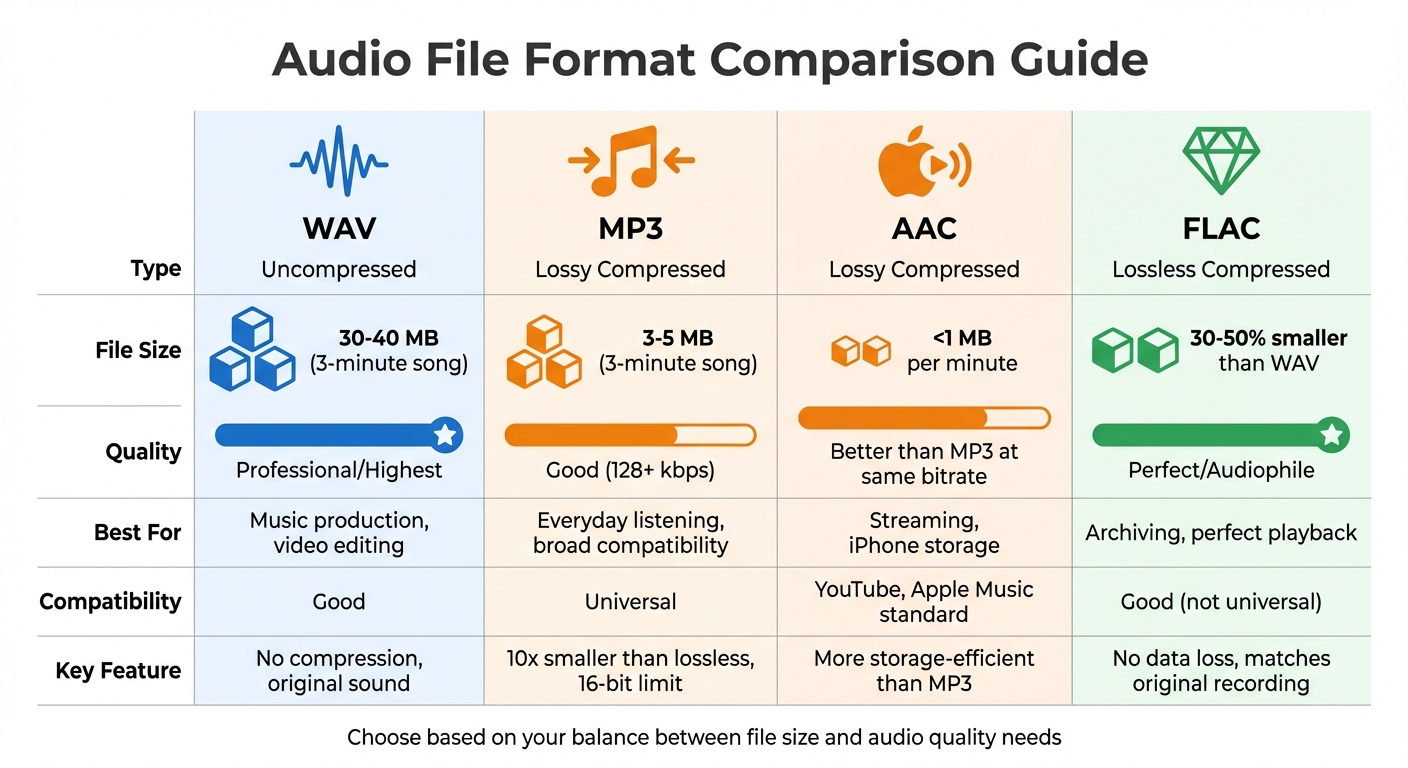
Audio File Format Comparison: MP3, WAV, AAC, and FLAC
MP3, WAV, AAC, and Other Formats
Audio files generally fall into three main types: uncompressed, lossy compressed, and lossless compressed. Each serves a specific purpose, depending on your needs.
WAV is the go-to format for professional audio work because it retains the original sound without any compression. A typical 3-minute WAV file can range from 30 to 40 MB, offering high sample rates and bit depths that make it ideal for music production or video editing.
MP3, on the other hand, is the everyday favorite. It compresses a 3-minute song down to a manageable 3–5 MB, making it highly compatible with most devices. However, since MP3 is a lossy format, some audio details are sacrificed, and its 16-bit limit may not meet the demands of professional recording or mixing.
AAC (Advanced Audio Coding) is a step up from MP3 in terms of sound quality at the same bitrate. It’s also more storage-efficient, typically requiring less than 1 MB per minute of music. Platforms like YouTube and Apple Music rely on AAC as their standard format, making it an excellent choice for streaming or storing music on devices like iPhones.
FLAC (Free Lossless Audio Codec) is a favorite among audiophiles. It compresses files without losing any audio data, ensuring playback matches the original recording perfectly. FLAC files are about 30–50% smaller than WAV while maintaining full fidelity. Similarly, AIFF, an uncompressed format native to Apple systems, offers the same quality as WAV but is optimized for Mac users. Meanwhile, Ogg Vorbis, favored by Spotify, is another lossy format that provides better sound quality than MP3 at comparable bitrates.
Knowing the differences between these formats helps you balance file size and audio quality when converting files.
File Size vs. Audio Quality
The size and quality of audio files depend on three key technical factors: bitrate (measured in kbps), sample rate (samples per second), and bit depth (bits per sample). Higher values in these areas mean better sound quality but also larger file sizes.
For most listeners, MP3 files encoded at 128 kbps or higher sound indistinguishable from lossless formats. In fact, MP3 files can be as much as ten times smaller than lossless files. However, converting between lossy formats - like MP3 to AAC - leads to "generation loss", where audio quality diminishes further with each conversion. To avoid this, always convert from a lossless source such as WAV or FLAC.
For professional editing, WAV ensures every audio detail is preserved. For casual listening on mobile devices or streaming, AAC or MP3 strikes a good balance between file size and quality. For archiving purposes, FLAC is the best choice, offering perfect audio quality in a smaller file. And when broad compatibility is essential, MP3 remains the most reliable option.
These format insights guide the conversion settings available on ConvertHub, helping you achieve the right mix of performance and audio fidelity for any use case.
How to Convert Audio Files with ConvertHub
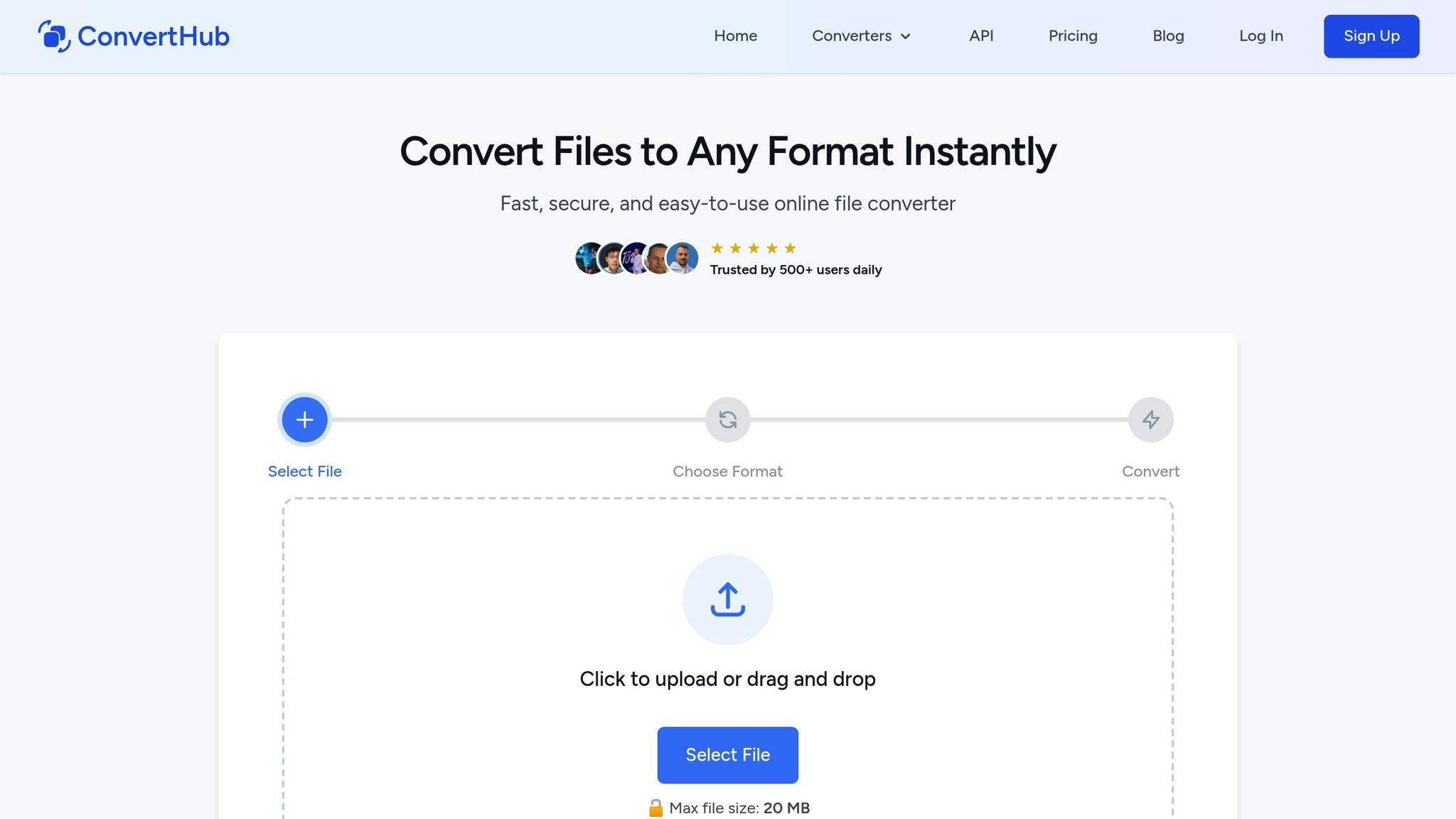
Converting a Single Audio File
Using ConvertHub to convert an audio file is straightforward. Start by securely uploading your file - drag and drop it into the upload area or click to browse your device. Keep in mind that free users are limited to files up to 100MB in size.
Once your file is uploaded, select the output format you need. You can fine-tune the bitrate settings either by using the built-in quality presets, which are perfect for standard devices, or by manually adjusting them to strike the right balance between file size and audio quality. If you're not familiar with settings like bitrate, the presets are a safe and reliable option.
After setting up, hit the convert button. ConvertHub will process your file and notify you when it's ready to download. Free plan users can download their files immediately, while premium users have the added benefit of storing their converted files until they choose to delete them.
Looking to convert multiple files? Let’s explore batch conversion next.
Converting Multiple Files at Once
Batch conversion is a time-saving feature available to premium users, ideal for handling large sets of files like music albums or podcast collections. Premium users can upload multiple files at once or compress them into a single ZIP file for easier processing. Set your desired quality and bitrate settings once, and they’ll apply to all files in the batch. Premium users also gain access to advanced features such as adjusting the sample rate, choosing between mono or stereo channels, and normalizing audio volume.
The premium plan also raises the file size limit to 2GB per file and includes priority processing. This ensures faster conversions during peak times, along with enhanced storage and processing capabilities.
Using Converted Files on Your Devices
Once your files are converted, integrating them with your devices and applications is a breeze. For iTunes, simply drag the converted files into the library window or go to File > Add to Library. ConvertHub retains metadata tags during conversion, so details like artist, album, and track title transfer seamlessly.
On Android devices, transfer the files via a USB cable to the Music folder. Media apps like Google Play Music or Samsung Music will automatically detect them. For Spotify, add the files to your computer’s local files folder, then enable "Show Local Files" in the settings to sync them across devices.
ConvertHub supports a variety of formats, ensuring compatibility with editing tools like Audacity, which works with formats such as WAV, MP3, FLAC, and OGG. It can even extract audio directly from video files, making it simple to save soundtracks or dialogue for your projects.
sbb-itb-ba72479
Maintaining Audio Quality During Conversion
Preventing Quality Loss
Converting between lossy formats like MP3, AAC, or OGG multiple times can significantly degrade audio quality. This issue, known as "generation loss", occurs because each conversion removes more audio data, much like making successive photocopies of a document. The result? A noticeable drop in overall sound clarity.
To minimize this, always start with the highest-quality source file you have. If you have access to the original WAV or FLAC file, use that as your starting point. Lossless formats like WAV, FLAC, and ALAC retain every detail of the original recording, unlike lossy formats that compress files by discarding some audio data. While modern compression techniques make these losses less noticeable for casual listening, the loss is irreversible.
When converting, choose settings that balance quality and file size based on your specific needs.
Recommended Conversion Settings
Your conversion settings should align with the type of content you're working with:
- Music files: For music, MP3 at 256 kbps or 320 kbps offers excellent sound quality without creating overly large files. Stick to stereo channels and a 44.1 kHz sampling rate, which is the standard for audio CDs.
- Podcasts and voice recordings: Since these primarily involve speech, you can reduce the bitrate to 64–128 kbps and use mono channels without compromising clarity.
- Ringtones: Keep the bitrate high - around 256 kbps - because phone speakers can amplify compression artifacts. At the same time, trim the file's duration to keep the size manageable.
For archiving or professional editing purposes, skip lossy formats altogether. Use FLAC or WAV to retain every detail of the original recording.
Keeping Track Information and Album Art
Once you've set the right conversion parameters, double-check that all track information - like artist names, album titles, track numbers, and album art - remains intact. Play the converted file in your media player to confirm everything transferred correctly.
"Ensure your conversion software preserves metadata or lets you edit it during the process".
If any details are missing, you can always re-convert from your original high-quality source. Keeping a backup of these master files ensures you won't lose important metadata during future conversions.
ConvertHub Security, Privacy, and Pricing
How ConvertHub Protects Your Files
ConvertHub takes file security seriously by using TLS/SSL encryption to safeguard file transfers. Once uploaded, files are stored securely with CloudFlare R2, which encrypts data at rest to ensure your recordings remain protected. The platform enforces strict no-access policies, meaning your file contents are off-limits, except in rare instances where technical support needs to resolve a failed conversion. Rest assured, your files are never shared with third parties and are used solely for conversion purposes. To maintain high standards, ConvertHub performs regular security audits to identify and address any potential vulnerabilities.
Premium users have even greater control over their data. Files remain stored until the user decides to delete them manually via the account dashboard. If you're handling sensitive material - like unreleased music or confidential interviews - it's a good idea to download your files immediately and delete them once you're done.
These robust security practices are paired with flexible pricing options to meet a variety of needs.
Free and Paid Plan Options
ConvertHub offers three pricing tiers, making it easy to find an option that fits your requirements:
- Free Plan: Perfect for light users, this plan allows one conversion per day for files up to 100MB - no registration required.
- Subscription Plan: At $9/month, this plan offers unlimited conversions for files up to 2GB, 5GB of storage, and priority processing. It's ideal for podcasters or musicians managing multiple tracks.
- Pay-as-You-Go Plan: For $0.15 per conversion, this plan is great for sporadic needs. It supports files up to 200MB, includes 1GB of storage, and credits never expire.
Premium users also gain access to advanced audio tools, such as custom sample rates, bitrate adjustments, and normalization settings. Plus, they enjoy an ad-free experience and priority customer support, making it a great choice for frequent users.
For businesses and developers, ConvertHub takes things a step further with its API integration.
ConvertHub API for Developers
ConvertHub provides an API that allows developers and businesses to seamlessly integrate its conversion engine into their own applications. Whether you're building a podcast hosting platform, a music streaming service, or an internal content management system, the API simplifies audio file processing by automating conversions within your workflow. It offers the same security features as the web platform, including encrypted file transfers and customizable retention policies.
Pricing for API access is tailored to business needs and usage volumes, with detailed plans available on the API landing page. This makes it a scalable option for companies looking to enhance their tools with reliable audio conversion capabilities.
Conclusion
Converting audio files online has never been easier or more secure than with ConvertHub. This browser-based tool eliminates the need for installations or registrations, supporting a wide variety of audio formats. Whether you're organizing podcast episodes, archiving music recordings, or just making sure a file works on your device, ConvertHub is built to handle it all.
With features designed for everyone, ConvertHub offers easy-to-use presets for beginners and advanced controls for those who want more customization. You can expect professional results without needing technical know-how. Plus, batch conversion and metadata preservation ensure your workflow stays smooth and efficient. Security is a priority too - files are protected with HTTPS encryption and automatically deleted after processing.
ConvertHub also caters to different needs with a free plan for files up to 100MB and premium options for larger projects. Conversions are quick, often completed in just minutes, making it suitable for anything from single files to entire albums.
Why wait? Upload your first file to ConvertHub today and see how effortless online audio conversion can be!
FAQs
How do I maintain the best audio quality when converting files?
To maintain audio quality during conversion, opt for lossless formats such as WAV or FLAC whenever you can. Configure the converter to use the highest available bitrate or select a preset specifically designed for preserving quality. It's also important to keep the original sample rate unchanged and minimize re-encoding the same file repeatedly, as this can gradually diminish audio clarity. Following these practices will help your converted files stay as clear and detailed as the original.
How does ConvertHub ensure the security of my uploaded audio files?
ConvertHub takes your file security seriously by employing strong protection measures. All uploaded audio files are encrypted to block any unauthorized access. Plus, temporary files are automatically erased after processing, ensuring your privacy remains intact.
If you're curious about the specific details - like the encryption standards used or how long files are retained - you can find more information in ConvertHub's official documentation or by contacting their support team.
What’s the difference between ConvertHub’s free and premium plans?
With ConvertHub’s free plan, you can jump right into converting audio files without even signing up. This plan provides access to the basic tools you need, though it does come with restrictions like smaller file size limits and shorter storage durations. Converted files are automatically deleted after a set period, making it a great option for quick and simple tasks.
For those with more demanding needs, the premium plan steps it up with enhanced features. Subscribers enjoy larger file size allowances, longer storage times, and advanced tools such as higher-quality presets, customizable bitrate settings, and batch processing capabilities. This plan is especially suited for professionals - think musicians or podcasters - who need top-notch results and greater control over their audio conversions.