Best Free Tools for PDF to Image Conversion
Converting PDFs to images simplifies sharing, viewing, and using content across devices. This article explores free tools that prioritize ease, security, and format variety. Key highlights:
- Why Convert PDFs to Images?
Images (JPG, PNG, TIFF) are easier to share, view, and integrate into presentations or websites. - What to Look For:
- Supported Formats: Tools should handle JPG (small size), PNG (high quality), and TIFF (printing).
- Ease of Use: Drag-and-drop, no registration, and batch processing save time.
- Security: Look for encryption and automatic file deletion.
- Top Tools:
- ConvertHub: Browser-based, free for 1 file/day, supports 6 formats, and deletes files in 24 hours.
- Adobe Acrobat Online: User-friendly, supports JPG/PNG/TIFF, immediate file deletion.
- Foxit PDF to JPG: High-quality JPG output, 50MB file size limit, instant deletion.
- Smallpdf: Converts 2 files/day, deletes files in 1 hour.
Quick Comparison:
| Tool | Formats | File Size Limit | Free Plan Daily Limit | File Deletion Policy |
|---|---|---|---|---|
| ConvertHub | JPG, PNG, TIFF, BMP, GIF, WEBP | 100MB | 1 file/day | 24 hours or manual |
| Adobe Acrobat Online | JPG, PNG, TIFF | Not specified | Not specified | Immediate |
| Foxit PDF to JPG | JPG only | 50MB | Not specified | Immediate |
| Smallpdf | JPG | Not specified | 2 files/day | 1 hour |
Choose tools based on your needs - security, formats, or batch processing. ConvertHub stands out with strong privacy measures and format variety, while others like Adobe and Smallpdf offer simplicity.
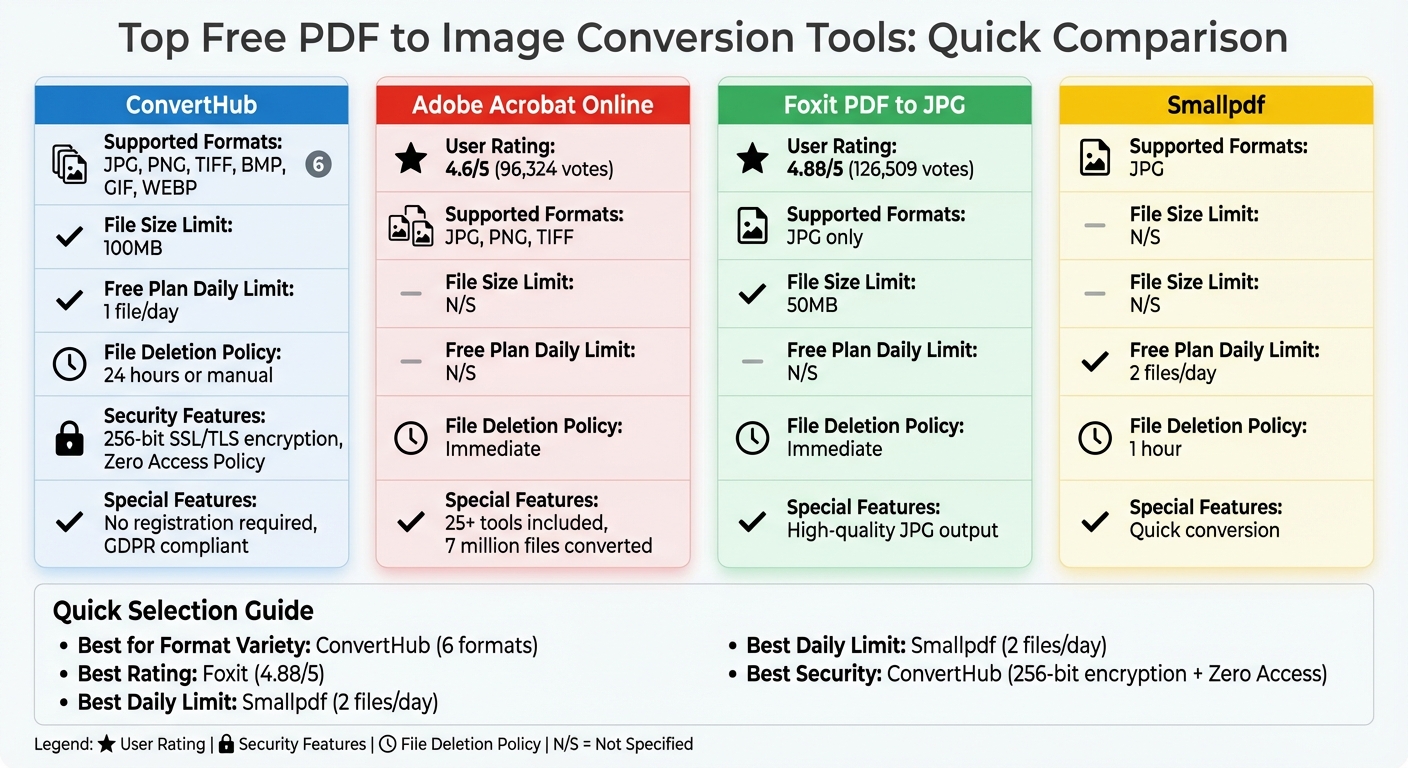
Comparison of Top Free PDF to Image Conversion Tools
How To Convert PDF To JPG, PNG Or TIFF Image File Formats Online For FREE
What to Look for in a Free PDF to Image Tool
When choosing a PDF to image tool, it's important to focus on flexibility, ease of use, and security. A reliable tool should cover multiple formats, offer an intuitive design, and prioritize your privacy - all without pushing you to pay for basic features. Here's what to keep in mind:
Supported Image Formats
A solid converter should handle a variety of formats, including JPG (for smaller file sizes), PNG (for high-quality, lossless images with transparency), and TIFF (ideal for high-resolution printing). Some tools also support other formats like BMP and GIF, and advanced options might even extract images directly from within PDFs.
Ease of Use and Accessibility
The best tools make the process simple - drag-and-drop functionality is a must for quick uploads. Web-based converters are especially convenient since they work across platforms like Windows, macOS, Linux, iOS, and Android without requiring any downloads. For a hassle-free experience, look for tools that don’t require registration. Batch processing is another standout feature, allowing you to convert multiple files (sometimes up to 20) at once, which can save a lot of time when managing large projects.
Security and Privacy
Protecting your files is essential. Always check that the tool uses HTTPS or TLS encryption during file transfers to keep your data secure. Most reputable tools delete your files from their servers within an hour or two after conversion. For example, Smallpdf emphasizes:
No one sees your PDF documents or converted files but you. Smallpdf uses TLS encryption in all file transfers to ensure the safety of your files.
If you're dealing with sensitive documents, consider tools that process files locally on your device or opt for offline desktop software to avoid uploading any data online.
ConvertHub for PDF to Image Conversion
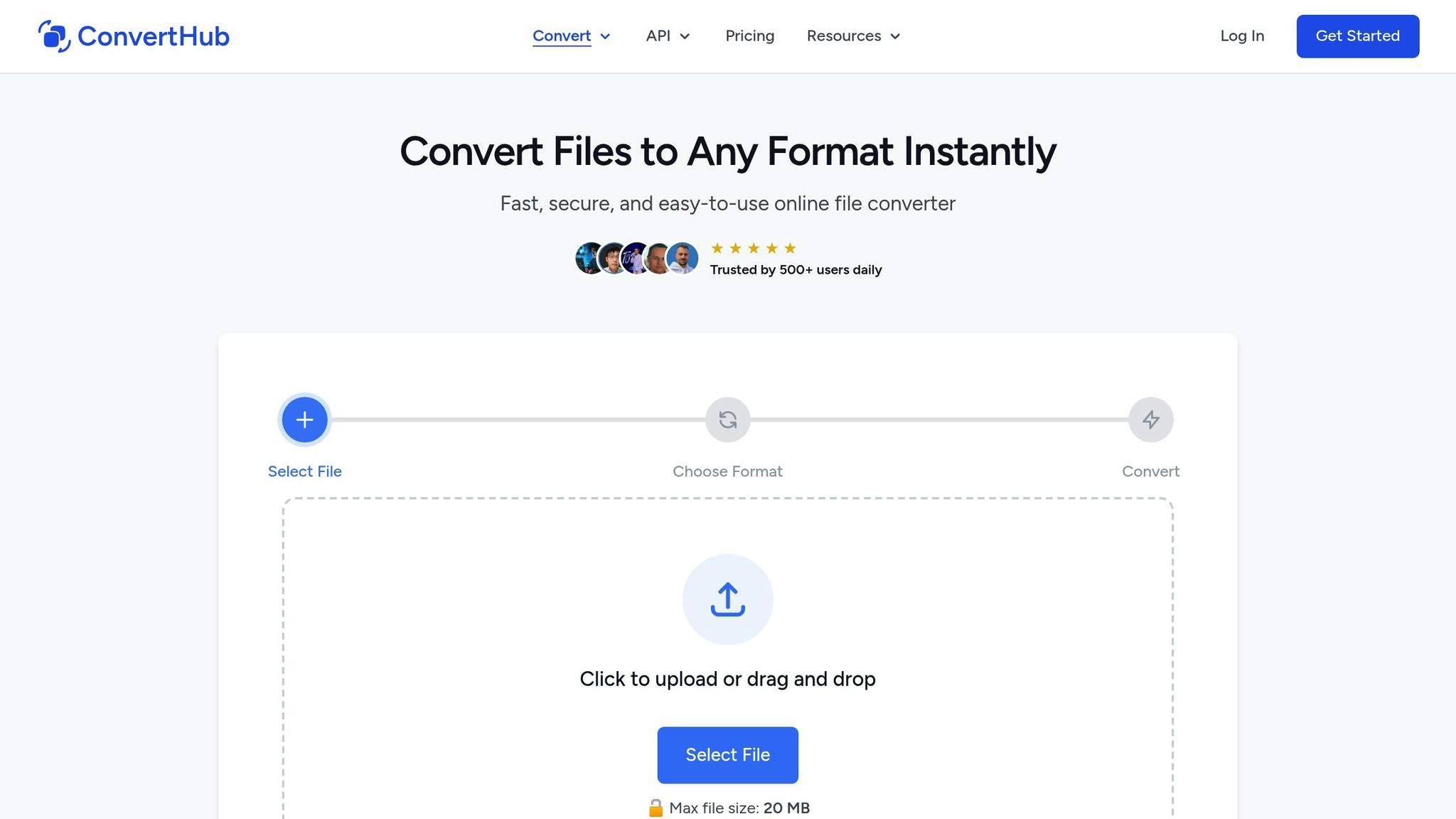
When it comes to converting PDFs into images, ConvertHub stands out with its seamless functionality and strong emphasis on security.
ConvertHub is an online file conversion tool that supports PDF to image transformations alongside more than 800 format combinations for documents, images, videos, audio files, and more. Best of all, it operates entirely in your web browser - no downloads, installations, or sign-ups required. You can get started immediately without sharing personal details like your email address.
ConvertHub's Features and Security
ConvertHub prioritizes your file security with 256-bit SSL/TLS encryption for all transfers. This level of protection aligns with industry standards for safeguarding sensitive data. Every conversion follows a Zero Access Policy, meaning the process is fully automated, and no human ever views or interacts with your files. The platform’s infrastructure relies on AWS S3 and Cloudflare R2, hosted in ISO 27001 certified data centers. Additionally, ConvertHub is GDPR compliant, avoids tracking pixels, and has a strict no-data-selling policy.
For added privacy, files uploaded by guest users are automatically deleted after 24 hours. Need them gone sooner? Use the "Delete immediately" option to erase files as soon as the conversion is complete - perfect for handling sensitive documents. Moreover, ConvertHub ensures the output images are watermark-free, maintaining a professional finish. Supported image formats for PDF conversions include JPG, PNG, BMP, GIF, TIFF, and WEBP.
How to Use ConvertHub
The process couldn’t be simpler. Just drag and drop your PDF into the upload area, select your preferred image format, and hit "Convert". The platform’s API handles the rest, delivering your converted images quickly. Once the process is complete, you can download the images directly to your device.
Batch Processing and Free Plan Options
ConvertHub’s free plan lets you convert one file per day, with a maximum file size of 100 MB. For users with higher demands, subscription plans start at $9/month, offering support for files up to 2 GB, faster processing speeds, and 5 GB of storage. Prefer more flexibility? The pay-as-you-go option starts at $10, with credits that never expire.
For developers, ConvertHub provides integration options via PHP or JavaScript SDKs, including a free tier with 50 API calls. As Marko Denic from markodenic.tech observes:
The API is well-documented, easy to integrate, and respects privacy. If you're looking for a file conversion API that just works, ConvertHub is a smart choice.
sbb-itb-ba72479
Top Free PDF to Image Conversion Tools
When it comes to converting PDFs into images, there are several free tools available, each offering unique features like format options and processing speed.
Adobe Acrobat Online is a popular choice, earning a 4.6/5 rating from 96,324 votes. Its user-friendly, two-click interface supports JPG, PNG, and TIFF formats, making it versatile. Files are deleted immediately after download unless you sign in, which also unlocks options to save or share your converted images. Over 7 million files were converted using Adobe's PDF-to-JPG tool within an 18–24 month period. The free version also gives you access to 25+ tools, though signing in is required for additional features.
Foxit PDF to JPG stands out for its high-quality JPG output, with an impressive user rating of 4.88/5 from 126,509 votes. The free version has a 50MB file size limit, and files are deleted immediately after conversion, ensuring privacy and security.
Smallpdf is another reliable option for quick conversions. It allows users to convert up to 2 documents per day, with files stored on their servers for one hour before being automatically deleted.
Here’s a quick comparison of these tools to help you decide:
| Tool | Rating | File Size Limit | Formats | Deletion | Daily Limit |
|---|---|---|---|---|---|
| Adobe Acrobat Online | 4.6/5 (96,324 votes) | Not specified | JPG, PNG, TIFF | Immediate | Not specified |
| Foxit PDF to JPG | 4.88/5 (126,509 votes) | 50MB | JPG only | Immediate | Not specified |
| Smallpdf | Not specified | Not specified | JPG | 1 hour | 2 files |
Each of these tools offers a secure and efficient way to convert PDFs into images, catering to different needs and preferences.
How to Choose the Right Tool for Your Needs
Tools for Common Use Cases
When selecting a PDF to image converter, it's essential to match the tool to your specific task. For sharing on social media, JPG is often the best choice due to its smaller file size and widespread compatibility. Tools like ConvertHub are great for quick conversions and don’t require registration. If you're working on presentation materials, formats like PNG or TIFF are better suited since they retain high image quality, even on larger screens.
For handling large, multi-page PDFs, batch processing can save you a ton of time. If you're dealing with sensitive documents, consider offline tools or those with strong encryption to keep your data secure. As Enrica Taylor, Chief Editor at UPDF, explains, online tools often face limitations related to file size and internet connectivity.
These examples underscore the importance of assessing a tool’s features carefully. The checklist below can guide you in making the right choice.
Selection Checklist
Before committing to a tool, evaluate the following factors:
- Supported Formats: Confirm the tool supports the image format you need, such as JPG, PNG, TIFF, BMP, or GIF.
- File Size Limits: Be aware that free versions often restrict uploads to between 50 MB and 1 GB.
- Registration Requirements: Some tools allow hassle-free conversions without an account, while others require sign-in to unlock additional features.
- Privacy and Security: Opt for tools with 256-bit encryption for file transfers and clear policies on file deletion. For example, ConvertHub ensures automatic file deletion, secure encryption, and compliance with GDPR. Offline tools are also a safe bet since your files never leave your device.
Lastly, think about usage limits. Free plans typically cap conversions to one or two files per day. On the other hand, ConvertHub's subscription plans offer monthly credits that roll over if unused, making them a smart choice for frequent users.
Conclusion
Finding the right PDF to image converter comes down to a few key factors: ease of use, strong security features, and versatile functionality. The best tools are those that don't require installation, work seamlessly across devices, and prioritize your file security through encryption and automatic deletion policies. These features ensure a smooth and secure experience for all your conversion needs.
Take ConvertHub, for example. This browser-based converter prioritizes security with 256-bit encryption, automatic file deletion within 24 hours, and a strict Zero Access Policy. Its free plan lets you convert files up to 100 MB without needing to register, while the $9/month Unlimited Plan allows for larger files up to 2 GB, batch conversions, and faster processing. Whether you're handling a single page or an entire stack of documents, ConvertHub simplifies the process - upload, convert, and download in just a few steps.
FAQs
How does ConvertHub ensure the security of my files during PDF to image conversion?
ConvertHub takes your file security seriously, employing encrypted connections for every upload and download. All files are processed automatically and never stored on the platform's servers, keeping your data private. Plus, since you don’t need an account to use the service, no personal information is collected, and each session is wiped clean as soon as your conversion is done.
Even its drag-and-drop interface and URL-based uploads are safeguarded with the same secure protocols, ensuring your documents remain protected from start to finish.
What is batch processing, and how does it work in ConvertHub's free plan?
Batch processing with ConvertHub lets you handle multiple file conversions simultaneously, making it a real time-saver. While the free plan includes batch processing, it does come with some restrictions - like limits on the number of files or the total file size you can process at once. If you need more flexibility and advanced options, creating an account gives you access to expanded features and higher limits.
What are the advantages of converting PDFs to JPG, PNG, or TIFF formats?
Each image format serves a specific purpose, depending on what you're looking for:
- JPG: This format is great for keeping file sizes small while still offering good image quality. It's the go-to choice for sharing photos or uploading images online.
- PNG: With lossless compression and support for transparency, PNG is perfect for graphics, logos, and images that need clean, transparent backgrounds.
- TIFF: If you're aiming for top-tier image quality with little to no compression, TIFF is the way to go. It's ideal for professional printing, intricate designs, or archiving images for the long haul.
In short, use JPG for web-friendly images, PNG for detailed graphics with transparency, and TIFF when you need the absolute best quality for printing or storage.