How to Convert PDF to Word in 3 Easy Steps
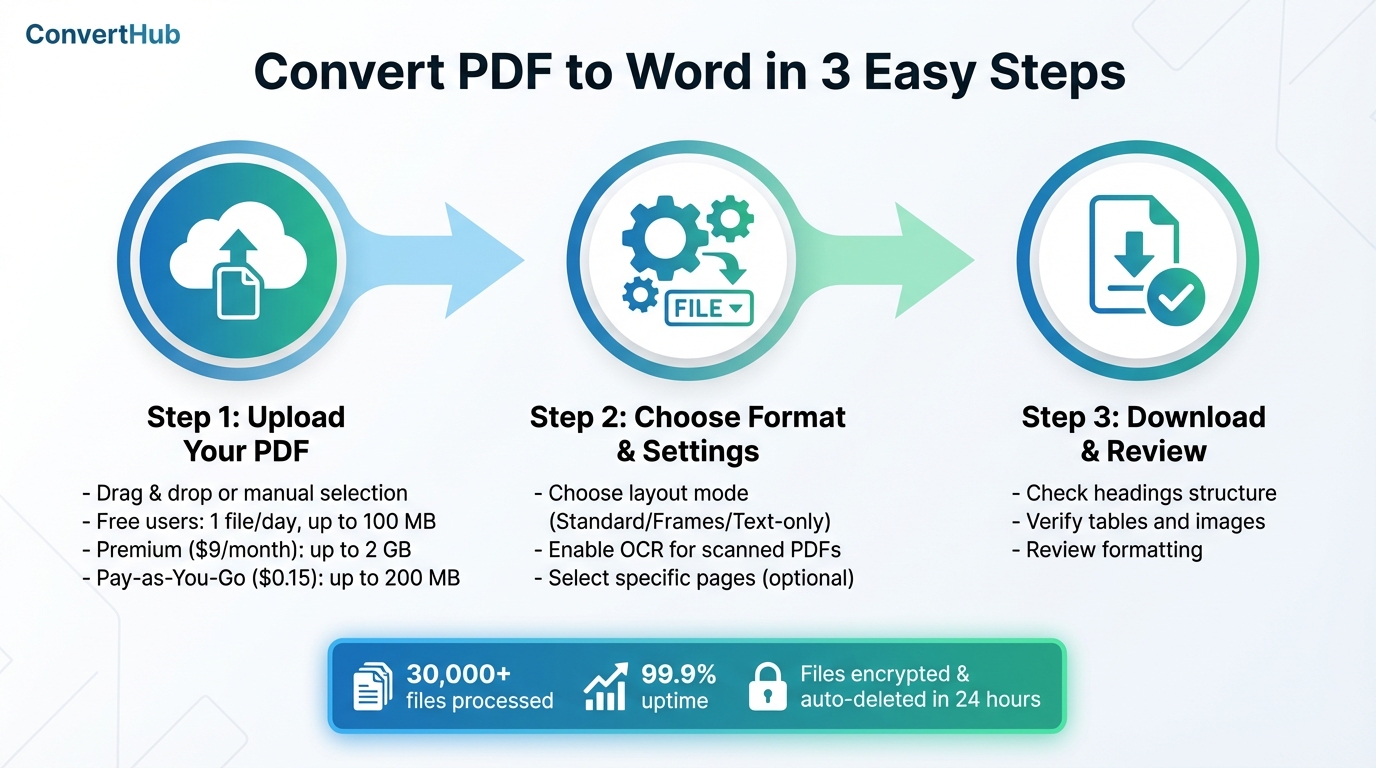
If you need to edit a PDF but can’t modify its content, the solution is simple: convert it to a Word document. Using ConvertHub, you can transform PDFs into editable DOCX files in just three steps:
- Upload your PDF by dragging it into the tool or selecting it manually.
- Choose DOCX format and adjust settings, like enabling OCR for scanned files or selecting specific pages.
- Download and review your Word document to ensure everything looks correct.
ConvertHub preserves formatting, including fonts, images, and tables, while keeping your files secure with encryption. Free and premium plans are available, starting at $9/month for features like larger file uploads and file history. Whether you need quick one-time conversions or frequent use, ConvertHub makes the process straightforward and reliable.
How to Convert PDF to Word in 3 Steps with ConvertHub
How To EASILY Convert PDF to Word | True and Scanned PDF
PDF to Word Conversion: What You Need to Know
PDFs and Word documents operate in fundamentally different ways. PDFs are fixed-layout snapshots, meaning every element is locked in place to ensure the document looks the same on any device.
Word documents, however, are dynamic and flow-based. They adjust content to fit different screen sizes and preserve structures like headings and tables, making them ideal for editing. As experts point out, PDFs are static visual designs, while Word documents are flexible and adaptable to user needs and edits.
This is why converting PDFs to Word is essential for editing tasks. PDFs aren’t built for easy modification or collaboration. If you need to make major changes, add new sections, or rearrange content, converting to Word gives you the tools to do so efficiently.
Grasping these differences is crucial for successful conversion.
What Converts Well and What Doesn't
Simple elements like plain text, headings, and basic tables usually transfer seamlessly. Documents that stick to standard fonts (e.g., Arial, Calibri, Times New Roman) and have fonts embedded in the original PDF convert with minimal issues. High-resolution images also translate well, though you might need to tweak their placement slightly.
More complex layouts can be problematic. Multi-column designs, intricate text boxes, background images, and layered objects often lead to formatting errors. For example, tables with merged cells or no borders may lose their structure during conversion, as PDFs visually simulate tables rather than storing them in a structured format. Headers, footers, and even bullet points might get mixed into the body text or lose their formatting entirely.
Scanned PDFs require extra attention because they’re essentially image files of documents. To make these editable, you’ll need Optical Character Recognition (OCR) technology. The accuracy of OCR depends heavily on the quality of the scan - low resolution, visual noise, or unusual fonts can result in errors. Additionally, password-protected PDFs can pose challenges, as encryption prevents conversion tools from extracting text unless the file is unlocked first.
How ConvertHub Processes Your Files
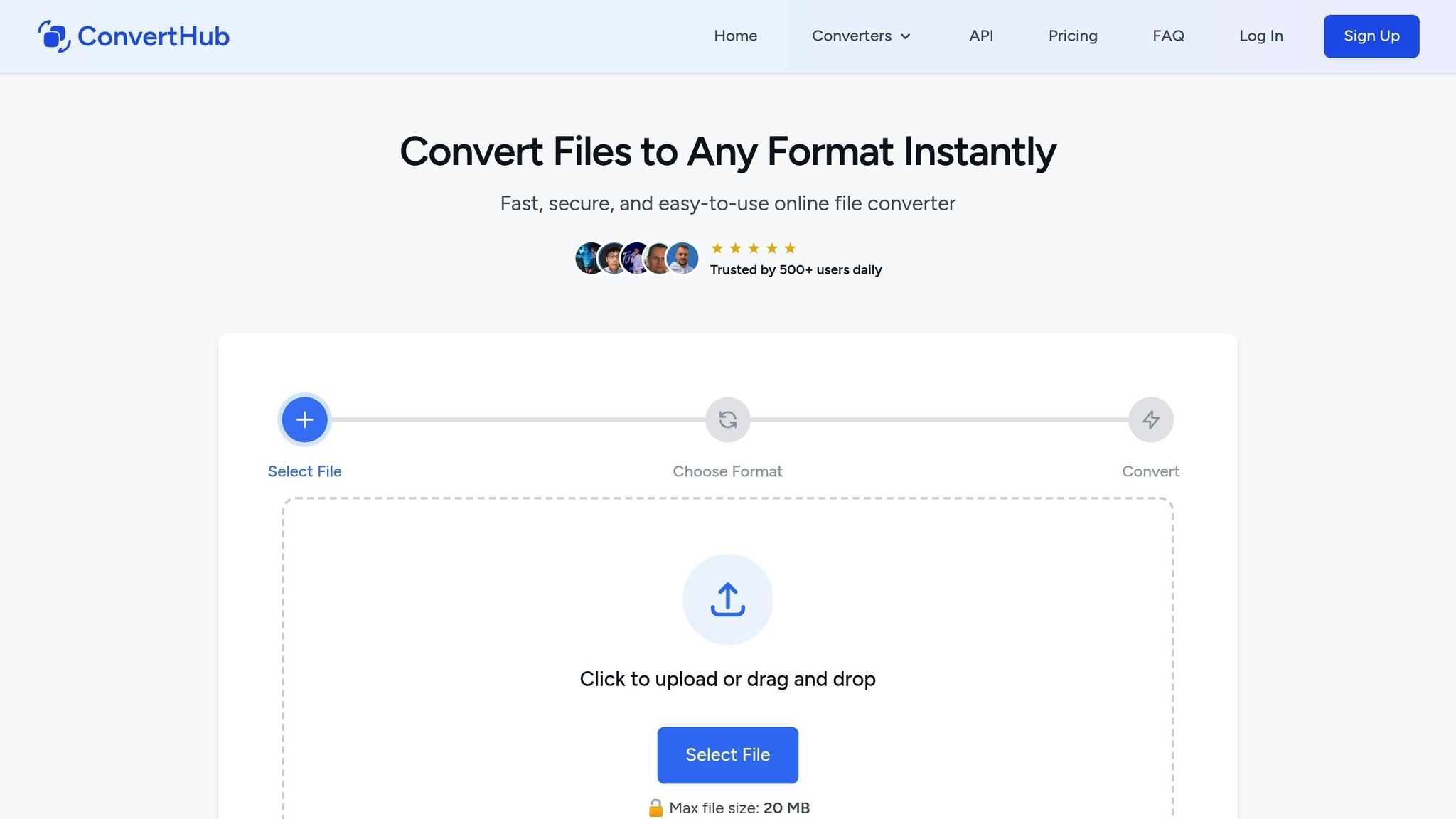
ConvertHub's engine is designed to transform your PDFs into fully editable Word documents. It carefully analyzes text positioning, identifies the document's structure, and reconstructs elements like paragraphs, headings, and tables for easy editing.
For scanned PDFs, ConvertHub uses integrated OCR technology to extract text from images and convert it into editable content. This feature works even with lower-quality scans, though better resolution always leads to more accurate results. The platform also supports batch processing, allowing you to handle multiple files at once - perfect for tackling large volumes of documents with similar formatting needs.
Step 1: Upload Your PDF to ConvertHub
Getting started with ConvertHub is quick and easy. You can upload your PDF in just a few moments using one of two simple methods.
How to Upload Files
Drag and drop your file. Just open your file explorer, find the PDF you want to convert, and drag it straight into the upload area on ConvertHub’s webpage. As soon as you drop it, the platform will begin processing the file automatically.
Or manually select your file. Click the "Select a file" button, browse through your folders, and choose the PDF you want to upload. Both options are straightforward, so pick whichever is more convenient for you.
Keep in mind, the size of the file you can upload depends on your account type:
- Free users: 1 file per day, up to 100 MB.
- Subscription plan ($9/month): Files up to 2 GB.
- Pay-as-You-Go ($0.15 per conversion): Files up to 200 MB.
Once your file is uploaded and verified, you’ll be ready to customize your conversion settings in the next step.
Check Your File Before Uploading
To avoid any hiccups, make sure your PDF is ready to go:
- Confirm it has a .pdf extension. This ensures it's a proper PDF file and not an image or another format mistakenly renamed.
- Open it on your device. Check that the file displays correctly. If it doesn’t open or shows errors, it might be corrupted and won’t convert properly.
- For scanned PDFs, ensure clarity. Blurry or poorly scanned text can cause conversion issues, and handwritten notes over printed text may interfere with OCR accuracy.
If your PDF is password-protected, you’ll need to remove the encryption before uploading, as the tool won’t be able to access protected content.
Once you’ve verified everything, you’re all set to move on and choose your desired output format.
Step 2: Select Word Format and Adjust Settings
After your PDF uploads, ConvertHub takes you to the format selection screen. This is where you choose your output format and fine-tune the conversion settings to meet your specific requirements.
Choose DOCX as Your Output Format
DOCX stands out as one of the main options for PDF conversions. Simply click on DOCX in the format menu. This modern Word format allows for full editing and works seamlessly with Microsoft Word 2007 and newer versions.
If you're using an older version of Word, you can opt for RTF instead. However, DOCX is generally preferred for its advanced formatting capabilities.
Adjust Your Conversion Settings
Before proceeding, take a moment to customize the settings to ensure the final document meets your needs. ConvertHub provides several options to enhance the quality and usability of your Word file.
-
Choose a layout mode:
- Standard mode keeps the visuals and structure intact.
- Frames mode converts text into separate boxes, ideal for publications or flexible editing.
- Text-only mode extracts plain text, leaving out images and special formatting.
-
Enable OCR for scanned PDFs:
If your PDF contains scanned images, activate the OCR feature. This tool converts image-based text into editable and searchable text within your Word document. Without OCR, scanned text will remain as static images. -
Convert specific pages:
You don't need to process the entire document. Specify a starting page, an ending page, or list particular pages to convert. This saves time and ensures the output focuses only on the sections you need.
sbb-itb-ba72479
Step 3: Download and Review Your Word Document
Once the conversion process is complete, the next step is to download your file and ensure everything looks as it should. Taking a few moments to review the document can save you time and effort later.
Download and Save Your File
Click on the Download button to grab your file. Choose a save location that works best for your workflow - whether it's a specific folder on your computer or directly into a cloud storage service like Google Drive or Dropbox. If you’re saving locally, consider renaming the file to something descriptive, such as "Q4_2025_Sales_Report.docx", instead of sticking with a generic default name. A clear file name can make it easier to locate later.
Once your file is saved, you’re ready to dive into reviewing it.
Review Your Converted Document
Open the downloaded file in Microsoft Word and carefully check its formatting. Start by confirming that headings are properly structured - H1, H2, and H3 should follow a logical hierarchy, rather than being simple bold text masquerading as headings.
Pay close attention to tables and images, as these elements can occasionally shift during the conversion process. Ensure table headers repeat on multi-page tables, data cells don’t split awkwardly across pages, and images are aligned correctly. While most conversions are seamless, you might need to tweak margins, adjust an image, or resolve minor formatting issues using Word’s editing tools. Taking these steps ensures your document is polished and ready to use.
Fixing Common Conversion Problems
Even with a dependable conversion process, occasional issues can still crop up. Knowing what typically goes wrong - and how to address it - can save time and keep your document conversion running smoothly.
Common Problems and How to Fix Them
Text and font issues often top the list of common problems. Sometimes, text may look garbled or misaligned due to missing embedded fonts or character encoding errors.
Scanned PDFs can be tricky. These files are essentially image-based, meaning they don’t contain actual text. For such cases, ConvertHub’s OCR feature can step in, identifying text within the images and converting it into editable content.
Tables and images can also pose challenges. Complex layouts, like multi-column designs or layered objects, may cause tables and images to shift during conversion. If this happens, you can manually adjust these elements in Word. For particularly intricate tables, simplifying the layout in the original PDF before uploading to ConvertHub can help minimize formatting issues.
Prepare Your PDF for Better Results
Once you’ve tackled common conversion issues, you can take steps to optimize your source file for smoother results. A well-prepared PDF can make all the difference.
- Start with high-resolution scans. Aim for a minimum of 300 dpi, but 600 dpi is ideal for documents with smaller fonts.
- Stick to standard fonts like Arial, Calibri, or Times New Roman. If you’re creating the PDF, embed the fonts before saving to ensure they display correctly during conversion.
- Simplify the layout. Avoid unnecessary background images, overlapping text boxes, or intricate multi-column designs that could complicate the process.
Before uploading your file to ConvertHub, give it a visual check. Look for irregular spacing, misaligned text, or extra spaces that might cause reflow issues in Word. If your PDF is particularly large, compress the images to speed up the conversion process without sacrificing quality.
Conclusion
Converting a PDF to Word with ConvertHub is as easy as it gets. Just follow three simple steps: upload your PDF, choose DOCX as your desired format, and download your converted file. The process is quick - most files are ready in seconds.
Your files are kept secure with strong encryption, and they’re automatically deleted within 24 hours for added peace of mind. Whether you're using the free version or opting for premium features, ConvertHub makes it easy to get started. Plus, the customization options allow you to fine-tune the output to suit your project perfectly.
With over 30,000 files processed and an impressive 99.9% uptime, ConvertHub has earned its reputation for reliability. As one satisfied user shared:
I highly recommend giving ConvertHub a go. Used it in one of my recent projects and it works really well!
If you're looking for a dependable tool for PDF to Word conversions, ConvertHub is a solution you can count on.
FAQs
How does ConvertHub keep my files secure during conversion?
At ConvertHub, your file security is our top priority. We use end-to-end encryption to safeguard your data during transfers, ensuring it remains protected from start to finish. To further protect your privacy, all uploaded files are automatically removed from our servers within 2 hours. Plus, we strictly follow ISO 27001 standards and comply with GDPR regulations, so you can feel confident and secure while using our platform.
What challenges might arise when converting complex PDFs to Word documents?
Converting PDFs with complex layouts into Word documents often leads to formatting headaches. You might encounter misaligned tables, missing headers or footers, unsupported fonts, or a disrupted overall structure. Why? PDFs are designed with fixed formatting, which doesn’t always transition smoothly into Word’s editable format.
To tackle these challenges, it’s important to use reliable tools that focus on maintaining the original layout and formatting as much as possible. That said, for especially intricate designs, you may still need to roll up your sleeves and make a few manual tweaks post-conversion.
Can I use ConvertHub to convert password-protected PDFs?
ConvertHub is capable of converting password-protected PDFs. All you need to do is enter the correct password when prompted during the process, and the tool will take care of the rest. This keeps your files secure while ensuring a seamless conversion experience.