MP3, JPEG, MP4: Lossy Formats You Use Daily
Every day, you use MP3, JPEG, and MP4 formats without even realizing it. These formats rely on lossy compression, a method that reduces file sizes by discarding data that's less noticeable to the human eye or ear. This makes it easier to store, share, and stream multimedia content like music, photos, and videos.
Here's a quick breakdown:
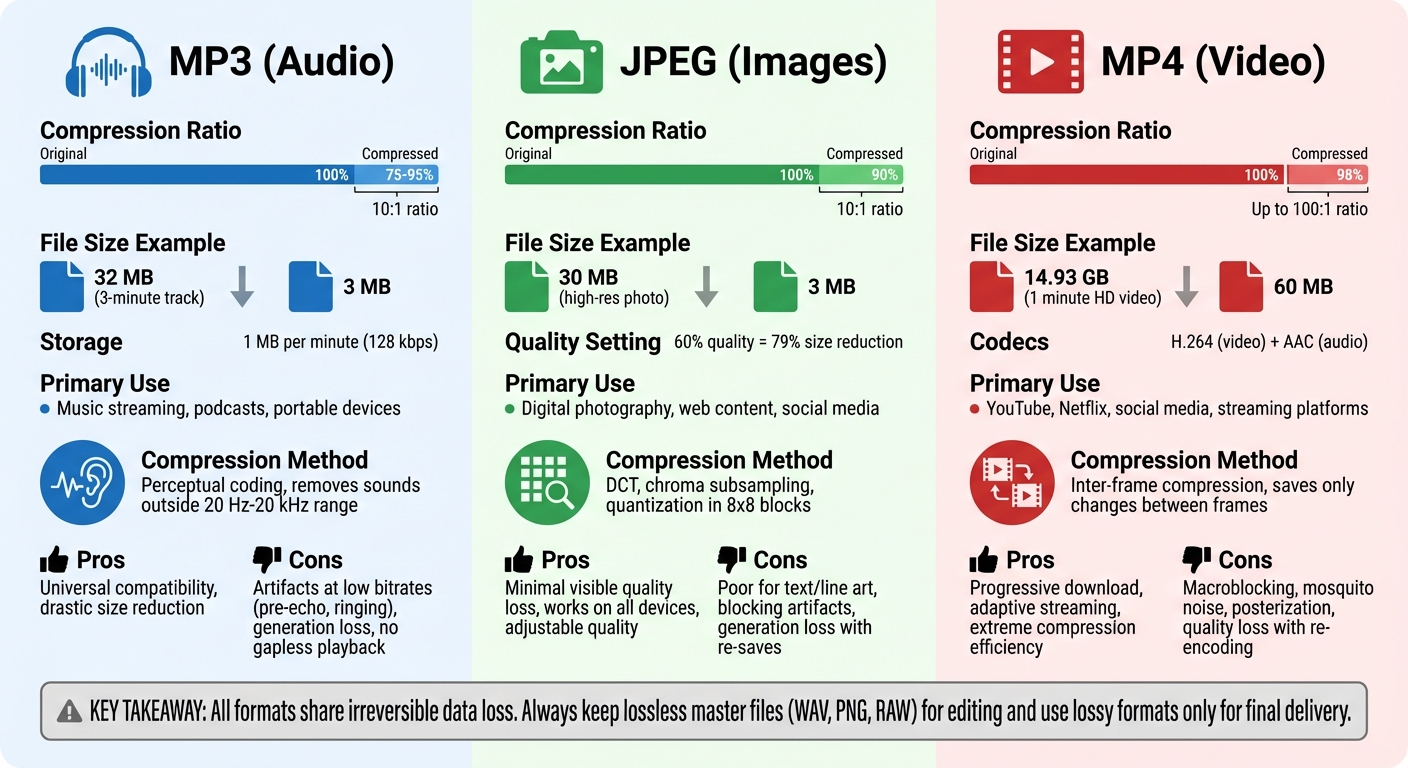
- MP3: Compresses audio by removing sounds outside human hearing or masked by louder tones. Shrinks file sizes by 75–95%.
- JPEG: Reduces image size by focusing on brightness over color, using techniques like chroma subsampling and quantization.
- MP4: Stores video and audio in a compact format by saving only changes between video frames, achieving compression ratios of up to 100:1.
While these formats save space and bandwidth, they come with trade-offs like data loss and possible quality degradation, especially after repeated edits. For best results, always keep a lossless master file (e.g., WAV, PNG, RAW) and use these formats for sharing or final delivery.
Key takeaway: MP3, JPEG, and MP4 make modern media accessible and efficient, but they aren't ideal for editing or archiving. Use them wisely to balance quality and practicality.
1. MP3
Compression Technique
MP3 uses perceptual coding to compress audio by removing details that most listeners won’t notice. This method relies on psychoacoustic modeling, which eliminates sounds masked by louder tones or those outside the human hearing range of 20 Hz to 20 kHz. The encoding process divides the audio into 32 sub-bands using FFT (Fast Fourier Transform) and MDCT (Modified Discrete Cosine Transform), focusing on the most perceptually significant parts. As Paul Sellars from Sound on Sound puts it, "While PCM attempts to capture a waveform 'as it is', MP3 attempts to capture it 'as it sounds'".
Primary Use Case
MP3 has become a go-to format for streaming services, podcast platforms, and portable devices, thanks to its broad compatibility and the ability to significantly shrink file sizes. These qualities make it perfect for managing extensive music libraries and supporting digital radio broadcasts.
File Size Reduction
One of MP3's standout features is its ability to drastically reduce file sizes. For example, a 3-minute CD-quality track that takes up about 32 MB in uncompressed form can be compressed to roughly 3 MB - a 10:1 compression ratio, cutting the size by 75–95%. At a standard bit rate of 128 kbps, MP3 files typically require about 1 MB per minute, compared to the 10 MB per minute needed for uncompressed audio. While 128 kbps provides radio-level quality, higher bit rates like 256 kbps or 320 kbps approach CD-quality audio. Additionally, Variable Bit Rate (VBR) encoding adjusts the bit rate dynamically based on the complexity of the audio, achieving an efficient balance between sound quality and file size.
Artifacts and Drawbacks
MP3 compression isn’t without its flaws. At lower bit rates (96 kbps or below), listeners may notice artifacts like pre-echo, ringing, or smearing of percussive sounds. High frequencies can lose clarity, and the stereo image may feel constrained when compression is too aggressive. Another issue is generation loss - repeatedly editing and re-saving MP3 files causes a gradual decline in audio quality. To maintain the best sound, it’s wise to work from lossless formats like WAV or FLAC whenever possible.
2. JPEG
Compression Technique
JPEG uses a Discrete Cosine Transform (DCT) to reduce image file sizes. It starts by converting images from RGB to Y'CbCr, which separates brightness (luminance) from color (chrominance). Since the human eye is more sensitive to brightness than color, JPEG reduces the resolution of color components using chroma subsampling, often cutting it in half. The image is then divided into 8x8 pixel blocks, and DCT transforms each block from spatial data into frequency data. The real compression happens during quantization, where high-frequency details - those that most viewers wouldn't notice - are discarded by rounding off DCT coefficients. Finally, the remaining data is compressed further using entropy coding methods like Huffman coding, resulting in a compact bitstream.
Primary Use Case
JPEG is the go-to format for digital photography, web content, and social media. By 2015, billions of JPEG images were created daily. Its universal compatibility with devices, browsers, and operating systems, combined with adjustable quality settings, makes it perfect for sharing images online. JPEG shines when dealing with photographs and realistic artwork, especially those with smooth color transitions. As explained by web.dev:
"JPEG's lossy compression attempts to quantize an image source in a way that loosely matches the way our own psycho-visual systems quantize the world around us".
File Size Reduction
JPEG achieves impressive compression, typically reducing file size by a 10:1 ratio with minimal quality loss. Stanford University highlights:
"The baseline algorithm is capable of compressing continuous-tone images to less than 10% of their original size without visible degradation".
For example, adjusting the quality slider in image editors to around 60 can shrink file sizes by about 79% while maintaining a visually acceptable image. This explains how a high-resolution photo that takes up 30 MB uncompressed can be reduced to a 3 MB JPEG with little noticeable difference in quality.
Artifacts and Drawbacks
Over-compressing JPEG images can lead to visible issues. Blocking artifacts - grid-like patterns - appear at the seams of 8x8 pixel blocks. Ringing manifests as faint halos around sharp edges, and overall image clarity suffers as high-frequency details are discarded. These problems are especially noticeable in text, line drawings, and graphics with sharp edges. To minimize quality loss, it's best to work with lossless formats like TIFF or PNG during editing and save to JPEG only as the final step. Up next, we’ll explore MP4, the format that dominates video streaming.
3. MP4
Compression Technique
MP4, or MPEG-4 Part 14, isn’t a compression algorithm itself but a container format that holds audio and video streams, each compressed by specialized codecs. For video, MP4 typically uses the H.264 (AVC) codec, while AAC is the go-to for audio. The magic of MP4 lies in its inter-frame compression, which compares consecutive frames and saves only the differences rather than storing each frame in its entirety. This process, aided by motion compensation, focuses on recording changes between frames. On the technical side, video compression employs discrete cosine transform (DCT), while audio compression relies on modified discrete cosine transform (MDCT) combined with psychoacoustic coding to filter out sounds humans can't perceive.
Primary Use Case
MP4 has become the default format for internet video, thanks to its broad compatibility across devices and browsers. It powers platforms like YouTube, Netflix, and Vimeo and is a staple for social media videos on Instagram Reels, TikTok, and X (formerly Twitter). One of its standout features is progressive download, which lets videos play before fully downloading. It also supports adaptive streaming, adjusting video quality based on available bandwidth. To ensure seamless playback across nearly all devices, pairing the H.264 video codec with AAC audio inside an MP4 container is the safest bet. Like MP3 and JPEG, MP4 strikes a balance between file size and quality, though over-compression can sometimes result in visual artifacts.
File Size Reduction
The efficiency of MP4 compression is remarkable. Videos encoded with H.264 can be up to 98% smaller than their uncompressed counterparts. For example, one minute of uncompressed HD video (1920×1080) might take up approximately 14.93 GB, but as an MP4, it could shrink to just 60 MB. Newer codecs like H.265 offer even better compression - reducing file sizes by 40–50% compared to H.264 - while AV1 can achieve up to 50% more efficiency. In practice, video compression can reach ratios as high as 100:1 while maintaining acceptable quality, whereas audio compression typically achieves around a 10:1 ratio.
Artifacts and Drawbacks
When MP4 files are overly compressed, they can suffer from noticeable visual issues. Macroblocking creates square block patterns, particularly in flat areas, giving the video a "quilted" appearance. Mosquito noise appears as flickering dots around sharp edges, while ringing introduces faint ghost-like edges or colored fringes. Posterization causes smooth gradients to break into distinct bands of color. Since MP4 relies on lossy compression, repeatedly editing and re-saving files can lead to generation loss, where quality deteriorates with each re-encoding. To avoid this, it's best to keep uncompressed or lossless master files for editing and reserve MP4 for final delivery.
sbb-itb-ba72479
Data Compression Explained: Lossless and Lossy Encoding
Pros and Cons
MP3 vs JPEG vs MP4: Compression Ratios and Use Cases Comparison
When it comes to lossy formats, each one has its own strengths and weaknesses. Knowing these trade-offs can help you decide when to use them and when to steer clear.
| Format | Pros | Cons |
|---|---|---|
| MP3 | Reduces file sizes drastically (75–95% smaller than CD audio); universally compatible with nearly all devices and platforms; great for music streaming and portable storage. | Permanently discards data through compression; can introduce artifacts like "ringing" or "pre-echo" at lower bitrates, especially in sharp sounds like applause; lacks native support for gapless playback. |
| JPEG | Achieves up to a 10:1 compression ratio with minimal visible quality loss; ideal for photos with smooth color gradients; works seamlessly across all browsers and devices. | Unsuitable for text, line drawings, or graphics with sharp edges (causes noticeable artifacts); suffers from generation loss with repeated edits and saves; irreversible data loss. |
| MP4 | Compresses video at ratios as high as 100:1 with little visible quality loss; supports progressive downloads and adaptive streaming; the go-to format for platforms like YouTube, Netflix, and social media. | Quality degrades with repeated transcoding; fine details can vanish in high-motion scenes; re-encoding multiple times worsens the quality. |
While these formats offer convenience and efficiency, they all share one major drawback: irreversible data loss. As MDN Contributors explain:
"Lossy compression causes data from the initial file to be lost, possibly causing degradation in quality. The process of such compression is irreversible".
To work around these limitations, always keep a lossless master file - like RAW for images, WAV for audio, or uncompressed video - and use lossy formats only for final delivery. For JPEGs, tools like jpegtran or Exiftran allow simple edits like rotations and cropping without re-compressing the file. When dealing with video, start with the highest-quality source and avoid re-encoding MP4 files multiple times.
Each format also uses clever tricks to save space. MP3 relies on auditory masking, where loud sounds hide quieter ones. JPEG and MP4 reduce color detail while preserving brightness since human eyes are more sensitive to luminance. This is why an audio CD might need about 10 MB per minute of music, but an MP3 can shrink that down to just 1 MB per minute.
Conclusion
MP3, JPEG, and MP4 have become staples of modern media. These formats tackle specific challenges with impressive compression capabilities, enabling us to stream videos, share photos on social media, and store thousands of files on our devices without overwhelming storage or bandwidth. This delicate balance between efficiency and quality is what powers so much of our digital world.
For everyday use, lossy formats are ideal - they're lightweight and practical. However, for professional projects, archiving precious memories, or files that require repeated editing, it's wise to rely on lossless formats like WAV, PNG, or RAW. This approach ensures you maintain the highest quality where it truly matters while keeping your workflow efficient.
When you need to switch between formats - whether for extracting audio or ensuring compatibility with specific devices - tools like ConvertHub make it seamless. Supporting over 800 file types, they offer secure, automated conversions to help you strike the right balance between file size and quality for any task.
Ultimately, while lossy formats might not be flawless, their practicality has revolutionized how we experience media. By understanding their strengths and limitations, you can make better choices about when to compress and when to preserve, tailoring your media management to suit your needs.
FAQs
What’s the difference between lossy and lossless compression?
Lossy compression works by permanently removing data that’s less noticeable to our eyes or ears. The result? A smaller file size, but at the cost of some quality. Once compressed, the original file can’t be fully restored. This approach is commonly used for formats like MP3, JPEG, and MP4, where a bit of quality loss is acceptable to achieve a big reduction in file size.
Lossless compression, however, retains all the original data, allowing the file to be perfectly restored after decompression. While it doesn’t shrink files as much as lossy compression, it’s crucial for uses like medical imaging, archival storage, or files that might need editing later. The main trade-off is clear: lossy compression gives you smaller files with some quality loss, while lossless compression ensures exact reproduction but with a more modest reduction in size.
What happens to the quality of MP3, JPEG, and MP4 files when edited multiple times?
When you repeatedly edit and save MP3, JPEG, or MP4 files, their quality takes a hit over time. This happens because of lossy compression - a process that discards data to reduce file size. Each time you save, the compression algorithm kicks in again, throwing away more data and adding new artifacts.
For JPEG images, this can mean increased blur or grain after every edit-save cycle. Artifacts like blocking and noise become more noticeable, making the image look worse. MP3 audio files suffer too - each re-encoding strips away more detail, leaving the sound harsher and less clear. And for MP4 videos, you might notice issues like macro-blocking or color banding creeping in after multiple saves.
To keep quality intact, try to limit how often you edit and save these files. A smart move is to work from a lossless master or save your edits in a lossless format. If you need to convert files, tools like ConvertHub are handy for processing MP3, JPEG, and MP4 files. They can help reduce unnecessary re-encoding and keep as much quality as possible.
Why should I keep a lossless master file when working with lossy formats?
Keeping a lossless master file is like having a safety net for your data. It ensures you always have the original, high-quality version to fall back on. While lossy formats are handy for saving space, they achieve compression by permanently discarding some data. Once you save a file in a lossy format, there's no way to fully recover its original quality.
By holding onto a lossless master, you can confidently re-edit or export your files later without worrying about additional quality loss. This is especially crucial for tasks like professional editing or converting files into other formats in the future.