Lossy vs. Lossless Compression: What to Choose
File compression reduces file sizes to save space and speed up transfers, but not all compression methods are the same. The two main types are lossy and lossless:
- Lossy Compression: Permanently removes some data to achieve smaller file sizes. Best for photos, videos, and audio where minor quality loss is acceptable. Formats include JPEG, MP3, and MP4.
- Lossless Compression: Retains all original data, allowing perfect restoration. Ideal for archiving, professional editing, and documents requiring precision. Formats include PNG, FLAC, and ZIP.
Key Differences
- Lossy: Smaller files, irreversible quality loss.
- Lossless: Larger files, perfect data preservation.
Quick Comparison
| Feature | Lossy Compression | Lossless Compression |
|---|---|---|
| Data Integrity | Some data discarded | All data preserved |
| File Size | Much smaller | Moderately smaller |
| Use Cases | Streaming, social media | Archiving, editing |
Choose lossy for efficiency and lossless for precision. Use both where needed: edit in lossless formats, then export in lossy for sharing.
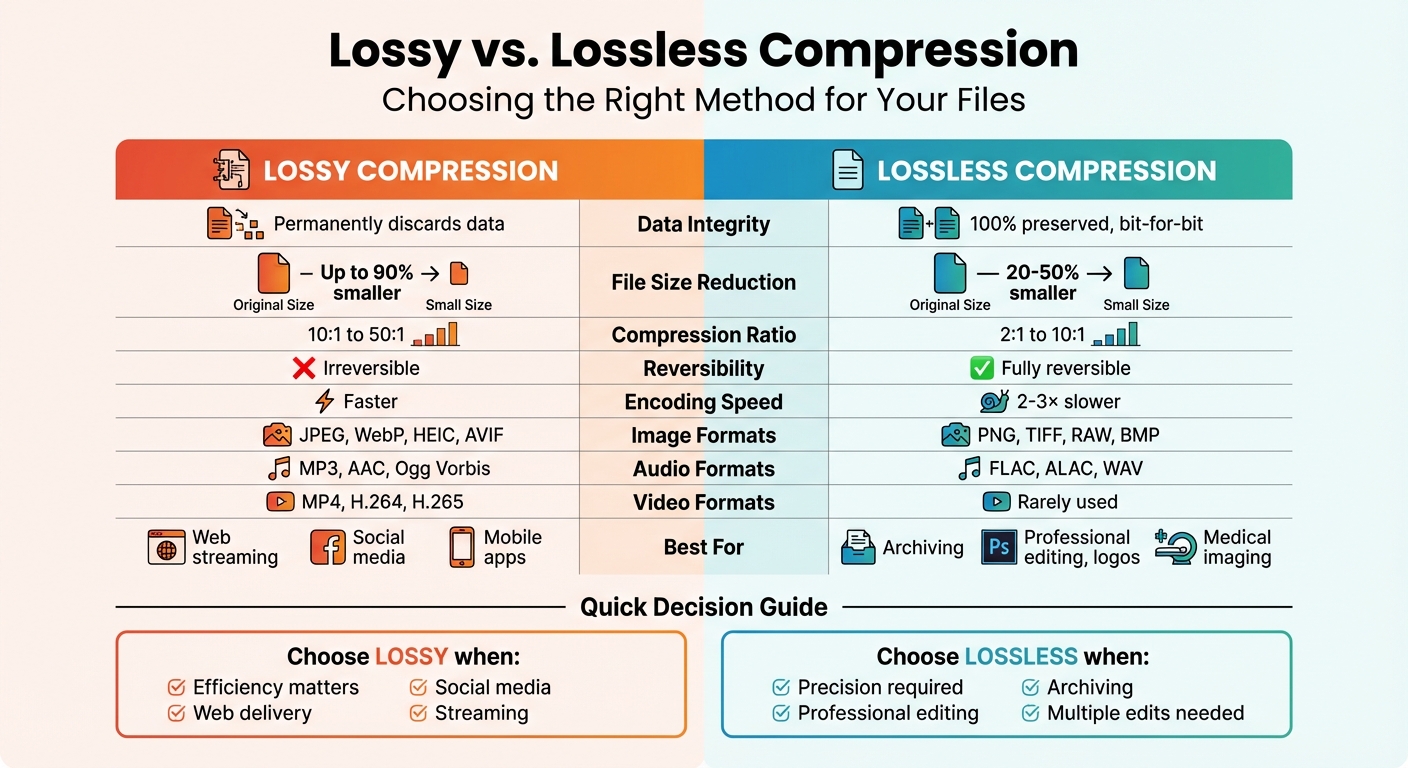
Lossy vs Lossless Compression: Complete Comparison Chart
Lossy vs Lossless Compression | A Beginner’s Guide
sbb-itb-ba72479
What is Lossy Compression?
Lossy compression reduces file sizes by permanently removing data that our senses are less likely to notice. This technique relies on psychovisual redundancy - the concept that our eyes and ears don’t register every small detail in images or sounds.
"Lossy compression reduces file size by permanently discarding image data that human eyes perceive as less important. It exploits psychovisual redundancy in human perception." - The Image CDN
How Lossy Compression Works
The process typically unfolds in three steps. First, spatial data - like individual pixels - is transformed into frequency domain data using the Discrete Cosine Transform (DCT), a method introduced in 1974. Next comes quantization, where less important frequency components are simplified, a step that makes the process irreversible. Finally, the remaining data undergoes further compression using lossless methods like Huffman coding.
Other techniques include predictive coding, which stores only the differences between predicted and actual data, and chroma subsampling, which reduces color detail in areas where human vision is less sensitive.
Benefits of Lossy Compression
The standout benefit of lossy compression is its ability to dramatically shrink file sizes. For instance:
- Image files can be reduced by up to 90%.
- Videos often achieve compression ratios as high as 100:1 with little noticeable quality loss.
- Audio and still images typically compress at ratios around 10:1.
This reduction translates to faster loading times and lower bandwidth costs. Modern formats like AVIF can compress files about 50% more efficiently than traditional JPEGs, while WebP offers 25% to 35% smaller files compared to JPEGs .
Drawbacks of Lossy Compression
The major downside is that the quality loss is permanent. Once data is removed, it cannot be restored. Additionally, repeatedly editing and saving a lossy file - a phenomenon called generation loss - can lead to further quality degradation over time.
Over-compressing files can result in visible issues like blocky textures, color banding, and blurry edges. These artifacts make lossy compression unsuitable for images with text, logos, technical diagrams, or anything that demands high precision .
When to Use Lossy Compression
Lossy compression works best for media like photos and audio where the human brain can fill in small gaps . Common formats you can convert include:
- Images: JPEG, AVIF
- Audio: MP3, AAC
- Video: H.264, H.265
It’s ideal for natural photography, hero images, background banners, streaming video, music services like Spotify, and social media uploads . However, always keep a lossless "master" file (e.g., RAW or TIFF) for editing to avoid generation loss. Save the lossy version only as the final step.
For specialized tasks, such as cropping or rotating JPEGs without degrading quality, tools like jpegtran can make adjustments without re-encoding the image.
Next, we’ll dive into lossless compression and its specific use cases to help refine your decision-making.
What is Lossless Compression?
Lossless compression is a way to shrink file sizes by eliminating redundant data without losing any of the original information. Think of it like creating a ZIP file - when you decompress it, you get back the exact same file, down to the last bit.
"Lossless compression reduces file size by eliminating statistical redundancy without losing any original data. Perfect reconstruction is always possible." - The Image CDN
This process works by identifying patterns in the data. For example, instead of storing repetitive information like "blue blue blue blue", the algorithm condenses it to something like "4 blue." The result? A smaller file that can be restored to its original state without any loss of quality. Let’s dive into the algorithms that make this possible.
How Lossless Compression Works
Lossless compression relies on techniques like dictionary encoding and entropy coding. Take DEFLATE, for instance - used in PNG and ZIP files - it combines the LZ77 algorithm with Huffman coding for better results. Another method, Run Length Encoding (RLE), simplifies repetitive data. For instance, instead of saving "red dot" 200 times, it records "200 red dots." More modern formats like WebP Lossless go a step further by using predictive coding, which stores only the differences between expected and actual data.
Benefits of Lossless Compression
The standout benefit? You can restore the original data perfectly. This makes lossless compression a must for fields like professional photography, medical imaging, and legal or financial documents - any situation where accuracy is non-negotiable.
"With lossless compression the file data is restored and rebuilt in its original form after decompression, enabling the image to take up less space without any discernible loss in picture quality." - Adobe
For graphics-heavy content like logos or screenshots, PNG can reduce file sizes by up to 84% while keeping edges sharp and colors precise. WebP Lossless can often outperform PNG, creating files about 26% smaller. For instance, a 5 MB image might shrink to 3.2 MB as a PNG (a 36% savings) or even to 2.4 MB with WebP Lossless.
Drawbacks of Lossless Compression
While lossless compression is precise, it does have its downsides. The most obvious? The file sizes are often larger compared to lossy methods. Typically, lossless compression reduces file sizes by 20% to 50%, with compression ratios ranging from 2:1 to 10:1. For example, a 2.1 MB PNG product photo might compress to just 180 KB as a JPEG - a difference of nearly 12 times.
Another drawback is the processing power required. Encoding PNG files, for instance, can be 2 to 3 times slower than encoding JPEGs. Formats like AVIF Lossless can take even longer - up to 30 times more processing time. Additionally, there’s a hard limit based on information theory: once a file’s data entropy is maximized, further lossless compression isn’t possible without sacrificing data.
When to Use Lossless Compression
Lossless compression is the go-to choice when preserving data integrity is critical. Common use cases include:
- Images: Formats like PNG, WebP (Lossless), and TIFF
- Audio: Formats such as FLAC, ALAC, and WAV
- Documents: ZIP, 7z, and PDF files
- Medical Imaging: DICOM files
It’s a smart move to save your original or "master" files - like RAW photos or FLAC audio - in a lossless format. This ensures you can edit them later without losing quality. For workflows that balance quality and efficiency, work with lossless formats during editing, then switch to lossy formats for final delivery to save bandwidth.
"Lossless compression is mainly used to compress images, sound, and text... where the loss of picture quality, words or data (e.g., financial data) could pose a problem." - Rahul Awati, TechTarget
Lossy vs. Lossless: Side-by-Side Comparison
The key difference between lossy and lossless compression lies in how they handle data. Lossy compression reduces file sizes significantly - by as much as 90% (compression ratios between 10:1 and 50:1) - by discarding some data. On the other hand, lossless compression retains every bit of data, offering more modest file size reductions of 20% to 50% (compression ratios between 2:1 and 10:1) . This trade-off highlights the balance between efficiency and quality.
Lossless compression is fully reversible, meaning you can restore the original file without any loss of quality. In contrast, lossy compression permanently removes data, making it impossible to recover the original file . Because of this, lossless compression is the go-to choice for scenarios requiring high precision, such as medical imaging, legal documents, and professional editing. Meanwhile, lossy compression is ideal for streaming, social media, and mobile applications where smaller file sizes are a priority.
Comparison Table: Key Differences
| Feature | Lossy Compression | Lossless Compression |
|---|---|---|
| Data Integrity | Permanently discards data | 100% preserved, bit-for-bit |
| File Size Reduction | Up to 90% smaller | 20–50% smaller |
| Compression Ratio | 10:1 to 50:1 | 2:1 to 10:1 |
| Reversibility | Irreversible | Fully reversible |
| Encoding Speed | Faster (e.g., convert JPEG to WebP) | Slower (2–3× slower than JPEG) |
| Image Formats | JPEG, WebP, HEIC, AVIF | PNG, TIFF, RAW, BMP |
| Audio Formats | MP3, AAC, Ogg Vorbis | FLAC, ALAC, WAV |
| Video Formats | MP4, H.264, H.265 | Rarely used for consumer video |
| Best For | Web streaming, social media, mobile apps | Archiving, professional editing, logos, medical imaging |
This comparison highlights the strengths and limitations of each method, helping you decide between preserving data integrity or minimizing file sizes. Up next, learn how to pick the best compression method for your specific use case.
How to Choose the Right Compression Method
Deciding between lossy and lossless compression doesn’t have to be overwhelming. The right choice depends on how you plan to use the file and whether your priority is maintaining quality or reducing file size.
When to Use Lossy Compression
Lossy compression works best when speed and smaller file sizes take precedence over perfect quality. For tasks like building websites, posting on social media, or streaming content, lossy formats such as JPEG, WebP, or MP4 are excellent options. They significantly reduce load times with only minor quality loss, which is crucial because even small delays can negatively impact performance. For web images, starting with 80–90% quality for larger images and 60–70% for thumbnails can help you strike a balance where compression artifacts are nearly invisible.
This method shines with natural images and mobile-first designs, where slight data loss often goes unnoticed by the human eye. Quality settings in the range of 75–90% are usually sufficient for these purposes. However, when preserving every detail is non-negotiable, lossless compression is the better choice.
When to Use Lossless Compression
Lossless compression is necessary when you need to retain every bit of data. It’s essential for tasks like medical imaging, storing legal documents, or archiving files where accuracy is critical. If you plan to edit a file multiple times, working in lossless formats such as RAW, TIFF, or PNG is key to avoiding generation loss. You can always export to a lossy format later for final distribution.
Understanding the Trade-Offs
The choice ultimately comes down to balancing quality and file size. Lossy compression can shrink file sizes by as much as 90%, but it does so by permanently discarding data. On the other hand, lossless compression reduces file sizes by 20–50% while preserving every detail of the original file. For files requiring transparency - like a logo with a transparent background - lossless formats like PNG or modern formats like WebP are ideal, as JPEG does not support transparency.
"Lossy vs lossless compression is always going to be a trade-off between image quality and file size, so find the right balance for your task." - Adobe
A smart workflow combines both methods: work and edit in lossless formats (like RAW for photos or WAV for audio) to maintain maximum detail, then export to lossy formats (like JPEG or MP3) for final sharing. This approach ensures you keep the best quality during the creative process while delivering optimized files for practical use.
Conclusion
Choosing the right compression method comes down to your priorities. Lossy compression is all about reducing file sizes dramatically - sometimes by as much as 90% - which makes it ideal for web images, streaming, and social media where speed and efficiency are critical. On the other hand, lossless compression focuses on preserving every detail of the original file, achieving size reductions of 20-50% while maintaining perfect quality. This makes it the go-to option for logos, archival purposes, and files you plan to edit multiple times. These distinct advantages make it easier to decide based on your specific needs.
Your choice of compression has a direct impact on user experience, load times, storage requirements, and file accuracy. For tasks like optimizing website performance or sharing content online, lossy formats such as JPEG, MP4, or WebP offer quick results with minimal quality compromise. However, when precision is critical - think medical imaging, legal files, or professional-grade photography - lossless formats like PNG, FLAC, or ZIP ensure nothing is lost. Many workflows even blend the two approaches: keeping lossless files for editing and exporting to lossy formats for distribution.
FAQs
What happens to file quality when editing and saving a lossy file multiple times?
When you edit and save a file in a lossy compression format, some data is permanently discarded to shrink the file size. Over time, this repeated process can degrade the quality, often causing noticeable issues like blurring or pixelation. To maintain the best quality, use lossless formats while editing and switch to lossy formats only for the final version, if needed.
When is it better to use lossless compression?
When it's essential to keep a file's original quality intact, lossless compression is the way to go. This method is particularly useful for projects like logos, branding assets, intricate infographics, screenshots, text-heavy images, or archival photographs. It's also a smart choice if the file will be edited multiple times, as it ensures no data is lost during the compression and decompression process.
By retaining every bit of detail, lossless compression guarantees the precision and clarity required for professional-grade results.
What’s the balance between file size and quality in lossy compression?
Lossy compression works by permanently discarding some data to shrink file sizes significantly. While this can make files much smaller, it often comes with a trade-off - noticeable dips in quality, like less sharp images or lower audio clarity. The higher the compression level, the more apparent these changes become.
This approach is great when saving storage space or speeding up file sharing is the main goal. However, it’s not the best choice for files where preserving high quality is crucial, such as professional-grade photos or audio recordings.