
How to Integrate File Conversion Tools with Third-Party Apps
Managing files across platforms can be tedious. Automating file conversions with tools like ConvertHub simplifies this process, saving time and improving workflow efficiency. ConvertHub supports over 800 file formats and integrates seamlessly with platforms like Google Drive, Salesforce, WordPress, and Asana. It ensures secure file transfers with 256-bit SSL encryption and GDPR compliance, while also handling files up to 2GB. Here's how you can set up these integrations:
- Get Started: Create a ConvertHub account (paid plans start at $9/month) and obtain API keys.
- Integration Options: Use no-code tools like Zapier or n8n, or custom code with ConvertHub's well-documented API.
- Key Features: Supports synchronous and asynchronous workflows, webhooks for real-time updates, and chunked uploads for large files.
- Security: Store API keys securely, delete files post-conversion, and monitor usage to avoid interruptions.
I found the ultimate file conversion API
sbb-itb-ba72479
What You Need Before Starting
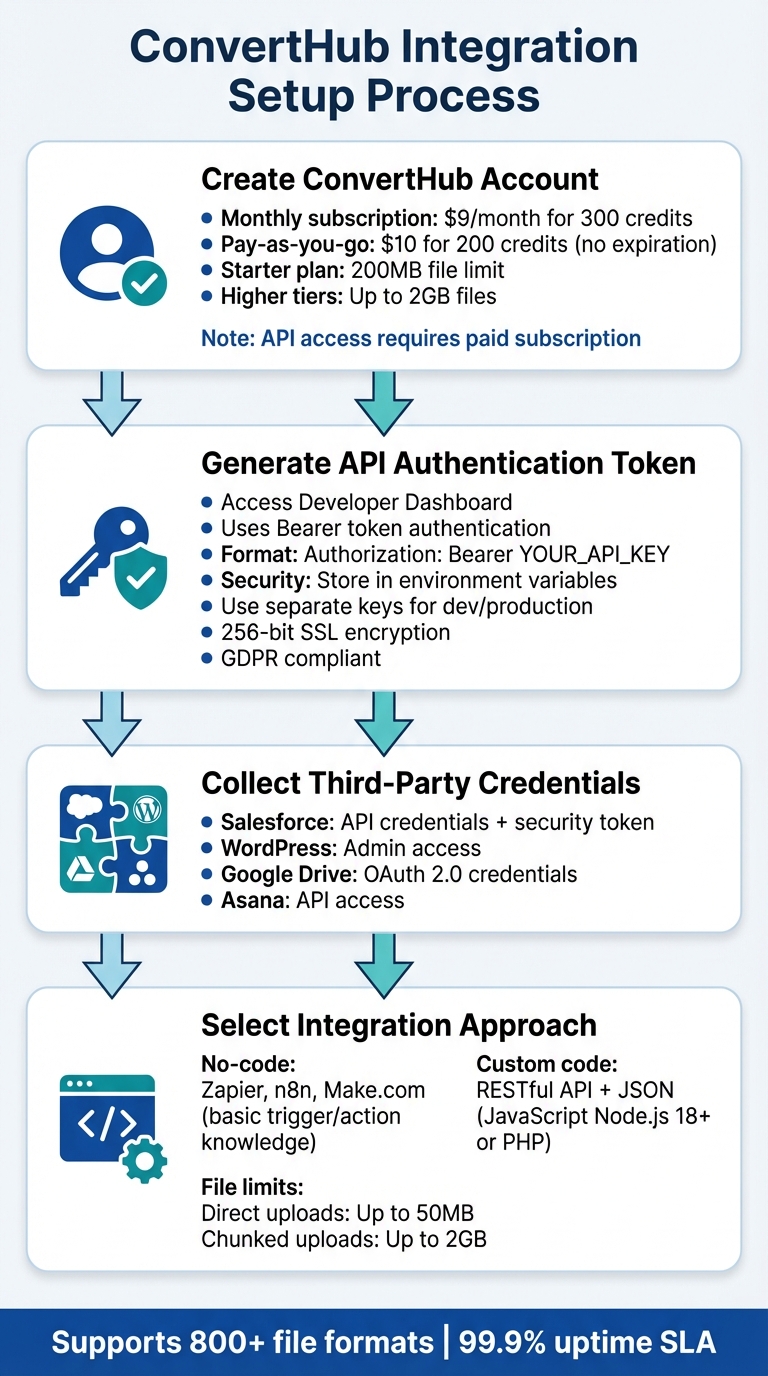
How to Integrate ConvertHub File Conversion API: 4-Step Setup Process
Before integrating ConvertHub with your CRM, CMS, or project management tools, make sure you have everything in place to ensure a smooth setup. These steps will help maintain security, platform reliability, and compliance with GDPR regulations.
Create a ConvertHub Account
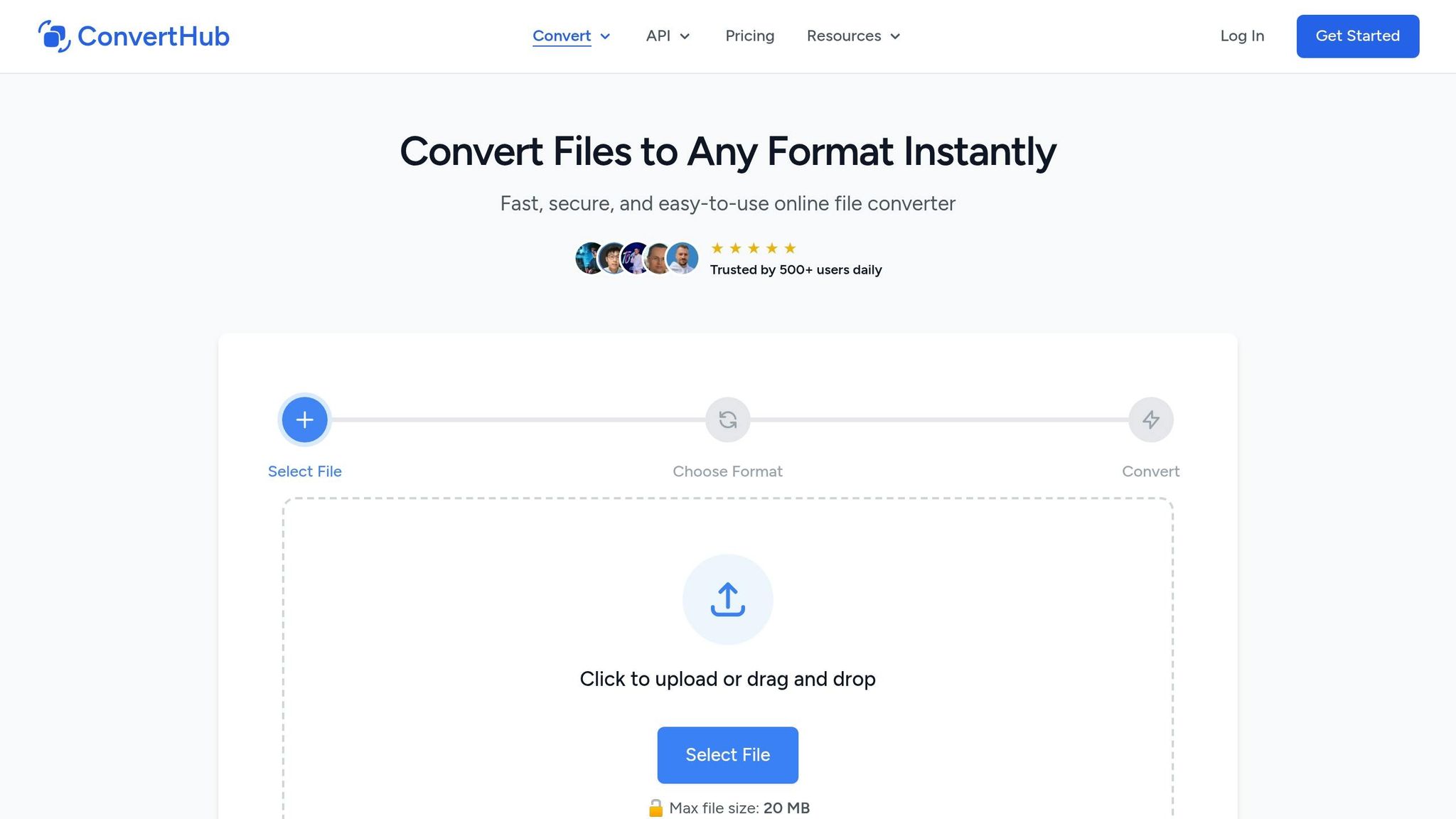
Start by registering for a developer account at https://converthub.com/api/signup. Keep in mind that API access is only available with a paid subscription - free or guest accounts won't provide the integration features you need. You can choose between two options:
- Monthly subscription: Starts at $9/month for 300 credits.
- Pay-as-you-go credits: Starts at $10 for 200 credits with no expiration.
The Starter plan ($9/month) includes a 200MB file limit and 300 credits, while higher-tier plans allow file uploads up to 2GB.
Get Your API Keys and App Credentials
Once you’ve logged in, head to the Developer Dashboard to generate your API authentication token. ConvertHub uses Bearer token authentication, meaning every API request must include the header:
Authorization: Bearer YOUR_API_KEY.
For security, store your keys in environment variables instead of hardcoding them into your application. Use separate keys for development and production environments, rotate them regularly, and regenerate them immediately if you suspect any compromise. These practices, combined with ConvertHub's 256-bit SSL encryption, ensure secure and GDPR-compliant data processing.
Additionally, gather credentials from the platforms you plan to connect. For example:
- Salesforce: API credentials and security token.
- WordPress: Admin access to install plugins or add custom code.
- Google Drive: OAuth 2.0 credentials from the Google Cloud Console.
Having these ready beforehand will save time during the integration process.
Required Technical Knowledge
If you're using no-code tools like n8n, Zapier, or Make.com, you’ll need a basic understanding of how triggers and actions work. For custom integrations, familiarity with RESTful API principles and JSON response structures is essential. ConvertHub operates on an asynchronous workflow: you submit a file, receive a unique job ID, and either poll for updates or set up a webhook listener for real-time updates.
The platform provides official SDKs for JavaScript (Node.js 18+) via npm and PHP via Composer, which simplify tasks like polling and handling chunked uploads. Keep in mind:
- Direct uploads handle files up to 50MB.
- Chunked uploads support files up to 2GB but require knowledge of chunked upload sessions and stream management.
"The API is well-documented, easy to integrate, and respects privacy. If you're looking for a file conversion API that just works, ConvertHub is a smart choice." - Marko Denic, markodenic.tech
Once you’ve completed these steps, you’re ready to start integrating ConvertHub with your favorite third-party tools and services.
Step-by-Step Integration Instructions
Now that you’ve got your API credentials and a good grasp of the basics, let’s dive into connecting ConvertHub to four popular platforms. The process generally follows these steps: authenticate, trigger a conversion, and handle the output file.
Pro tip: Always include a webhook_url parameter in your requests. This ensures you’ll get automatic notifications when a conversion is completed.
Here’s how to integrate ConvertHub with specific platforms:
Connect ConvertHub API with Google Drive
Want to automate file conversions in Google Drive? You can use no-code platforms like n8n, Zapier, or Make.com. For n8n users, installing the "n8n-nodes-converthub" community node allows you to set up workflows that trigger whenever a new file appears in a specific Drive folder. If you’re using Zapier or Make.com, leverage the POST /v2/convert/base64 endpoint to handle base64-encoded file content.
For custom setups, use the POST /v2/convert-url endpoint for public files. This way, ConvertHub downloads the file directly, saving you bandwidth. If you’re working with private files or anything over 50MB, download the file using Google Drive’s API and upload it to ConvertHub using chunked upload endpoints (like /v2/upload/init) for smooth transfers. Once converted, your webhook handler can automatically save the file back to Drive - no need for constant polling.
Connect ConvertHub with Salesforce CRM
Salesforce integrations can be done with either Apex code or no-code tools. Start by securely storing your ConvertHub API key in Salesforce Named Credentials to avoid hardcoding sensitive information. When a document is uploaded to Salesforce, extract its content and submit it to ConvertHub using the standard upload endpoint. If your automation tool requires it, use the POST /v2/convert/base64 endpoint.
To keep things organized, include the Salesforce Record ID in the job metadata. This way, you can easily map converted files back to their corresponding records. Use webhooks to get real-time updates on completed conversions - this eliminates unnecessary API calls and reduces overhead. After saving the converted file back to Salesforce, remember to clean up by calling DELETE /v2/jobs/{jobId}/destroy to remove sensitive documents from ConvertHub servers. Also, check your remaining credits with GET /v2/account to avoid interruptions during large batch processing.
Connect ConvertHub to WordPress
For WordPress, the official ConvertHub PHP SDK is your best bet. It’s compatible with PHP 8.0 or higher and makes integration straightforward. Install the SDK via Composer:
composer require converthub/php-sdk
Once installed, initialize the client with your API key:
$client = new ConvertHubClient('YOUR_API_KEY');
If you’re dealing with media files over 50MB, use the SDK’s chunkedUpload() method to ensure reliable transfers. This method also updates the WordPress Media Library seamlessly, so there’s no need for manual intervention.
Connect ConvertHub with Asana

For Asana, automation platforms can monitor task attachments for new files. When a file is added, your automation tool downloads it and sends it to ConvertHub using the POST /v2/convert/base64 endpoint.
After the conversion is done, webhooks provide the URL of the converted file. You can then update the Asana task by either posting a comment with the download link or attaching the converted file directly. To keep everything in sync, include the Asana task ID in the job metadata. This ensures your webhook handler updates the correct task, giving team members easy access to the converted files without needing to leave Asana.
Using No-Code Automation Platforms
After discussing direct integrations, let’s look at how no-code platforms make automation even easier. Tools like Zapier, Make.com, and n8n allow you to connect ConvertHub to over 8,000 other applications without needing to write a single line of code. These platforms rely on visual builders with drag-and-drop actions, making them accessible to everyone - even those without technical expertise. Most users can set up workflows in under 6 minutes, significantly improving productivity.
For n8n users, ConvertHub provides a dedicated community node called [n8n-nodes-converthub](https://converthub.com/integrations/n8n). To start, install the node, enter your API key, and begin building workflows. For example, you could set up a trigger like "New File in Google Drive", add the ConvertHub node to select from over 800 supported file formats, and connect the output to your desired storage destination. The entire process is visual, straightforward, and beginner-friendly.
If you’re using Zapier or Make.com, you’ll primarily work with their HTTP modules. These modules allow you to interact with ConvertHub’s POST /v2/convert/base64 endpoint, letting you send file content directly without worrying about hosting. While HTTP modules require you to map file content and parameters, they provide flexibility for connecting ConvertHub to various workflows.
Configure ConvertHub Triggers and Actions
In most no-code workflows, a third-party app kicks off the process (e.g., "New Email Attachment in Gmail" or "New File in Dropbox"), and ConvertHub handles the conversion. To streamline this, include a webhook_url parameter in your conversion request. ConvertHub will notify your automation platform as soon as the job is complete - no need for constant polling.
ConvertHub also offers built-in triggers to monitor conversion events. For instance, you can set up a "Conversion Successfully Finished" trigger to notify you when a file is ready or a "Conversion Failed" trigger to alert your team about issues like file corruption or size limits. These triggers keep your workflows responsive and efficient.
Handle Delays and Output Files
When using webhooks, managing processing delays becomes seamless. File conversions take time, but webhooks ensure you’re notified the moment the process is complete. If your platform doesn’t support webhooks, you can add a "Delay" step (typically 5–10 seconds for standard files) or create a polling loop that checks the job status every 2 seconds using the GET /v2/jobs/{jobId} endpoint.
Once the conversion finishes, you’ll receive either a download URL or a Base64-encoded string. Base64 is especially handy for platforms like n8n or Make.com, which handle binary data streams directly. After retrieving the output, remember to call DELETE /v2/jobs/{jobId}/destroy to remove sensitive files from ConvertHub’s servers. Additionally, use the GET /v2/account endpoint to monitor your remaining credits and avoid interruptions during large batch operations.
Best Practices and Troubleshooting
Choose the Right API Mode
When integrating ConvertHub into your workflow, selecting the correct API mode can make all the difference. ConvertHub offers two modes for file conversions: synchronous and asynchronous. Each has its strengths, and the choice depends on your specific needs.
- Synchronous Mode: This keeps the connection open until the conversion finishes. It's ideal for small files (less than 10MB) where instant feedback is necessary. However, it’s not the best choice for larger files, as it can lead to connection timeouts.
- Asynchronous Mode: This mode provides a job ID immediately, allowing your application to handle other tasks while the conversion runs in the background. It’s perfect for production environments, especially when working with high-volume operations or large files (up to 2GB).
| Feature | Synchronous (Direct) | Asynchronous (Job-Based) |
|---|---|---|
| Latency | High (wait for conversion) | Low (immediate job ID return) |
| Error Handling | Immediate timeouts | Better with polling or webhooks |
| File Size | Best for small files (<10MB) | Required for larger files (up to 2GB) |
| Use Case | Simple scripts | Production apps and UI integrations |
For files larger than 50MB, use the /v2/upload/init and /v2/upload/chunk endpoints to avoid FILE_TOO_LARGE errors. Keep in mind that standard API plans support up to 60 requests per minute. If you’re hitting rate limits, consider implementing exponential backoff logic or upgrading your plan.
Maintain Security and Compliance
ConvertHub takes data security seriously, employing 256-bit encryption for files at rest and TLS/SSL encryption for all transfers. The platform complies with GDPR and CCPA regulations, ensuring user rights for EEA and California residents. However, your role in securing the integration is equally important:
- API Key Management: Store API keys in environment variables, use separate keys for development and production, and rotate them regularly.
- File Deletion: For sensitive workflows, delete converted files via the DELETE endpoint immediately after download instead of waiting for the automatic 24-hour deletion.
- Log Retention: ConvertHub keeps metadata logs (not file content) for 90 days, which can be helpful for debugging and monitoring.
Fix Common Problems
Once you’ve set up API modes and security, you may encounter some common issues. Here’s how to address them effectively:
| Error Code | Meaning | Actionable Fix |
|---|---|---|
| 413 FILE_TOO_LARGE | File exceeds 50MB limit | Use chunked upload or URL-based conversion |
| 403 NO_MEMBERSHIP | No active developer plan | Subscribe to a plan or verify your billing status |
| 422 VALIDATION_ERROR | Missing required fields | Check that target_format and file are correctly provided |
| 429 RATE_LIMIT_REACHED | Too many requests | Implement backoff logic or upgrade your API plan |
When using /v2/convert-url for URL-based conversions, make sure the source file is publicly accessible. Restricted access or timeouts can lead to a DOWNLOAD_FAILED error. To stay on top of your API usage, monitor your developer dashboard for credit consumption and check for unauthorized API key activity. You can also programmatically track remaining credits using the GET /v2/account endpoint to avoid disruptions during large batch operations.
Conclusion
Integrating ConvertHub with your third-party apps can completely change how you handle file conversions. Instead of spending time manually converting documents, images, or media files across platforms, you can automate these processes and reclaim hours of your day. Whether you're syncing files with Salesforce, managing WordPress uploads, or organizing project assets in Asana, ConvertHub's API does the hard work for you, supporting over 800 format pairs.
Automation is the game-changer here. By connecting ConvertHub to no-code platforms like n8n or setting up webhooks for real-time updates, you can remove bottlenecks in your document workflows. Files will always be in the right format at the right time. Plus, with a 99.9% uptime SLA and support for files up to 2GB using chunked uploads, the platform is built to grow with your business.
Beyond automation, ConvertHub’s seamless integration ensures that your workflows stay secure and efficient from start to finish.
"ConvertHub API saved us hours of manual processing. The integration was easy and the format coverage is impressive." - Petar Ivanov, petarivanov.tech
Start using ConvertHub today to streamline your file conversions and boost productivity across your team.
FAQs
Which ConvertHub endpoint should I use for my workflow?
The best ConvertHub endpoint varies based on what you're trying to achieve. If you're looking for a broad solution for file conversion, the ConvertHub API v2 is a solid choice. It supports over 800 formats and uses a scalable, job-based system. For tasks involving specific file types, you might want to explore the dedicated format endpoints.
Developers working with tools like n8n can find everything they need in the main API documentation and available SDKs. The primary API endpoint to use is: https://api.converthub.com/v2.
How do I handle files over 50MB (up to 2GB) with ConvertHub?
When working with files larger than 50MB (up to 2GB) on ConvertHub, the API is your go-to solution. It offers chunked uploads, making it easier to handle large files without interruptions. Plus, asynchronous processing ensures efficient file management, even for the largest uploads. This setup is perfect for developers looking to seamlessly integrate file conversion into their workflows.
What’s the safest way to store API keys and delete converted files?
To keep API keys safe, use encrypted environments or configuration files such as .env. Never embed keys directly in your source code. For added security, you can implement encryption techniques like AES-256.
When it comes to deleting converted files, it's best to follow the retention policies of the service you're using. For instance, ConvertHub ensures short retention periods and uses in-memory processing to minimize risks. You can also configure API calls to delete files right after processing. If you store files locally, make sure to delete them securely to prevent unauthorized access.