
API Integration for URL-Based Uploads
ConvertHub's API simplifies file conversions by letting you upload files directly from URLs, bypassing the need for local storage. Here's why it stands out:
- Convert files across 800+ formats (images, videos, documents, and more).
- Supports URL-based uploads - just provide a file's web address, and the API handles the rest.
- Offers asynchronous processing with webhook notifications for completed jobs. You can also automate file conversions with n8n to streamline your workflow.
- Ensures security with 256-bit encryption and automatic file deletion after 24 hours.
- Flexible pricing: Subscription plans start at $9/month, or use Pay-As-You-Go credits that never expire.
How It Works:
- Send a file URL and desired output format via API.
- The API processes the file and provides a download link.
- Optional: Upload converted files directly to AWS S3 or Cloudflare R2.
With 50 free API calls for testing, no credit card required, you can try it risk-free.
Example Use Case: Convert a PDF from a URL to DOCX in seconds using a simple cURL request or SDK integration.
ConvertHub's API is a practical solution for developers looking to streamline file processing and save on infrastructure costs.
Upload Files To OneDrive From URLs Using Microsoft Graph API In Python

sbb-itb-ba72479
Setting Up ConvertHub API Authentication
ConvertHub API Pricing Plans Comparison: Subscription vs Pay-As-You-Go
To start converting files with ConvertHub, you'll need to generate an API key. This key acts as your gateway to seamless URL-based conversions.
How to Generate and Configure Your API Key
First, sign up for a paid ConvertHub account to access API functionality. Once you've selected a plan, visit the Developer Dashboard on the ConvertHub website. This is where you can create and manage your API keys. After generating your key, include it in all API requests by adding it to the Authorization header as a Bearer token:
Authorization: Bearer YOUR_API_KEY
For those using Node.js or PHP SDKs, pass your API key as a string during client initialization:
const client = new ConvertHubClient(process.env.CONVERTHUB_API_KEY);
To keep your API key secure, store it in environment variables. This prevents accidental exposure in your codebase. If your key is ever compromised, you can regenerate a new one through your account settings to avoid unauthorized credit usage.
Once your API key is ready, take a moment to familiarize yourself with the pricing plans to understand how credits and limits work.
Understanding Pricing Plans
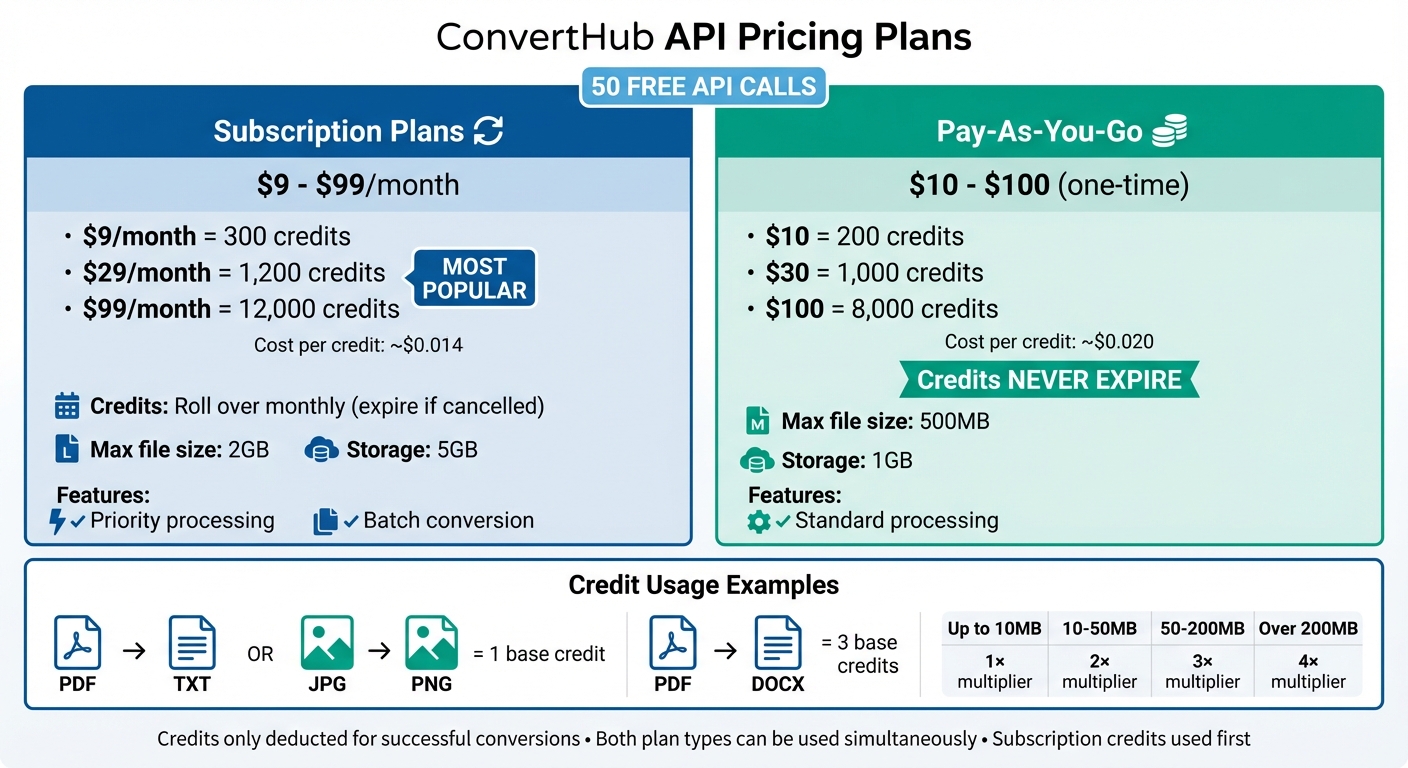
ConvertHub operates on a credit-based system, where each file conversion consumes credits depending on the type and size of the file. Your chosen plan determines the number of credits you receive, the maximum file size allowed, and whether credits expire.
Subscription Plans
These plans start at $9 per month for 300 credits and go up to $99 per month for 12,000 credits. The $29 per month plan is the most popular, offering credits at approximately $0.014 each. Subscription credits roll over each month as long as you remain subscribed, but they will expire if you cancel. Additional perks include support for files up to 2GB, priority processing, batch conversion, and 5GB of storage.
Pay-As-You-Go Plans
These plans begin at $10 for 200 credits and can go up to $100 for 8,000 credits. A $30 one-time payment provides credits at around $0.020 each. The advantage here is that credits never expire, making it a great option for those with irregular conversion needs. However, file size is capped at 500MB, and you get 1GB of storage.
You can use both subscription and Pay-As-You-Go credits simultaneously. The system prioritizes subscription credits first before utilizing your Pay-As-You-Go balance. This flexibility allows you to handle consistent workloads while keeping a backup for unexpected spikes.
The cost of conversions depends on the file type and size. Basic operations like PDF → TXT or JPG → PNG cost 1 base credit, while more complex tasks like PDF → DOCX cost 3 base credits. File size also plays a role - files up to 10MB use a 1× multiplier, while files over 200MB apply a 4× multiplier. For high-volume jobs, use the on-site Credits Calculator to estimate your total credit usage.
Importantly, credits are only deducted for successful conversions. If a request fails due to technical issues, you won't lose any credits.
Once you've chosen the right plan, set up your headers and take note of rate limits for smooth integration.
Authentication Headers and Rate Limits
Every API request must include the Authorization header with your Bearer token. If this is missing, you'll encounter an AUTHENTICATION_REQUIRED error code. A typical header setup looks like this:
Authorization: Bearer YOUR_API_KEY
Content-Type: application/json
Standard API plans allow up to 60 requests per minute. If you exceed this limit, the API will return an HTTP 429 status code. The response will include a retry_after detail, indicating when you can safely send another request. To handle this, program your application to catch HTTP 429 errors and delay further requests.
You can also track your credit usage programmatically with the client.getAccount() method in the SDK. This allows you to monitor your balance and set up alerts for low credits. Additionally, the API supports customization options like a configurable baseUrl, adjustable request timeout (default up to 10 minutes), and a debug mode for logging. These features help you fine-tune how the API operates within your infrastructure.
ConvertHub offers 50 free API calls for testing purposes, with no credit card required. This gives you a risk-free way to validate the integration before committing to a paid plan.
How to Use the API for URL-Based Uploads
Once you've set up authentication, the next step is integrating URL-based file conversions into your workflow using the /convert endpoint. This process is simple: provide a file URL, specify the output format you need, and let the API handle the rest.
The /convert POST Endpoint
The /convert endpoint is accessible at https://api.converthub.com/v2/convert and accepts POST requests with a JSON payload that includes your conversion details.
Here’s what you’ll need to include:
-
Required parameters:
input_url: The public URL of the file you want to convert.output_format: The desired file format (e.g., "pdf", "docx", "jpg").
-
Optional parameters:
batch_mode: For processing multiple files at once.priority: Speeds up processing (available on premium plans).webhook_url: A callback URL to receive notifications when the job is complete.
The API operates asynchronously. When you send a request, you’ll receive a job_id in the response. This ID allows you to check the job status at /v2/jobs/{job_id} and, once completed, download the converted file from /v2/jobs/{job_id}/download.
Sample HTTP Request
Here’s an example of a cURL request that converts a PDF to DOCX with priority processing:
curl -X POST https://api.converthub.com/v2/convert \
  -H "Authorization: Bearer YOUR_API_KEY" \
  -H "Content-Type: application/json" \
  -d '{
    "input_url": "https://example.com/document.pdf",
    "output_format": "docx",
    "priority": true
  }'
If successful, the API responds with a JSON object containing the job_id, the current status (e.g., "processing"), and an estimated time for completion. To get notified when the job is done, include a webhook_url in your request.
Supported Formats and File Size Limits
The API supports a wide range of file conversions, from basic ones like PDF → TXT and JPG → PNG to more complex tasks like PDF → DOCX and MP4 → AVI.
File size limits depend on your plan:
- Free users: Up to 100 MB per file.
- Subscription plans: Up to 2 GB per file.
- Pay-As-You-Go plans: Up to 200 MB per file.
Keep in mind that the ConvertHub API does not support OCR (Optical Character Recognition). If you need text extraction from scanned images or PDFs, you’ll need to use a separate tool for that.
For large batch jobs, it’s a good idea to check your account’s remaining credits and file size limits using the GET /v2/account endpoint before starting the process.
Code Examples by Programming Language
Building on the earlier explanation of the /convert endpoint, here are examples of how to use ConvertHub's API for URL-based uploads in different programming languages. These examples cover authentication, job submission, status polling, and downloading the converted file.
Node.js Example
ConvertHub offers an official JavaScript SDK (@converthub/sdk) that simplifies working with Node.js (version 18.0 or higher). Start by installing the SDK with npm install @converthub/sdk. You can then use the convertFromUrl method for processing remote files.
const { ConvertHubClient, ConvertHubError } = require('@converthub/sdk');

async function convertRemoteFile() {
  const client = new ConvertHubClient({ apiKey: process.env.CONVERTHUB_API_KEY });

  try {
    const job = await client.convertFromUrl({
      fileUrl: 'https://example.com/document.pdf',
      targetFormat: 'docx'
    });

    while (job.status === 'processing') {
      await new Promise(resolve => setTimeout(resolve, 2000));
      await job.getStatus();
    }

    if (job.status === 'completed') {
      console.log('Download URL:', job.result.download_url);
      await job.download('converted_document.docx');
    } else {
      console.error('Conversion failed:', job.message);
    }
  } catch (error) {
    if (error instanceof ConvertHubError) {
      console.error(`API Error [${error.code}]: ${error.message}`);
    } else {
      console.error('Unexpected error:', error.message);
    }
  }
}
The SDK takes care of authentication and includes a ConvertHubError class for better error handling. Always store your API key in environment variables to keep it secure.
Python Example
In Python, you can use the requests library to interact with the API. This approach involves submitting a job, polling for its completion, and downloading the result. Install the library with pip install requests.
import requests
import time

API_KEY = 'YOUR_API_KEY'
BASE_URL = 'https://api.converthub.com/v2'

headers = {
    'Authorization': f'Bearer {API_KEY}',
    'Content-Type': 'application/json'
}

# Submit conversion job
response = requests.post(f'{BASE_URL}/convert', headers=headers, json={
    'input_url': 'https://example.com/document.pdf',
    'output_format': 'docx'
})

job_data = response.json()
job_id = job_data['job_id']

# Poll for completion
while True:
    status_response = requests.get(f'{BASE_URL}/jobs/{job_id}', headers=headers)
    job_status = status_response.json()

    if job_status['status'] == 'completed':
        download_url = job_status['result']['download_url']
        file_response = requests.get(download_url)

        with open('converted_document.docx', 'wb') as f:
            f.write(file_response.content)
        print('Conversion complete!')
        break
    elif job_status['status'] == 'failed':
        print(f"Conversion failed: {job_status['message']}")
        break

    time.sleep(2)
To avoid being rate-limited, use a 2-second polling interval. For higher efficiency in large-scale applications, the webhook_url parameter can be used to receive asynchronous notifications when the conversion is complete.
cURL and JavaScript Examples
For quick testing or use in shell scripts, cURL provides a simple way to interact with the API:
curl -X POST https://api.converthub.com/v2/convert \
  -H "Authorization: Bearer YOUR_API_KEY" \
  -H "Content-Type: application/json" \
  -d '{
    "input_url": "https://example.com/presentation.pptx",
    "output_format": "pdf"
  }'
For browser-based JavaScript, you can use the fetch API with the same endpoint structure. The official JavaScript SDK, however, makes integration easier by abstracting polling logic into methods like waitForCompletion().
| Feature | cURL Integration | JavaScript SDK |
|---|---|---|
| Complexity | High (Manual polling/parsing) | Low (Built-in abstractions) |
| Best Use Case | CLI tools, Shell scripts, Testing | Web apps, Backend services, Node.js |
| Polling | Manual GET requests in a loop |
Automated via waitForCompletion() |
| Type Safety | None | Full TypeScript definitions |
While cURL is great for prototyping and testing connectivity, the SDK is better suited for production environments due to its built-in error handling and automated status polling.
Working with API Responses and Errors
Reading JSON Responses
To ensure smooth error handling, it's essential to understand the structure of API responses. ConvertHub's API returns a JSON object containing a success flag and a data payload. When you submit a conversion request to /v2/convert, the response includes a job_id along with the initial status details. Since file processing is asynchronous, you’ll need to monitor the job's progress.
You can track progress by checking the file_size (in bytes) and estimated_time (in seconds) for the remaining processing time. To get updates, you can either poll the GET /v2/jobs/{id} endpoint periodically or set up a webhook to receive automated POST notifications when the conversion finishes. Using webhooks in production environments is ideal, as they reduce unnecessary API calls and improve efficiency. Make sure the job status is marked as completed before accessing the download_url - otherwise, you'll encounter 404 errors.
Additionally, any custom metadata you include with your request will be returned in the job status response, making it easier to manage API interactions and handle potential errors.
Common Error Codes and Solutions
Handling errors effectively requires understanding the error codes and their solutions. Below is a quick reference:
| Error Code | HTTP Status | Description | Solution |
|---|---|---|---|
AUTHENTICATION_REQUIRED |
401 | Missing or invalid API key | Check the Authorization: Bearer header format and validate your API key in the dashboard. |
VALIDATION_ERROR |
422 | Invalid parameters (e.g., unsupported format, missing fields) | Review error.details.validation_errors for specific field issues. |
RATE_LIMIT_EXCEEDED |
429 | Too many requests in a short time | Use the retry_after value to implement retry logic. |
INSUFFICIENT_CREDITS |
402 | Zero account balance | Purchase additional credits or upgrade your subscription. |
FILE_TOO_LARGE |
413 | File exceeds size limits | Upgrade your plan (Free: 100 MB, Premium: 2 GB) or use chunked uploads. |
NOT_FOUND |
404 | Invalid or expired job_id |
Verify the job ID; files are auto-deleted after 24 hours. |
Job-specific errors include codes like 6001 (DRM protected), 6002 (password protected), 6004 (unsupported format), and 6020 (conversion timeout). For 6002, ensure you include the file password in your request. If you encounter 6004, confirm the format compatibility using the /formats endpoint before submitting the job.
Always rely on the numerical error code for error handling, as the message text may change between API versions, while the codes remain consistent.
API Usage Tips
Effective error management and resource monitoring are crucial for reliable API usage. Use the getAccount() method to keep track of credits_remaining and avoid disruptions during conversions. ConvertHub offers a 99.9% uptime SLA and supports up to 60 requests per minute on standard plans.
For added security, delete files manually using the deleteFile() endpoint after downloading, rather than waiting for the automatic 24-hour deletion. All file transfers are encrypted with 256-bit SSL/TLS, and the platform complies with GDPR standards, ensuring a "Zero Access" policy where staff cannot access your files.
To optimize performance when processing multiple URLs, leverage asynchronous promises for parallel conversions. For files larger than 50 MB, use the Chunked Upload API to improve reliability and avoid the 3× credit multiplier applied to files exceeding this threshold. If your file URLs are included as query parameters, be sure to percentage-encode them (e.g., http://example.com becomes http%3A%2F%2Fexample.com).
"The API is well-documented, easy to integrate, and respects privacy. If you're looking for a file conversion API that just works, ConvertHub is a smart choice." - Marko Denic, markodenic.tech
Batch Processing and Priority Features
Processing Multiple URLs in One Request
With ConvertHub, you can handle multiple file conversions at once using asynchronous requests. This is done through concurrent, individual convertFromUrl calls, leveraging your programming language's concurrency tools - like Promise.all in JavaScript or asyncio.gather in Python.
For batches larger than 10 files, it's recommended to include a webhookUrl in your requests. This allows the API to send conversion results directly to your server, cutting down on the need to repeatedly poll the /jobs/{id} endpoint. This approach is especially useful for handling large-scale workflows efficiently.
If your application requires faster results, you might want to explore priority processing.
Using Priority Processing
Priority processing ensures that your conversion jobs are bumped to the front of the queue, offering faster and more predictable response times. This feature is available starting at $9/month and is perfect for use cases like real-time previews or instant media transformations.
That said, it’s not ideal for every situation. Avoid using priority processing for background tasks, large non-urgent batches, or workflows prone to sudden traffic surges. For instance, if your traffic jumps by 50% within 15 minutes, priority jobs might be downgraded to standard processing and billed accordingly. To keep priority benefits intact, gradually scale up traffic over a few hours using feature flags instead of making abrupt changes.
Now, let’s look at how to handle storage and scaling for heavy workloads.
Storage and Scaling Options
ConvertHub subscription plans include 5GB of internal storage, but for higher demands, external cloud storage integration is the way to go. You can connect services like AWS S3 or Cloudflare R2 through the API settings, enabling automatic syncing of converted files to your infrastructure. This not only bypasses internal storage limits but also streamlines workflows, making it easier to integrate with CI/CD pipelines or automation tools like n8n.
Keep in mind that file size impacts credit usage:
- Files between 10–50 MB consume 2× credits.
- Files between 50–200 MB consume 3× credits.
- Files over 200 MB consume 4× credits.
For files nearing 2GB on premium plans, the chunked upload API ensures reliable transfers. With a 99.9% uptime SLA and support for up to 60 requests per minute, ConvertHub is built to handle enterprise-level integrations efficiently.
"ConvertHub API saved us hours of manual processing. The integration was easy and the format coverage is impressive." - Petar Ivanov, petarivanov.tech
Conclusion
ConvertHub's URL-based upload API provides developers with a straightforward way to handle file conversions by initiating jobs directly from URLs. This eliminates bandwidth costs and simplifies infrastructure management. The convertFromUrl method operates asynchronously, ensuring your application remains responsive while jobs are processed in the background. This efficient setup integrates effortlessly into existing workflows, reducing operational hurdles.
With official SDKs for PHP and JavaScript, integration takes as little as 5 minutes. Webhook support enables event-driven workflows, removing the need for constant status checks. Features like automatic syncing with AWS S3 or Cloudflare R2 eliminate manual downloads, while chunked uploads ensure reliable transfers for large files. Additionally, the getAccount() method lets you monitor remaining credits programmatically, helping you avoid service interruptions.
"The API is well-documented, easy to integrate, and respects privacy. If you're looking for a file conversion API that just works, ConvertHub is a smart choice." - Marko Denic, markodenic.tech
These features make ConvertHub suitable for a wide range of use cases, including content management systems, automated media workflows, and document processing. By automating file conversions, the API allows you to focus on building your core product. Pricing options include subscription plans starting at $9/month or pay-as-you-go credits that never expire.
FAQs
Do my file URLs need to be public?
No, your file URLs don’t have to be public. They can remain private or protected. However, the key is that the API must be able to access the URL to handle the conversion. Make sure the API has the necessary permissions to access the URL for the upload to work properly.
How do I verify a webhook really came from ConvertHub?
To ensure a webhook request is genuinely from ConvertHub, you need to verify the signature or token included in the request. The exact process involves checking the signature or secret key found in the request's headers or payload. For detailed steps, consult ConvertHub's API documentation. Following this process helps confirm the request's legitimacy and adheres to common webhook security protocols.
How can I estimate credits before converting?
Before converting, it's a good idea to review your plan's credit usage and remaining balance. ConvertHub’s API and plans make it simple by offering clear details about how credits are allocated. Some API SDKs and documentation even include tools to monitor credit consumption in real time during the conversion process. For accurate information, check your specific plan and the accompanying documentation.