
Cloud Storage Integration: Benefits for File Conversion
Tired of juggling manual file uploads, downloads, and conversions? Cloud storage integration solves these hassles by automating the entire process. Here's how it works:
- Direct Transfers: Files move between cloud platforms (e.g., Amazon S3, Google Cloud) without touching your local device.
- Time Savings: Automate repetitive tasks like converting, watermarking, and organizing files.
- Handles Large Files: Process massive files (over 10MB) smoothly without browser timeouts or storage issues.
- Improved Collaboration: Access and edit files across devices with real-time syncing and version tracking.
- Strong Security: Use encrypted connections, API keys, and role-based permissions to safeguard data according to our privacy policy.
Problems with File Conversion Without Cloud Integration
Storage Space and Device Limitations
Local storage can fill up fast when you're juggling both original and converted files. This becomes especially problematic with large file types like high-resolution videos or data from IoT sensors, which can quickly grow to gigabytes in size.
Here’s the kicker: nearly 70% of enterprise data is classified as "cold data" - files that are rarely accessed but still consume expensive storage and backup resources. To avoid running out of space, 47% of organizations over-provision their storage by 30% to 50%. This means businesses are forced to invest in extra hardware just to handle peak usage periods - like seasonal spikes - leaving costly equipment underutilized most of the time.
"At least 70% of enterprise data is cold data, sitting on expensive storage, consuming the same backup resources as hot data." – Komprise
The risks don’t end there. Manual file transfers often lead to errors, and 23% of organizations report data loss during these processes. On top of that, downtime caused by migration issues can cost companies a staggering $5,600 per minute.
And let’s not forget the chaos caused by poor file management.
Version Control and File Organization Problems
Without a centralized system for version control, teams often lose track of changes, leading to overwrites or even data loss. This problem only grows as files are shared across departments. Shockingly, 21% of an organization's files are accessible to all employees, making it nearly impossible to monitor access or pinpoint why critical files go missing.
"If an original paper document is lost or destroyed, or not able to be reproduced on paper, your business could face legal ramifications, either from Federal entities or the customer(s) whose sensitive information goes missing." – Kristen Sparkes, UBEO
When file conversions are handled manually, filenames can become a confusing mess. Teams are often left wondering which file is the most up-to-date, slowing down workflows and increasing the risk of errors. For remote teams, the situation worsens. Without automated systems, they’re stuck with slow and insecure file-sharing methods, which not only drag down productivity but also pose serious security risks - especially for sensitive data that needs to be retained for years.
Disorganized files are just one side of the coin. The manual transfer process itself can grind productivity to a halt.
Slow Manual File Transfer Processes
The manual cycle of downloading, converting, and re-uploading files is a huge bottleneck. These inefficiencies are completely avoided with automated cloud-to-cloud processing.
Tools like robocopy and rsync might be free, but they’re far from efficient. They require significant manual effort, are prone to errors, and don’t scale well for larger tasks. Just one unreliable document conversion process can throw entire workflows into disarray, wasting hours of valuable developer time.
"A single unreliable document conversion API can disrupt entire workflows and waste hours of developer time." – Nikolas Dimitroulakis, ApyHub
The challenges don’t stop there. Scanning large datasets can take weeks, delaying critical projects. Legacy systems, often spread across multiple servers, struggle to handle large file volumes efficiently without the scalability of cloud resources.
Without cloud integration, these issues pile up, creating a perfect storm of inefficiency, wasted resources, and avoidable costs.
sbb-itb-ba72479
How to Convert and Upload Google Drive File using CloudConvert
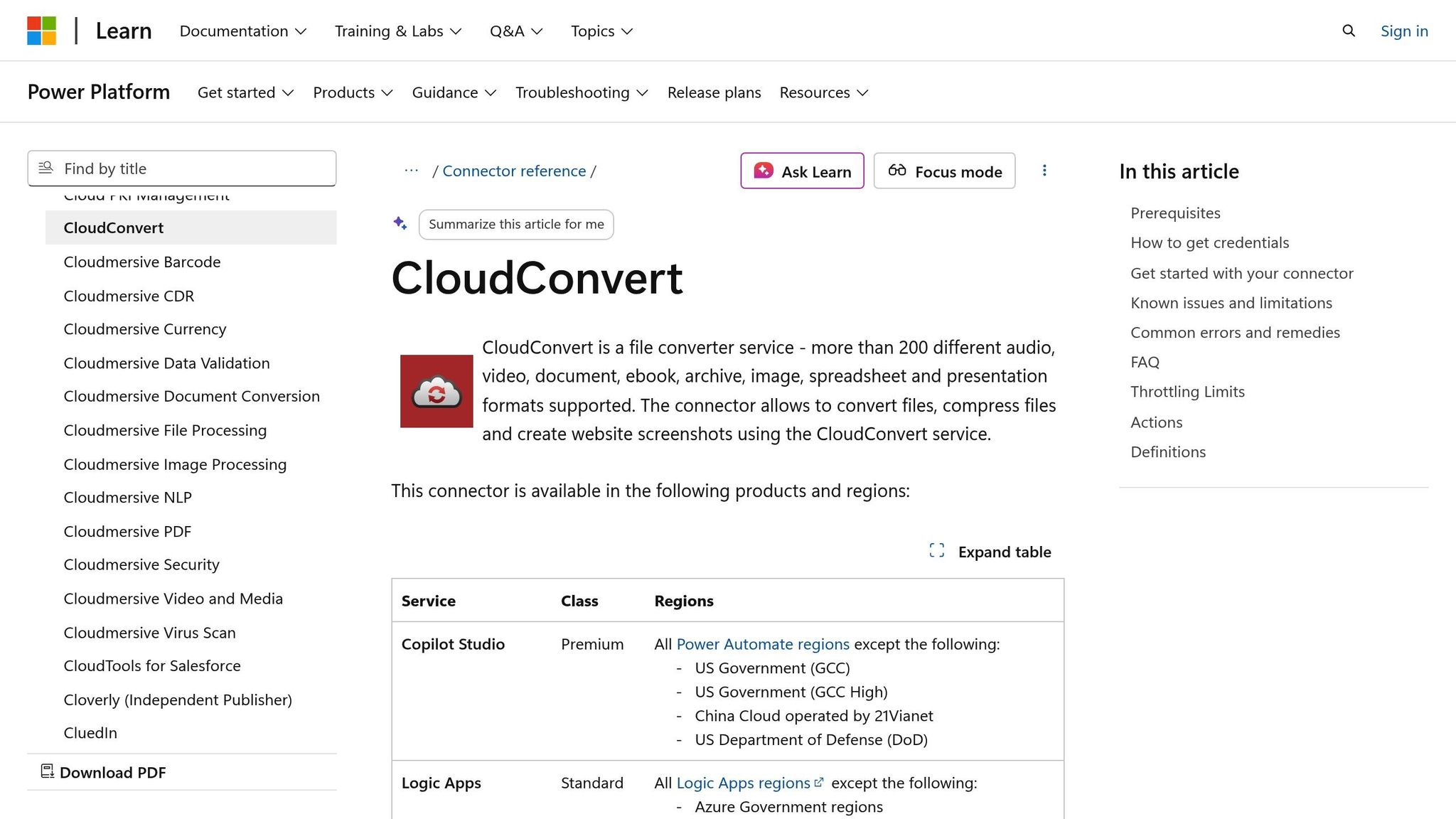
How Cloud Storage Makes File Conversion Easier
Pairing cloud storage with file conversion platforms removes the hassle of manual workflows. Instead of downloading, converting, and re-uploading files, cloud integration creates a seamless connection between your storage and the conversion service.
Direct File Uploads and Automatic Processing
Cloud storage APIs act as direct connectors between your storage and conversion platforms, eliminating the need for manual steps. With these APIs, files can be uploaded directly from services like Amazon S3, Google Cloud Storage, or Microsoft Azure to the conversion platform, bypassing the need for temporary local storage.
"Cloud Storage APIs are the bridges that connect applications to cloud storage services." – HIVO
Automation simplifies things further by pushing converted files back to your cloud storage - such as AWS S3 or Cloudflare R2 - right after processing. For example, ConvertHub’s auto-sync feature manages this entire cycle without requiring manual input. For larger files (over 10MB), asynchronous import methods handle the process smoothly, avoiding common payload issues tied to base64 encoding.
Tools like n8n make workflows even easier by triggering conversions when specific events occur, such as when a new file is added to your Google Cloud Storage bucket. Webhooks can then notify you in real time when the conversion is complete, meaning you don’t have to keep checking manually. This setup ensures files are ready for use across devices, which we’ll explore next.
| Cloud Storage Provider | Integration Features |
|---|---|
| Amazon S3 | Input/Output, Auto-push, API Import |
| Google Cloud Storage | Input/Output, Workflow Automation, Metadata Extraction |
| Microsoft Azure | Input/Output, Blob/File Storage Import |
| Cloudflare R2 | Auto-sync/Push Output |
| OpenStack Swift | Input/Output, API Import |
Instant Access from Any Device
With automated processing in place, cloud integration ensures your files are accessible anywhere, at any time. Input files are retrieved, and outputs are saved directly to cloud storage, removing the need for local file handling. For smaller files, synchronous APIs allow "on-the-fly" conversion, letting you receive the processed file almost instantly within the same request cycle. For larger files, webhooks notify devices as soon as the task is completed.
Some services also generate temporary secret URLs with unique IDs, enabling any device with a browser to access or download the file for a limited time - usually around three hours - without requiring a login. Additionally, responsive design frameworks, like Tailwind CSS, ensure the conversion interface works smoothly across mobile, tablet, and desktop devices.
Preserving File Information and Automating Updates
Cloud integration doesn’t just make file transfers easier; it also retains important file details during conversion. Platforms can extract and embed metadata, such as image resolution, video dimensions, or document page numbers, into the converted file.
Automated workflows can take a file from a URL, convert it, add a watermark, and export it back to cloud storage - all in one streamlined process. This ensures version control, keeping the latest file version accessible to authorized team members. Security measures like authenticated connections, Azure SAS tokens, and Google Cloud’s private keys safeguard data during import/export processes.
"The API is well-documented, easy to integrate, and respects privacy. If you're looking for a file conversion API that just works, ConvertHub is a smart choice." – Marko Denic, markodenic.tech
For developers, caching mechanisms during API integration reduce system load and improve response times. Building modular and scalable systems ensures they can handle growing data demands as your requirements evolve.
Main Benefits of Cloud-Based File Conversion
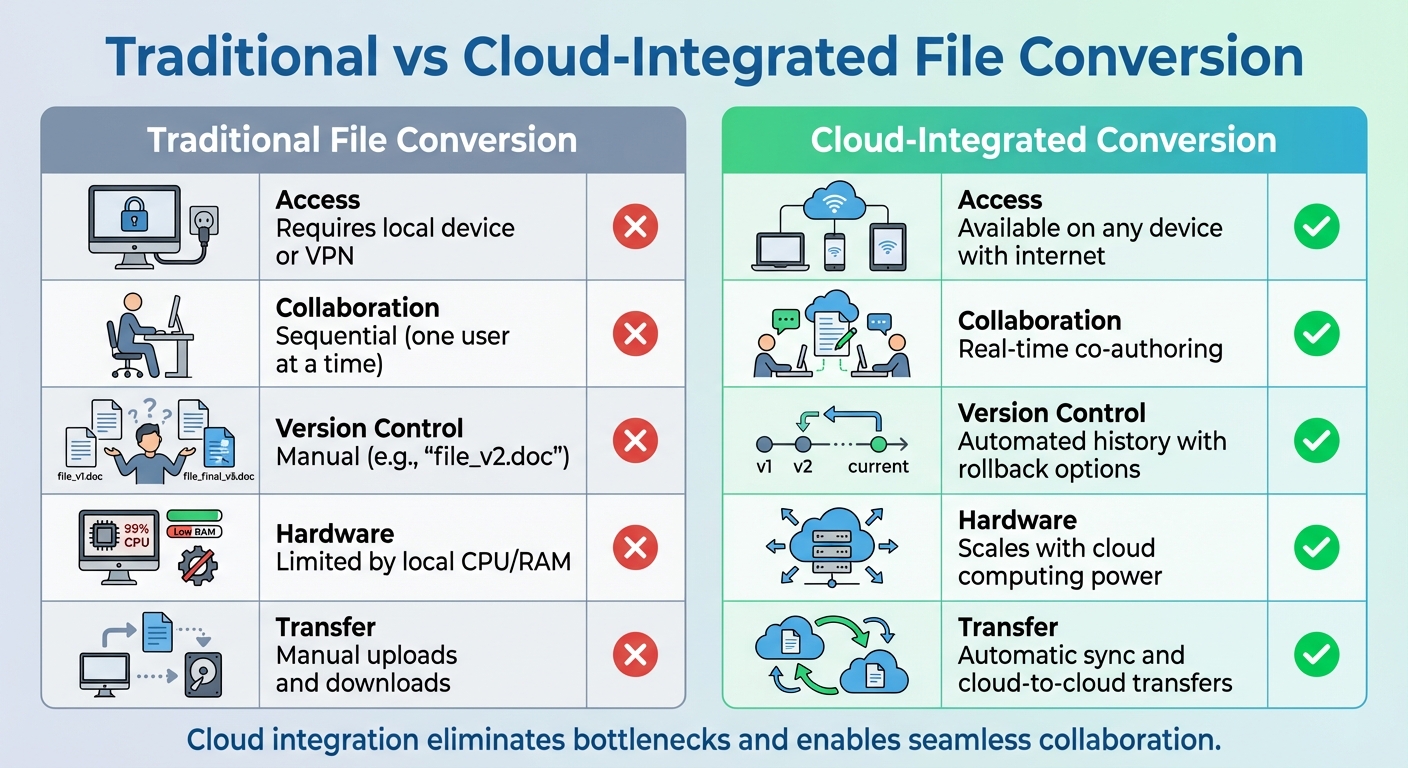
Traditional vs Cloud-Integrated File Conversion Comparison
Cloud-based file conversion isn't just about simplifying workflows; it offers practical advantages that enhance collaboration, save time, and scale effortlessly to meet growing demands. Let’s dive into how these systems transform daily operations for individuals and teams.
Better Team Collaboration and File Access
One of the standout features of cloud-based file conversion is how it streamlines teamwork. With cloud integration, teams can edit files simultaneously, with updates syncing across devices in real time. Gone are the days of juggling messy email threads, external drives, or manual file transfers that slow everyone down. This approach ensures everyone is always on the same page - literally.
Another game-changer is automated version tracking. Every change is recorded, creating a full history of edits. This means teams can easily revert to earlier versions if needed, avoiding accidental overwrites or conflicts. Plus, files are accessible from virtually any device - laptops, tablets, or even smartphones - making it ideal for remote or hybrid teams.
Here’s how cloud-integrated conversion stacks up against traditional methods:
| Feature | Traditional File Conversion | Cloud-Integrated Conversion |
|---|---|---|
| Access | Requires local device or VPN | Available on any device with internet |
| Collaboration | Sequential (one user at a time) | Real-time co-authoring |
| Version Control | Manual (e.g., "file_v2.doc") | Automated history with rollback options |
| Hardware | Limited by local CPU/RAM | Scales with cloud computing power |
| Transfer | Manual uploads and downloads | Automatic sync and cloud-to-cloud transfers |
Time Savings Through Automation
Cloud-based systems take the hassle out of file conversion by automating tedious tasks. Instead of manually uploading and downloading files, services can pull files directly from cloud storage (like S3, Azure, or Google Cloud) and save the converted versions back to the same location. Automation tools can even monitor folders for new files and convert them instantly into the required format.
"ConvertHub API saved us hours of manual processing." – Petar Ivanov, petarivanov.tech
With advanced APIs, users can bundle multiple tasks - such as file conversion, watermarking, and thumbnail creation - into a single automated workflow. Webhooks notify users as soon as a job is complete, eliminating the need to check progress manually. And for many file types, modern APIs deliver results in mere seconds, far outpacing traditional software-based methods.
These features don’t just save time - they allow businesses to handle more work with less effort, even as data volumes grow.
Handling Large File Volumes Easily
Scaling up to meet enterprise demands is where cloud-based conversion truly shines. Unlike local systems, which are limited by physical hardware, cloud solutions can expand processing power and storage as needed. This flexibility makes it easy to process large batches of documents or handle massive files without investing in new equipment.
For particularly large files, cloud systems use chunked uploads, so a dropped connection doesn’t derail the entire process. And with enterprise-grade APIs often backed by 99.9% uptime SLAs, businesses can count on reliable performance - even during peak usage.
Whether you’re managing a few files or thousands, cloud-based conversion ensures smooth, efficient processing every time.
How to Set Up Cloud Storage Integration
Setting up cloud storage integration builds on the efficiency of cloud-based file conversion. By choosing the right provider, securing your data, and using APIs, you can automate file conversions and eliminate manual processes.
Selecting the Right Cloud Platform
Your first step is choosing a cloud storage provider that fits your needs in terms of scale and compliance. Providers like Amazon S3, Microsoft Azure Blob Storage, Google Cloud Storage (GCS), Rackspace, and Dropbox offer robust options for integration. Make sure the platform can handle your expected transaction volume and meets any specific compliance requirements, such as keeping data within the U.S. for regulatory purposes.
Performance is another key factor. For instance, Google Cloud Storage connectors can manage up to 10 transactions per second per node. If you anticipate high activity, look for features like hierarchical namespace-enabled buckets, which can deliver up to 8 times higher initial QPS (Queries Per Second) for read/write operations compared to standard buckets. Built-in safeguards, like Google Cloud Storage's seven-day soft delete policy, can also protect against accidental data loss.
Once you've chosen a provider, the next step is ensuring your data is secure.
Protecting Data and Meeting Compliance Requirements
Security starts with limiting access. Apply the principle of least privilege by assigning only the minimum permissions required for each task. For instance, use roles like storage.objectViewer for viewing files instead of granting full administrative rights. For automated processes, create dedicated service accounts with roles such as roles/storage.admin and roles/secretmanager.secretAccessor to securely manage files and credentials.
Authentication should rely on OAuth 2.0 tokens, RSA keys, or HMAC keys. Store API secrets in a dedicated service like Secret Manager rather than embedding them in scripts. For web uploads, configure CORS policies to restrict access to authorized domains only.
Avoid exposing sensitive information in bucket or object names, as these can sometimes be visible even without direct content access. Disable anonymous access by ensuring neither allUsers nor allAuthenticatedUsers have permissions unless public access is intentional. To manage temporary files, set up lifecycle policies that automatically delete them, reducing storage costs and compliance risks. Enable cloud logging at the "Error" or "Info" level to monitor activity and quickly identify unauthorized access.
With your storage secure, you can integrate APIs to streamline file conversion workflows.
Using APIs for Developer Integration
APIs simplify the Import-Convert-Export workflow, allowing files to be pulled from cloud storage, converted, and saved back to a designated bucket. ConvertHub's API, for example, supports direct file handling with automatic uploads to storage buckets like S3 or Cloudflare R2, removing the need for manual downloads and uploads.
Modern APIs offer both synchronous (real-time) and asynchronous (webhook-based) processing. For large-scale operations, webhooks alert your system when a conversion is finished, saving server resources compared to constant polling. You can also chain multiple operations - like converting a file to different formats, adding watermarks, and creating thumbnails - into a single API call using Jobs and Tasks.
Official SDKs for popular programming languages like PHP, Node.js, Python, Ruby, Java, .NET, and Go can make integration faster and easier. Some developers report getting started in just 5 minutes. Use a Sandbox API to test workflows without using up credits. When generating API keys, limit their permissions to specific scopes such as task.write or user.read to enhance security. For handling large files, implement chunked uploads and include retry logic to manage network issues.
"ConvertHub API is super easy to integrate, reliable and fast. I highly recommend it." - Simon Tunaitis, solotuna.com
ConvertHub even offers 50 free API calls for developers, no credit card required, making it simple to test before committing. With support for over 800 format pairs and a guaranteed 99.9% uptime SLA, the API is equipped to handle everything from straightforward conversions to complex, high-volume tasks.
Conclusion
Cloud storage integration simplifies file conversion by automating what used to be a manual and time-consuming process. Services like Amazon S3, Google Cloud Storage, and Microsoft Azure allow files to move directly between cloud platforms, eliminating the need for downloading and re-uploading. This is especially helpful for large files, where traditional methods can drain bandwidth and take up valuable time.
The efficiency doesn't stop there. Once a file is uploaded, it can be converted into multiple formats without needing to repeat the process. Some platforms even offer access to converted files for up to three hours. Tools like Zapier and Microsoft Power Automate expand these capabilities further, connecting with over 5,000 apps to automate conversions whenever new files are added to your cloud storage. Developers also benefit from APIs that handle multi-step tasks - such as converting, watermarking, and creating thumbnails - in one seamless operation.
Beyond convenience, security and scalability add to the appeal. Advanced encryption ensures data safety during transfers and storage, while cloud-based infrastructure supports files as large as 2GB for subscription users. ConvertHub, for instance, guarantees 99.9% uptime and supports over 800 format combinations, offering reliability whether you're converting a few files or managing massive batch operations.
"ConvertHub API saved us hours of manual processing with its easy integration and extensive format support." - Petar Ivanov, petarivanov.tech
With direct cloud access, automated workflows, and strong security measures, cloud-integrated file conversion is a smart solution for anyone looking to streamline their processes, whether for personal use or business needs.
FAQs
What does cloud-to-cloud file conversion mean?
Cloud-to-cloud file conversion allows files to be transferred and converted directly between cloud storage services without needing to download them to your local device. This method simplifies workflows by cutting out manual downloads and uploads, speeding up transfer times, and enhancing security. Tools like ConvertHub connect with multiple cloud storage platforms, making it possible to handle file conversions automatically within a cloud-based system. This setup is particularly useful for enterprise operations and large-scale data handling.
When should I use synchronous vs asynchronous conversion?
When your workflow involves smaller files or simple tasks that can be completed quickly, synchronous conversion is the way to go. This method is straightforward and works best for real-time needs where waiting briefly for the process to finish isn’t an issue.
On the other hand, asynchronous conversion shines when dealing with large files, complex tasks, or situations with strict timeout limits. This approach processes the conversion as a separate job, enabling your system to keep running while the task is completed in the background.
How can I secure cloud storage access for conversions?
To keep cloud storage safe during file conversions, implement strong authentication methods like OAuth 2.0 tokens. These tokens help verify and control who can access the storage. Another effective approach is using signed URLs with time-limited access. These URLs provide temporary, secure access to specific files without needing credentials. Together, these techniques ensure that only authorized users or systems handle the files, protecting data privacy and security throughout the conversion process.