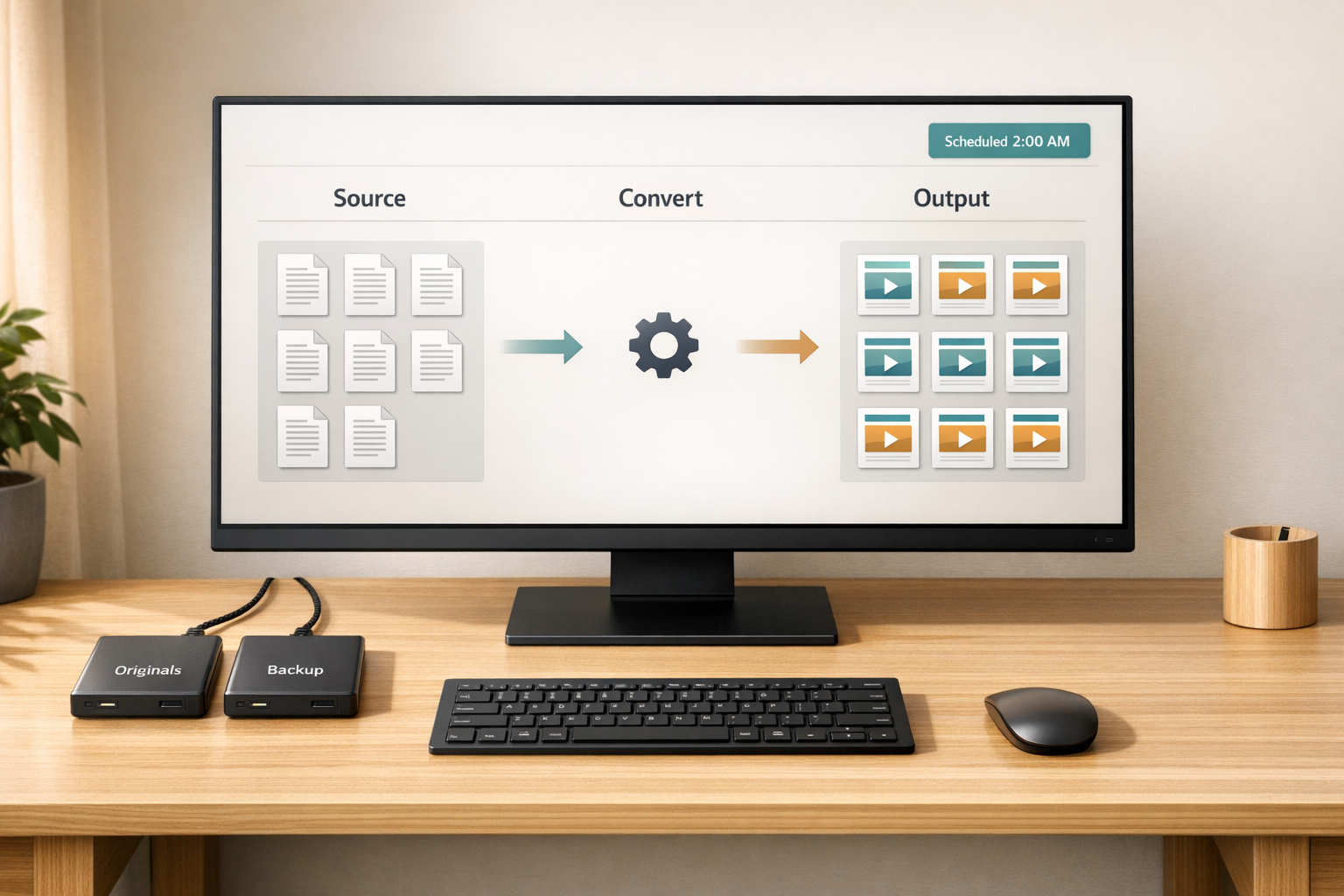
How to Automate Batch File Conversions
Manually converting files is slow and error-prone. Automation solves this by processing multiple files at once, saving time and ensuring consistency. Tools like ConvertHub handle up to 50 files per batch and support over 800 formats, making large-scale tasks easier. Developers can integrate its API with n8n for advanced workflows, while scripting offers precise control. Follow these steps to get started:
- Use automation tools to process files 10x faster than manual methods.
- Ensure consistent quality and formatting across all files.
- Scale easily for hundreds or thousands of files.
- Test workflows on a small batch first and always back up original files.
- Optimize settings for efficiency and avoid overwriting source files.
For professionals handling large volumes, automation reduces repetitive work and boosts productivity. Whether using ConvertHub’s drag-and-drop interface or its API, automating file conversions is a smart, time-saving solution.
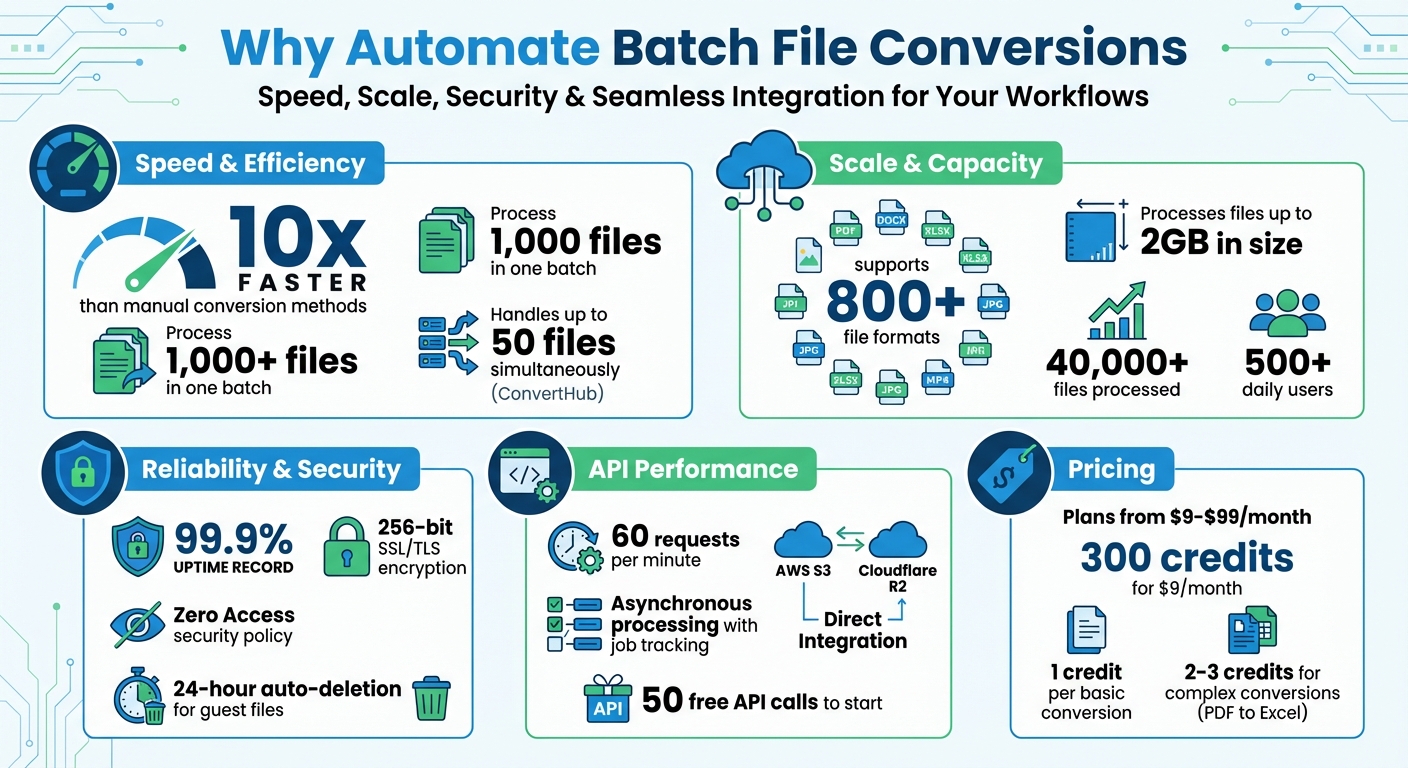
Batch File Conversion Automation: Key Benefits and Statistics
Why Automate Batch File Conversions
Time Savings and Efficiency
Imagine turning hours of tedious work into just a few minutes. Automation takes the hassle out of file conversions by handling the entire process - opening, converting, and saving files - with minimal effort. It’s about 10 times faster than converting files one by one.
With professional online file converters capable of processing over 1,000 files in one go, you can shift your focus to more important tasks instead of repetitive file management. The bonus? Automation ensures every file meets the same quality standards without added effort.
Consistency and Accuracy
When you’re converting files manually, maintaining the same quality and settings for each one can be a challenge - especially as fatigue sets in. Automated tools solve this by applying the exact same settings to every file in the batch. This guarantees consistent resolution, compression, and formatting across the board.
Plus, automation eliminates common manual errors like skipping files, applying incorrect settings, or formatting mistakes. By following one clear set of instructions, automated systems ensure accuracy for the entire batch.
Scalability for High-Volume Tasks
Need to handle hundreds or even thousands of files? Automation is built for that. Unlike single-file processing, which can only tackle one file at a time, automated tools can process massive volumes simultaneously.
This makes it perfect for large-scale tasks like migrating website assets, organizing media libraries, or preparing files for distribution. Whether you’re dealing with hundreds or thousands of files, automation handles the workload with ease.
sbb-itb-ba72479
How To Batch Convert Word Files to PDF Using VBA in Microsoft Word Without Third-Party Tools

Using ConvertHub for Automated Batch Conversions
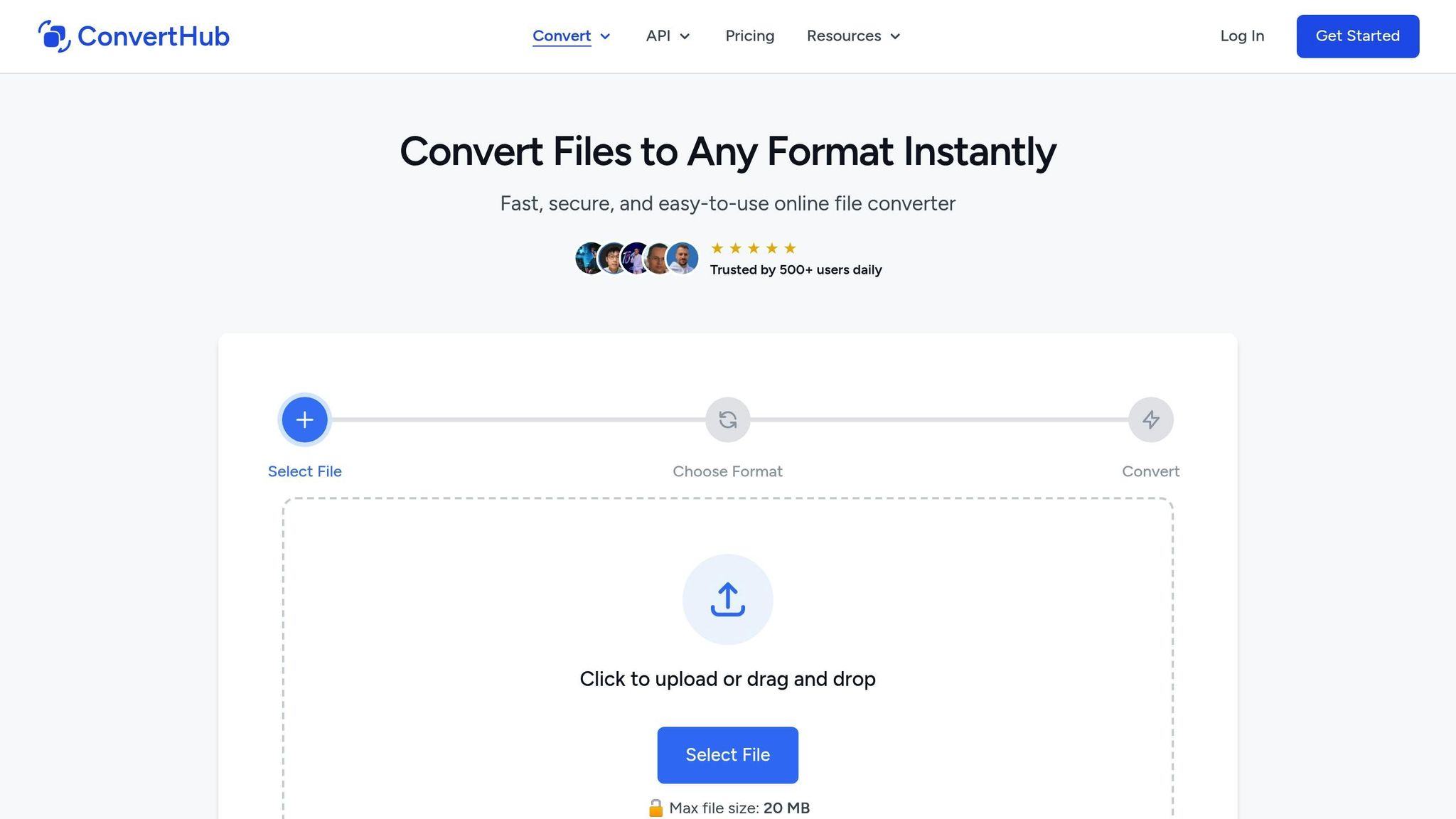
Unlock the convenience of automation with ConvertHub's secure and efficient platform designed for handling bulk file conversions effortlessly.
Key Features of ConvertHub
ConvertHub is compatible with over 800 file formats, covering images, documents, e-books, audio, video, archives, and fonts. Users can convert up to 50 files at once in a single batch, saving time by avoiding one-by-one processing.
The platform prioritizes security with 256‑bit SSL/TLS encryption and a Zero Access policy to protect your files. Guest files are automatically deleted after 24 hours, while registered users have the option to delete files immediately.
With a 99.9% uptime record, ConvertHub has processed more than 40,000 files for over 500 daily users. Premium users enjoy additional perks, such as the ability to convert files up to 2GB and access to priority processing for faster conversions.
How to Set Up Batch Conversions on ConvertHub
Batch conversions are simple to initiate:
- Drag and drop up to 50 files into the converter interface.
- Choose a single output format for the entire batch to maintain uniformity.
- Click the convert button to process all files simultaneously.
- Download the converted files as a ZIP package.
ConvertHub offers flexible pricing with subscription and pay-as-you-go plans starting at $9 per month for 300 credits. Basic conversions use 1 credit, while more complex tasks like PDF to Excel require 2–3 credits.
For users requiring advanced functionality, ConvertHub's API provides seamless integration options.
ConvertHub's API for Developers
Developers can integrate ConvertHub's RESTful API into their applications using PHP or JavaScript SDKs. The API supports asynchronous processing, meaning you can submit files and track their progress via unique job IDs without interrupting your workflow.
"The API is well-documented, easy to integrate, and respects privacy. If you're looking for a file conversion API that just works, ConvertHub is a smart choice."
- Marko Denic, markodenic.tech
The API connects directly to AWS S3 and Cloudflare R2, automatically transferring converted files to your storage buckets, eliminating the need for manual downloads. It supports up to 60 requests per minute and chunked uploads, making it ideal for handling large files and high-volume tasks.
Developers can start with 50 free API calls and scale up through subscription plans ranging from $9 to $99 per month. For those interested in creating a branded conversion service, ConvertHub also offers a white-label starter kit built with Laravel, Tailwind, and Livewire.
Scripting Automation for Advanced Users
For developers seeking precise control over batch conversions, custom scripting is a powerful tool. It allows you to define exact input and output paths, manage errors programmatically, and seamlessly integrate conversions into complex workflows. These advanced techniques build on earlier automation methods, offering tailored solutions for unique needs.
Creating Batch Scripts for File Conversions
Using a bash script with cURL, you can automate file submissions, poll for completion every 2 seconds, and handle jobs asynchronously with tools like Promise.all or built-in SDK methods. Remember, all API requests require your API key in the header as Authorization: Bearer YOUR_API_KEY.
Both the official PHP and JavaScript SDKs include methods like waitForCompletion() to simplify polling, saving you from writing custom loops. When crafting your script, make sure to handle potential API errors such as VALIDATION_ERROR or HTTP 429. For larger files (over 50MB), the API supports chunked uploads up to 2GB. Once files are converted and downloaded, use the deleteFile() method to clean up immediately.
Scheduling Automated Conversions
After your batch conversion script is running smoothly, scheduling it can make the process even more efficient. Use Task Scheduler to automate execution: name the task, set a trigger (like daily at 2:00 AM), and point it to your script, ensuring paths are configured correctly.
For recurring tasks, configure the trigger to repeat at regular intervals indefinitely. If your script requires administrative permissions to access certain directories, enable "Run with highest privileges." To avoid overlapping instances, incorporate a lock mechanism - such as checking for a "STAGING" folder at the start of the script and exiting if it already exists.
Integrating ConvertHub's API into Workflows
ConvertHub's API offers seamless integration for extending automation into broader workflows. Install the official SDK via Composer (converthub/php-sdk) or npm (@converthub/sdk), authenticate using an API key stored in environment variables, and track progress with unique job IDs.
For greater efficiency, use webhooks instead of polling. By including a webhookUrl when submitting files, ConvertHub will send a POST request to your server as soon as the conversion is complete. This approach minimizes server load and reduces latency compared to constant status checks. Additionally, the API can directly transfer converted files to AWS S3 or Cloudflare R2 storage, eliminating the need for manual downloads.
To avoid interruptions, monitor your remaining credits programmatically with client.getAccount(). The API supports up to 60 requests per minute and boasts a 99.9% uptime, making it reliable for large-scale batch processing. Plus, you can start experimenting with 50 free API calls to test its capabilities.
Best Practices for Automated Batch File Conversions
Follow these guidelines to ensure your automated batch file conversions run smoothly, efficiently, and without errors.
Testing and Verifying Output
Before diving into full-scale automation, take time to validate your process. Start by testing your workflow on a handful of files - around 5 to 10 - to confirm everything works as expected. Check for quality issues, formatting inconsistencies, and how well special characters are handled. Don't skip this step; a quick test can save you from major headaches later.
"Always test your script on a few files before running on hundreds - mistakes can be costly".
Once your test batch is complete, manually review some of the converted files. Look for any loss of detail, incorrect colors, or formatting issues. For structured formats like JSON or XML, ensure the files can be parsed without errors. If certain files consistently fail, try converting them one at a time to figure out whether the problem lies in the source file or the batch settings.
Maintaining File Backups
Protecting your original files is critical. Always use separate folders for input and output files - this keeps your source files safe in case something goes wrong during conversion.
Original files act as a safety net. If the conversion process doesn't deliver the expected results, you can always go back to the originals and tweak your settings for another attempt. Sometimes, quality issues in automated batches aren't immediately obvious, so having the originals allows for a direct comparison. Only delete the original files once you've thoroughly checked that the converted versions meet your standards for both structure and visual quality.
Optimizing Workflow Settings
Fine-tuning your workflow can save time and reduce errors. Use consistent naming conventions, such as appending "_converted" to filenames, to avoid overwriting your source files. Ensure you have enough free disk space before starting large-scale conversions. If you find settings that work well, save them as presets for future use. When you batch convert images without losing quality, aim for settings between 80% and 90% to strike a good balance between file size and visual fidelity. Keep an eye on your system's CPU and RAM usage during resource-intensive tasks to prevent crashes or slowdowns.
Conclusion
Automating file conversions changes the game when it comes to productivity. By automating batch file conversions, you can eliminate repetitive manual work and save significant time. Tools like ConvertHub, which supports over 800 format pairs and handles up to 50 files at once, make it easier to manage large-scale projects efficiently [17, 19].
The real power of automation lies in its flexibility and scalability. Whether you’re using simple drag-and-drop batch processing for quick tasks or integrating the REST API with official SDKs to streamline workflows, these tools adapt to your growing needs. They also ensure secure and dependable operations, making it possible to handle projects of any size with confidence.
As industry professionals have noted:
"ConvertHub API saved us hours of manual processing. The integration was easy and the format coverage is impressive". - Petar Ivanov, petarivanov.tech
This highlights the main advantage of automation: delivering consistent quality and efficiency, no matter the scale.
Start by using batch processing for immediate time savings. As your requirements evolve, incorporate the API and webhooks to build more advanced workflows. By testing your processes, keeping backups, and fine-tuning your settings - practices discussed throughout this guide - you’ll ensure dependable, professional results, whether you’re converting 10 files or 10,000.
FAQs
How do I pick the best output format for a batch?
When selecting an output format, think about how it fits into your workflow, whether it's compatible with your target devices or applications, and how it balances quality with file size. For instance, if you're working with images that need transparency, make sure the format you choose supports that feature. It's also a good idea to test your choice with sample files before committing to processing an entire batch. Keeping settings consistent across all files can help maintain quality and minimize potential errors.
What should I do if some files fail mid-batch?
If files fail during processing, modify your script to handle each file separately. Incorporate error-handling mechanisms to identify failures and determine the next steps - whether to retry, skip, or log the issue for later review. This approach ensures that a single failure doesn’t disrupt the entire batch, allowing the rest of the files to process without interruption.
How can I avoid overwriting my original files?
When performing batch conversions, it's crucial to avoid overwriting your original files. One way to do this is by saving the converted files in a different folder or assigning them unique filenames. Many tools and scripts offer features like specifying output directories or enabling automatic renaming to ensure your originals remain untouched. Always double-check the output files before deciding to replace the originals. For extra precaution, some tools include settings to preserve the original files while generating new, converted versions.