
How APIs Enable Scalable File Conversions
APIs simplify file conversions for businesses by automating processes that would otherwise take hours. They handle large files (up to 2 GB), support over 800 format pairs, and maintain security with encryption and GDPR compliance. Key benefits include:
- Time Savings: Automating file tasks reduces manual effort by 87.95%.
- Batch Processing: Convert entire folders simultaneously, with up to 60 requests per minute.
- Asynchronous Workflows: Avoid timeouts by processing large jobs in the background.
- Secure Transfers: Data is encrypted during transfer and storage.
To get started, developers can integrate APIs like ConvertHub using SDKs for PHP or JavaScript. These APIs provide real-time updates, chunked uploads for large files, and direct cloud storage integration. Whether converting PDFs, CAD files, or images, APIs streamline workflows and scale effortlessly.
I found the ultimate file conversion API
sbb-itb-ba72479
Core Features of File Conversion APIs
A reliable file conversion API thrives on three essential features: broad format support, efficient processing, and top-notch security. These elements not only address technical needs but also ensure smooth, scalable file handling for businesses.
Multi-Format Support and Batch Processing
Handling various file types through one API simplifies workflows. ConvertHub offers extensive format compatibility across eight categories, covering everything from standard documents and images to more specialized formats like CAD files, e-books, and archives. This means developers can rely on a single integration point rather than juggling multiple libraries for PDFs, videos, audio, and spreadsheets.
Batch processing takes efficiency to the next level by allowing multiple files to be processed simultaneously. Instead of managing files one by one, you can process entire folders in parallel, turning hours of work into just minutes. ConvertHub supports up to 60 requests per minute on standard plans and integrates directly with AWS S3 and Cloudflare R2 for automated file delivery after conversion. On top of that, asynchronous processing ensures smooth handling of even the largest jobs.
Asynchronous Processing for Large Jobs
Large file conversions often run into HTTP timeouts when handled synchronously. Asynchronous processing eliminates this issue with a job-based workflow: you submit a file, get a job ID instantly, and can either check the status periodically or receive a webhook notification once the conversion is done.
This approach keeps your app responsive while conversions happen in the background. For files nearing the 2 GB limit, ConvertHub supports chunked uploads, breaking the file into smaller parts to improve reliability, especially on shaky network connections. With a 99.9% uptime SLA, the API ensures conversions are completed consistently, even during high-demand periods. While performance is crucial, safeguarding sensitive data is equally important.
Security and Encrypted File Transfers
Security measures are essential to protect sensitive data during file conversions. ConvertHub uses TLS/SSL encryption for all file transfers and encrypts files at rest, ensuring they remain secure from start to finish. The platform complies with GDPR regulations and automatically deletes files after 24 hours for free-tier users, reducing data exposure.
For businesses working with confidential documents, these features are critical. As Marko Denic from markodenic.tech said:
"The API is well-documented, easy to integrate, and respects privacy. If you're looking for a file conversion API that just works, ConvertHub is a smart choice".
How to Set Up the ConvertHub API
If you're looking to streamline file conversions on a large scale, setting up the ConvertHub API is a great place to start. Begin by creating a developer account at ConvertHub. Once you're logged in, you'll receive an API key, which serves as your authentication token. Include this key in every API request by adding it to the HTTP Authorization header as a Bearer token:
Authorization: Bearer YOUR_API_KEY.
Important: Treat your API key like a password. Avoid embedding it in client-side code or sharing it publicly. Always make API calls from your server side to keep the key secure. If you suspect your key has been exposed, regenerate it immediately through your account settings.
To simplify integration, use the official SDKs:
- For PHP, install the SDK with:
composer require converthub/php-sdk(requires PHP 8.2+). - For JavaScript, use:
npm install @converthub/sdk.
These libraries handle authentication and connection setup for you, saving development time. Plus, you get 50 free API calls to test your setup without needing to enter payment details. All API connections are secured using 256-bit SSL/TLS encryption over HTTPS, ensuring safe data transfers.
Authentication and API Connection
The ConvertHub API follows a RESTful design, with a base URL of https://api.converthub.com/v2. Every request requires your API key in the Authorization header. Here's a quick overview of the key connection details:
| Requirement | Details |
|---|---|
| Authentication | Bearer Token (API Key) |
| Base URL | https://api.converthub.com/v2 |
| Encryption | 256-bit SSL/TLS |
| Uptime SLA | 99.9% |
| Max File Size | 100 MB (Free) / 2 GB (Premium) |
You can monitor your usage through the developer dashboard to avoid exceeding your plan's quota. If you go over your limit, requests will be rejected. With a 99.9% uptime guarantee, you can count on the API to handle heavy traffic without interruptions.
Creating and Managing Conversion Jobs
Once authenticated, you can start creating conversion jobs. The API uses an asynchronous workflow to keep your app responsive. To initiate a job, send a POST request with multipart/form-data to https://api.converthub.com/v2/convert. Include the file and target_format parameters. The API will return a job_id and set the status to "processing."
To track the job's progress, send a GET request to https://api.converthub.com/v2/jobs/{job_id}. The response will include the job's status, progress percentage, and estimated_time. Once the job is marked "completed", you can download the converted file from https://api.converthub.com/v2/jobs/{job_id}/download or use the download_url provided in the response. For larger files (up to 2 GB), it's recommended to use chunked uploads for added reliability.
The official SDKs make this process easier with methods like waitForCompletion(), which handle polling automatically. For high-volume workflows, consider using webhooks to get real-time notifications when jobs finish. This approach is more efficient than constant polling and saves server resources.
Setting Up Batch Conversions and Error Handling
For handling multiple conversions at once, batch processing is your go-to solution. It allows you to process several files simultaneously, cutting down overall processing time. You can also integrate your AWS S3 or Cloudflare R2 storage buckets directly through the dashboard. Once the files are converted, they'll be pushed to your storage automatically.
The API offers clear JSON error messages and standard HTTP status codes for debugging. Common job statuses include:
- Processing: Conversion is in progress.
- Completed: File is ready for download.
- Failed: An error occurred (check the
messagefield for details).
If a conversion fails due to an issue on ConvertHub's side, your credits will be refunded automatically. Free-tier users should note that files are deleted after 24 hours, while paid accounts allow you to keep files until you delete them manually or your subscription ends.
For production environments, it's a good idea to implement retry logic for failed jobs and set up monitoring alerts for any conversion errors. The API's consistent error handling makes it easy to build reliable workflows that can scale alongside your business. These steps lay the groundwork for optimizing performance in future integrations.
Performance Optimization and Scaling Strategies
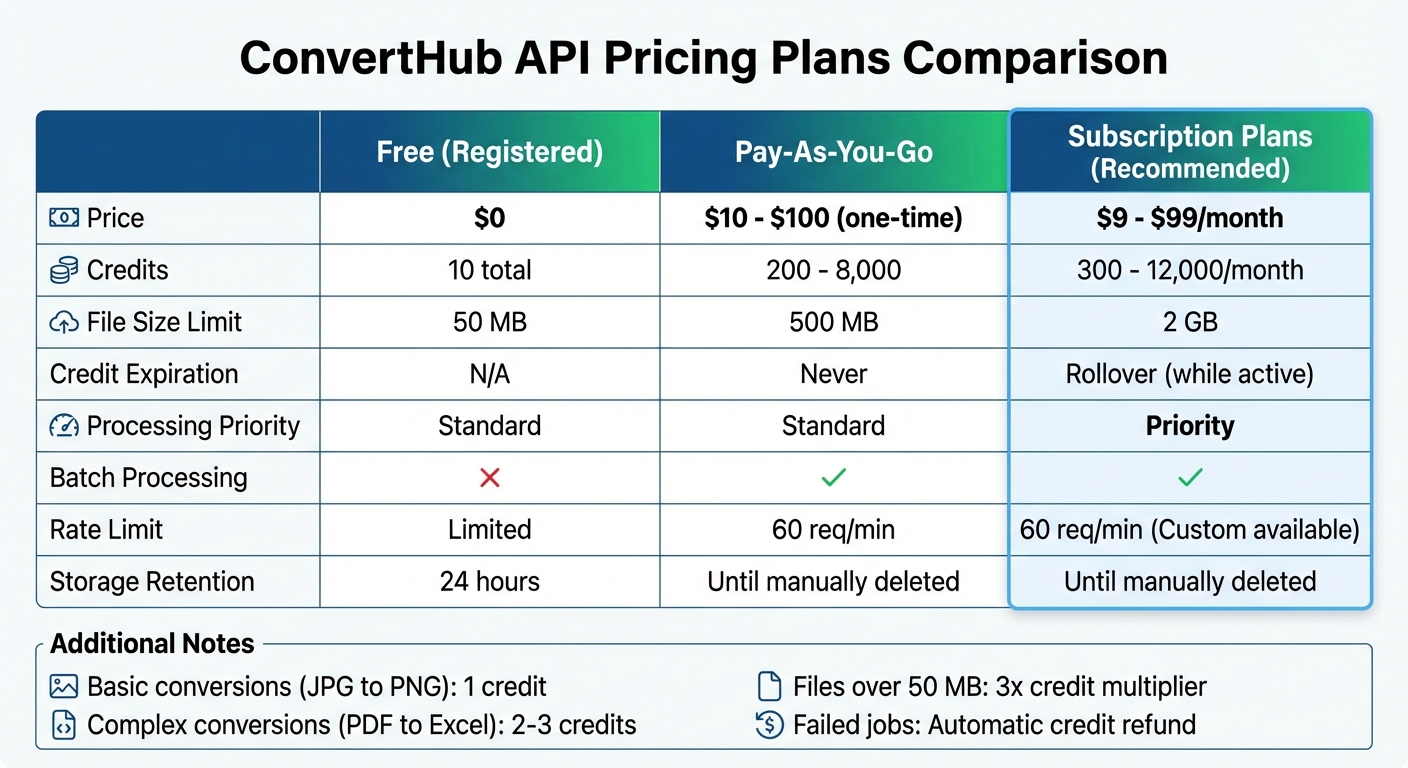
ConvertHub API Pricing Plans Comparison: Features, Credits, and File Size Limits
Tracking API Usage and Performance
Keeping tabs on API usage is key to running smoothly at scale. With ConvertHub, every API response includes the exact credit cost, so you can monitor consumption and expenses in real-time. Programmatic tracking helps pinpoint trends, like which conversion types use the most credits or when you're nearing your plan limits.
The Developer Dashboard provides a centralized view of account activity and usage trends, making it easier to spot bottlenecks before they disrupt your workflow. Keep an eye on the 60 requests per minute limit to avoid hitting 429 errors. If you find yourself consistently reaching this cap, it’s a clear sign to upgrade to a higher-tier plan or request custom rate limits.
To cut down on unnecessary API traffic, use webhooks for automated notifications when conversions complete. This approach also helps you measure end-to-end processing times more accurately. For large files, consider using chunked uploads or directly linking your AWS S3 or Cloudflare R2 buckets. This reduces manual downloads and offloads storage demands.
Be mindful of credit multipliers: files larger than 50 MB cost 3x credits. If you're handling high volumes, track file sizes before submission to manage costs effectively. Additionally, the API provides clear error codes and status messages to help debug issues like file corruption, size limits, or server-side errors.
All this data helps you choose the right API plan for your workload. By understanding your usage patterns and credit consumption, you can select a plan that balances efficiency and cost-effectiveness.
Choosing the Right API Plan for Your Needs
ConvertHub’s pricing tiers are designed to cater to a variety of needs. The Free tier is perfect for testing, offering 50 free API calls without requiring payment details. Registered free accounts also come with 10 conversion credits and a 50 MB file size limit.
For ongoing usage, monthly subscriptions start at $9/month (300 credits) and go up to $99/month (12,000 credits). These plans allow files up to 2 GB, include priority processing for faster speeds, and let unused credits roll over as long as your subscription remains active. If you prefer flexibility, the Pay-As-You-Go option ranges from $10 (200 credits) to $100 (8,000 credits). These credits never expire and support files up to 500 MB.
| Feature | Free (Registered) | Pay-As-You-Go | Subscription Plans |
|---|---|---|---|
| Price | $0 | $10 - $100 (one-time) | $9 - $99/month |
| Credits | 10 total | 200 - 8,000 | 300 - 12,000/month |
| File Size Limit | 50 MB | 500 MB | 2 GB |
| Credit Expiration | N/A | Never | Rollover (while active) |
| Processing Priority | Standard | Standard | Priority |
| Batch Processing | No | Yes | Yes |
| Rate Limit | Limited | 60 req/min | 60 req/min (Custom available) |
| Storage Retention | 24 hours | Until manually deleted | Until manually deleted |
Basic conversions, like JPG to PNG, cost 1 credit, while more complex tasks, like PDF to Excel, use 2-3 credits. Importantly, credits are only deducted for successful conversions - failed jobs are automatically refunded. For heavy workloads, subscription plans with priority processing ensure consistent speeds even during busy periods. If needed, you can also contact support to request custom rate limits beyond the standard 60 requests per minute.
Conclusion
APIs have completely reshaped how file conversion workflows operate. With just one integration, businesses can now automate conversions across a wide range of formats, streamlining processes like never before. The ConvertHub API brings this efficiency to life with its asynchronous processing capabilities and an impressive 99.9% uptime guarantee.
Developers can get started in no time - official SDKs for PHP and JavaScript allow integration in as little as five minutes. For those looking for no-code solutions, platforms like n8n make it even easier to create workflows. Whether you're handling a handful of documents or scaling up to thousands of conversions, the infrastructure adjusts seamlessly, ensuring smooth application workflows without interruptions. This combination of speed, scalability, and reliability also prioritizes security at every step.
Every transfer is safeguarded with robust SSL encryption, and direct cloud storage integration with AWS S3 or Cloudflare R2 adds an extra layer of protection.
"ConvertHub API saved us hours of manual processing. The integration was easy and the format coverage is impressive." – Petar Ivanov, petarivanov.tech
FAQs
How do webhooks work with ConvertHub jobs?
Webhooks in ConvertHub jobs let you get real-time updates whenever a file conversion is completed. By configuring a webhook URL, you can automatically receive notifications about job status changes - like whether the process has finished or failed. This means you can automate follow-up tasks, such as downloading the converted file, without the hassle of constantly checking the API.
How can I keep my API key secure in production?
To keep your API key safe in production, never embed it directly in your code. A better approach is to store it in environment variables or external files that stay outside your source code repository. Additionally, apply restrictions to your API key. For example, you can limit its usage to specific IP addresses, referrer URLs, or certain API methods. These steps lower the risk of exposure and help protect your API key during deployment.
How do credits and file size affect conversion cost?
Credits and file size play a key role in determining conversion costs. Larger files demand more processing power, which uses up more credits. Typically, plans come with a fixed number of credits, which set limits on the total conversions or file sizes you can handle in a given timeframe. Keeping file sizes under control is a smart way to make the most of your credits and manage costs effectively.