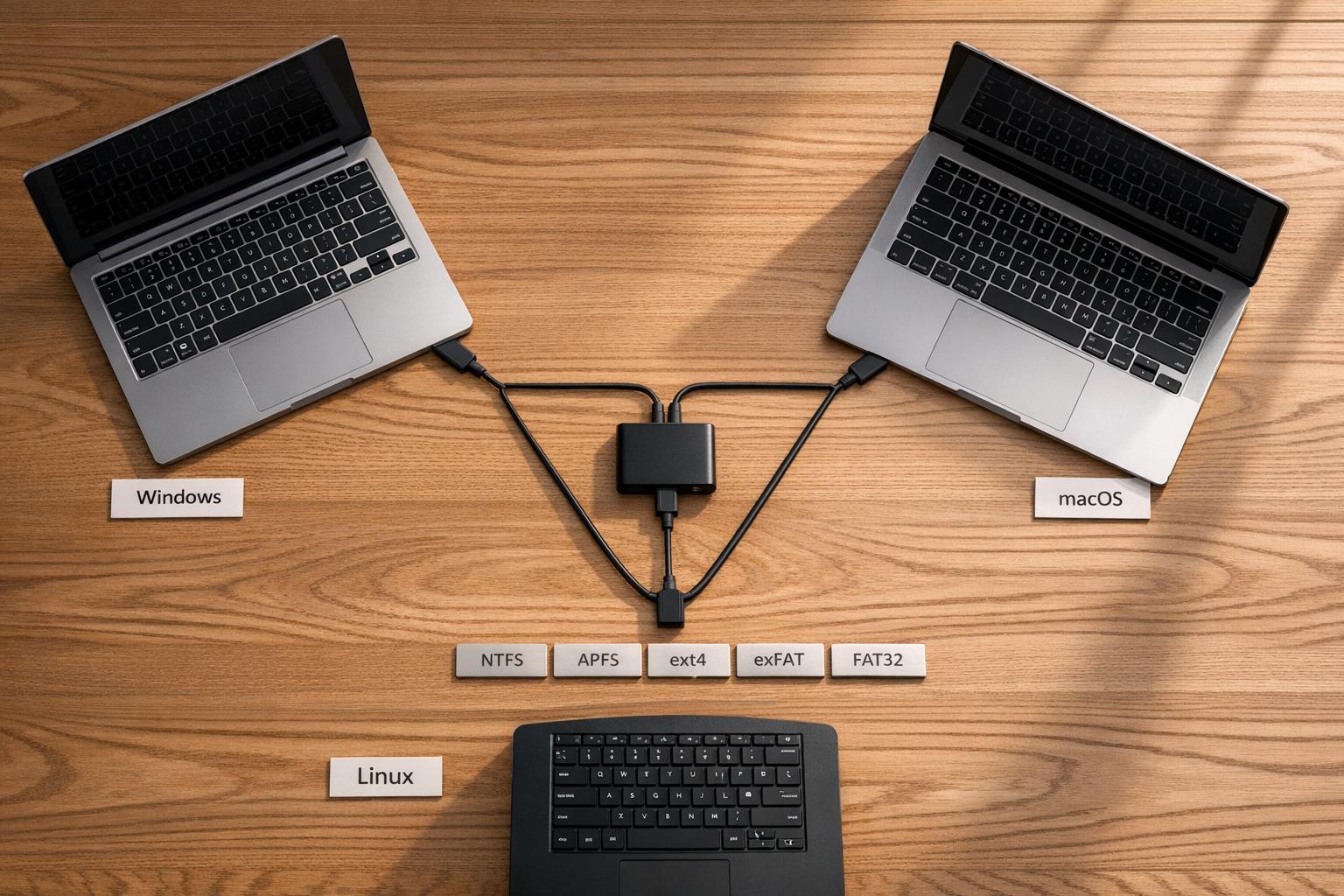
File Format Compatibility: Windows vs. Mac vs. Linux
File format compatibility is a common challenge when working across Windows, macOS, and Linux. Each system uses its own file systems and handles files differently, which can complicate sharing and editing files between platforms. Here's what you need to know:
- Windows: Uses NTFS for internal drives, supports exFAT and FAT32 for external storage. NTFS has advanced features but is read-only on macOS without extra tools.
- macOS: Relies on APFS for modern devices, with exFAT and FAT32 for cross-platform use. NTFS is read-only, and hidden system files like
.DS_Storecan cause clutter on other systems. - Linux: Defaults to ext4 but supports NTFS, exFAT, and FAT32. It’s case-sensitive, which can lead to issues with file naming when transferring files.
Quick Tips:
- Use exFAT for external drives to ensure compatibility across all three platforms.
- Stick to universal formats like PDF, MP3, and CSV to avoid file-opening issues.
- Be mindful of file naming rules - Windows and macOS differ in allowed characters.
Quick Comparison:
| File System | Windows Support | macOS Support | Linux Support | Max File Size | Journaling |
|---|---|---|---|---|---|
| NTFS | Read/Write | Read-Only | Read/Write | 8 PB | Yes |
| exFAT | Read/Write | Read/Write | Read/Write | 128 PB | No |
| FAT32 | Read/Write | Read/Write | Read/Write | 4 GB | No |
| APFS | No | Read/Write | Limited | Large | Yes |
| ext4 | No | No | Read/Write | 16 TB | Yes |
These differences mean choosing the right file system and formats is key to smooth cross-platform workflows. For more complex needs, third-party tools and online file converter services can bridge the gaps.
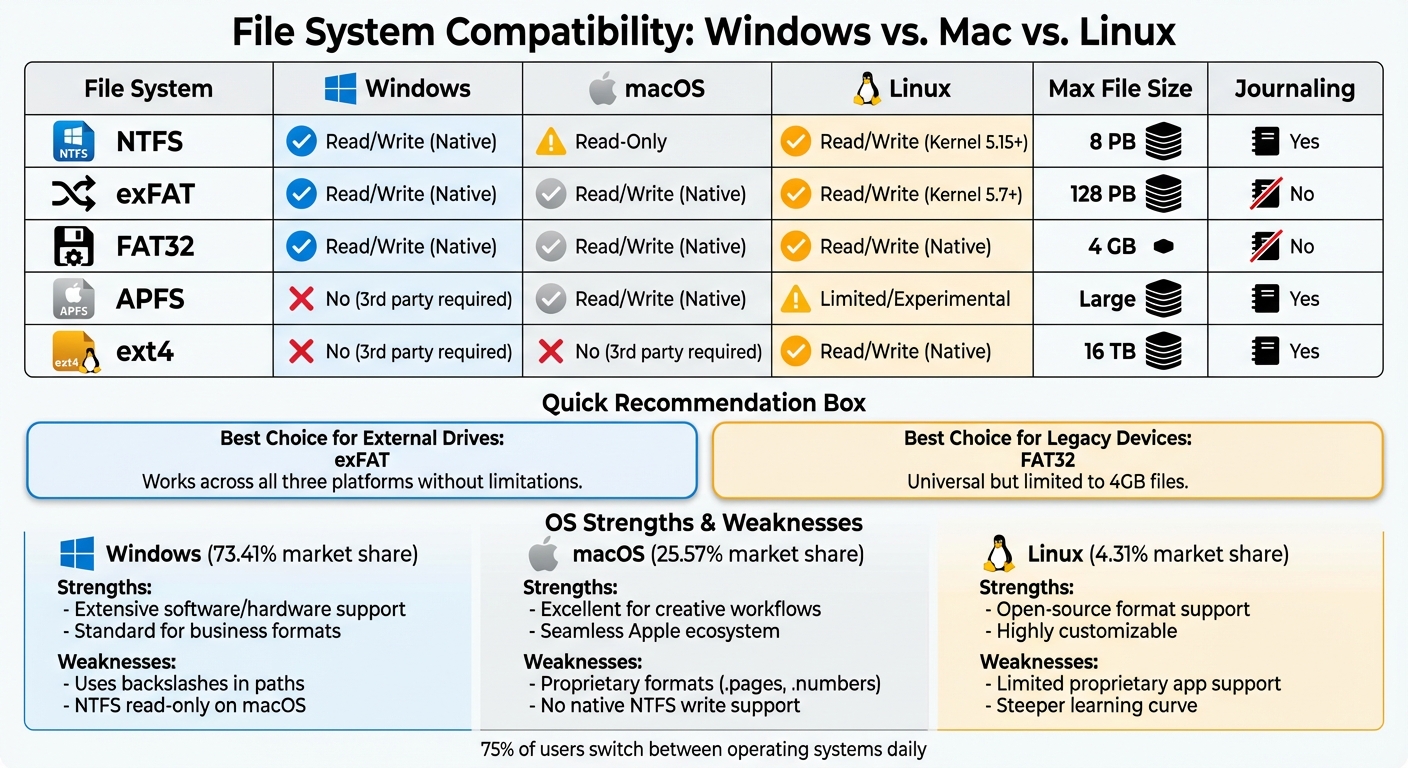
File System Compatibility Across Windows, macOS, and Linux
How to format your drives for compatibility
sbb-itb-ba72479
Windows File Format Support
Windows primarily uses NTFS (New Technology File System) as the default file system for internal drives on modern versions like Windows 10, Windows 11, and Windows Server 2019. NTFS is designed with journaling capabilities, which log file changes to prevent data loss during unexpected shutdowns. As noted, "NTFS enhances reliability by maintaining a transaction-based log file and checkpoint information. If a system failure occurs, NTFS uses this log to automatically restore file system consistency".
File Systems: NTFS, FAT32, exFAT
Beyond NTFS, Windows also supports FAT32 and exFAT for removable storage. FAT32 is widely compatible with older devices but has limitations, such as a maximum file size of 4 GB and a 32 GB volume limit on Windows. exFAT, on the other hand, is a more flexible option. As John Bogna from PCMag explains, "ExFAT was made to be very portable and optimized for flash drives. It's lightweight like FAT32, but without the same file size restrictions". This makes exFAT a practical choice for flash drives, as it eliminates FAT32's 4 GB file size cap.
Here’s a quick comparison of these file systems:
| Feature | NTFS | exFAT | FAT32 |
|---|---|---|---|
| Primary Use | Internal Windows drives | External drives/Flash storage | Legacy/Universal compatibility |
| Max File Size | 8 PB | 128 PB | 4 GB |
| Max Volume Size | 8 PB | 128 PB | 8 TB (Windows formats only up to 32 GB) |
| macOS Compatibility | Read-only by default | Read/Write | Read/Write |
| Security (ACLs) | Yes | No | No |
| Journaling | Yes | No | No |
NTFS supports massive volumes and files - up to 8 PB - when using a 2,048 KB cluster size on Windows 10 and Windows Server 2019. It also includes advanced security features like Access Control Lists (ACLs) and file-level encryption, which are not available in FAT32 or exFAT. However, NTFS is read-only on macOS by default, so third-party drivers are needed for write functionality.
How Windows Handles Common File Formats
The choice of file system directly impacts how Windows manages various file types, including documents, images, videos, and archives. For instance, NTFS supports file names with up to 255 Unicode characters and extended-length paths of nearly 32,767 characters, far beyond the traditional 260-character MAX_PATH limit.
Interestingly, Windows is case-insensitive, treating "File.txt" and "file.txt" as the same file. However, when using the Windows Subsystem for Linux (WSL), Microsoft advises storing Linux files within the native file system of the active operating system. Placing Linux files on a mounted Windows drive (e.g., /mnt/c/) can cause noticeable performance issues.
For external drives shared between Windows and macOS, exFAT is often the best choice. It avoids FAT32's 4 GB file size restriction while providing full read/write access on both platforms. These underlying system differences play a key role in ensuring smooth cross-platform file compatibility.
Mac File Format Support
macOS approaches file systems differently than Windows, now utilizing APFS (Apple File System) as its default. Introduced in 2016 to replace the older HFS+ system, APFS brings advanced features like strong encryption, snapshots, and space sharing. It’s specially designed for flash and SSD storage, making it a great fit for modern Mac hardware.
File Systems: APFS, HFS+, FAT32, exFAT
In addition to APFS, macOS supports several other file systems, each tailored to specific needs. HFS+ (Mac OS Extended), while older, remains a key choice for mechanical hard drives and older macOS versions. It can handle volumes up to 8 EB, though it may outperform APFS on traditional hard drives.
For cross-platform compatibility, macOS also supports exFAT and FAT32. exFAT is particularly versatile for external drives, as it can handle file and partition sizes up to 128 PB - far exceeding FAT32’s 4 GB file size limit. Interestingly, macOS can format FAT32 partitions larger than 32 GB, something Windows cannot do natively.
| File System | macOS Support | Windows Support | Linux Support | Best Use Case |
|---|---|---|---|---|
| APFS | Read/Write (Native) | No (Requires 3rd party) | No (Requires 3rd party) | Modern Mac internal SSDs |
| HFS+ | Read/Write (Native) | Read-only (Limited) | Read-only (Write w/ drivers) | Older Macs or mechanical drives |
| exFAT | Read/Write (Native) | Read/Write (Native) | Read/Write (Kernel 5.7+) | Cross-platform external storage |
| FAT32 | Read/Write (Native) | Read/Write (Native) | Read/Write (Native) | Small USBs, legacy devices |
| NTFS | Read-only (Native) | Read/Write (Native) | Read/Write (Native) | Windows internal drives |
How Mac Handles Common File Formats
The choice of file system impacts how macOS manages file metadata and naming conventions. macOS identifies file formats using a mix of filename extensions, bundle bits, and legacy type/creator codes. Launch Services then assigns the appropriate icons. Both APFS and HFS+ are case-insensitive but case-preserving, meaning "File.txt" and "file.txt" are treated as the same file, though their capitalization is retained.
Sharing files between macOS and Windows can present challenges, especially with filename restrictions. macOS allows characters like < > : " / \ | ? * that Windows does not. Files with these characters may fail to transfer to Windows systems. Additionally, macOS generates hidden files (e.g., .DS_Store) for folder metadata, which can clutter directories when viewed on Windows or Linux.
Brian Levin, Director and Producer at Forge and Discover, shares this advice: "I always make it a rule of thumb when using exFAT to create the exFAT volume on my Mac first before it gets used on a PC".
This method minimizes recognition issues, as drives formatted in Windows may not always be fully compatible with macOS.
For external drives requiring full read/write functionality on both Mac and Windows, exFAT is often the best option. However, it’s important to note that exFAT lacks journaling, making it more vulnerable to file corruption from improper ejections or power failures compared to APFS or NTFS. Meanwhile, NTFS remains read-only on macOS unless third-party tools like NTFS-3G are used.
Next, we’ll dive into file format compatibility comparisons across operating systems.
Linux File Format Support
Linux handles file systems quite differently compared to Windows and macOS. Thanks to its open-source foundation, it offers a wide range of file system support. Users can even add support for older file systems by using kernel modules or recompiling the kernel itself. Here's a closer look at Linux's file systems and how it manages common file formats.
File Systems: ext4, EXT2/3, Btrfs, FAT32, exFAT
Most Linux distributions rely on ext4 as the default file system. It’s capable of handling volumes up to 1 EiB and files as large as 16 TB. For more advanced features, Btrfs steps in with built-in snapshots and self-healing properties that aren’t available in ext4 or NTFS.
One of Linux's standout features is its ability to work seamlessly with other operating systems. It natively supports read and write operations for FAT32 and exFAT (starting with kernel version 5.4), making it easy to share external drives. For Windows drives, Linux uses the NTFS3 kernel driver (introduced in kernel 5.15) or the older NTFS-3G FUSE driver for read-write access. While Linux can interact with some macOS file systems, support is limited and requires specific drivers.
An important distinction in Linux is its default case-sensitive behavior. For example, "Report.pdf" and "report.pdf" are treated as two distinct files. This contrasts with Windows and macOS, where filenames are case-insensitive. This difference can sometimes cause issues when transferring files between systems.
| File System | Max File Size | Max Volume Size | Linux Support | Best For |
|---|---|---|---|---|
| ext4 | 16 TB | 1 EiB | Native (Default) | Internal Linux drives |
| NTFS | 8 PB | 8 PB | Read/Write (Kernel 5.15+) | Accessing Windows drives |
| exFAT | 16 EiB | 512 TiB | Native (Kernel 5.4+) | External drives across platforms |
| FAT32 | 4 GB | 2 TB | Native | Small USB drives, older devices |
| Btrfs | Large | Large | Native | Advanced features like snapshots |
These file systems highlight Linux's ability to support a wide range of storage needs while maintaining compatibility across platforms.
How Linux Handles Common File Formats
Beyond file system compatibility, Linux ensures smooth handling of document formats through its applications. For instance, LibreOffice on Linux can open files from Microsoft Office, older formats, and even Apple documents. Its Draw tool extends support to graphic formats like Adobe Photoshop (.psd), Corel Draw (.cdr), Microsoft Visio, and web-friendly formats such as SVG, PNG, and JPEG.
"Saving in an OpenDocument format guarantees the correct rendering of the file when it is transferred to another person or when the file is reopened with a later version of LibreOffice or with another program."
- LibreOffice Documentation Team
For external drives that need to work across Linux, Windows, and macOS, exFAT is the go-to choice. Unlike FAT32, it doesn’t impose a 4 GB file size limit, making it ideal for larger files while still being universally compatible.
Linux also offers unique options like creating "Hybrid PDFs" through LibreOffice. These files embed the original ODF file within the PDF, allowing them to be viewed in any PDF reader while remaining fully editable in LibreOffice. For specialized storage needs, Linux supports F2FS (Flash-Friendly File System), which was developed by Samsung for NAND flash memory commonly found in removable storage and smartphones.
File Format Compatibility Comparison
Here's a closer look at how different file systems and file formats perform across various platforms. These distinctions help determine the best options for storage and compatibility.
File System Support Across Operating Systems
Each operating system is built around its own native file system, prioritizing performance but often sacrificing cross-platform usability. For example:
- Windows uses NTFS as its default file system.
- macOS relies on APFS, especially on newer devices.
- Linux primarily uses ext4.
For cross-platform compatibility, exFAT and FAT32 are the go-to options. While FAT32 is nearly universal, its 4 GB file size limit can be a dealbreaker. exFAT, on the other hand, supports files as large as 128 petabytes and works natively on Windows (XP and later), macOS (10.6.5+), and modern Linux systems running Kernel 5.7 or later.
| File System | Windows Support | macOS Support | Linux Support | Max File Size | Journaling |
|---|---|---|---|---|---|
| NTFS | Native (R/W) | Read-Only | Read/Write (Kernel 5.15+) | 8 PB | Yes |
| exFAT | Native (R/W) | Native (R/W) | Native (Kernel 5.7+) | 128 PB | No |
| FAT32 | Native (R/W) | Native (R/W) | Native (R/W) | 4 GB | No |
| APFS | No (3rd party) | Native (R/W) | Limited/Experimental | Large | Yes |
| ext4 | No (3rd party) | No (3rd party) | Native (R/W) | 16 TB | Yes |
Using non-native file systems often requires third-party drivers, which can reduce performance and lead to system instability. For internal system drives, it's best to stick with native formats to maintain stability and ensure features like system recovery and file permissions work seamlessly.
Document, Image, Archive, and Media Format Support
Beyond file systems, operating systems also differ in how they handle common file types. Here's a breakdown of how Windows, macOS, and Linux manage popular formats:
- Windows: Handles Microsoft Office formats (DOCX, XLSX, PPTX) natively through Office applications. Free alternatives like LibreOffice also provide compatibility across platforms. Windows supports ZIP files out of the box but requires third-party tools for RAR files.
- macOS: Particularly strong in media file handling, macOS supports formats like HEIC for photos and ProRes for video editing. Its built-in Archive Utility works with ZIP files, but RAR files need additional software.
- Linux: Most distributions come with LibreOffice pre-installed, allowing users to open Microsoft Office files, older formats, and even Apple documents. Linux natively supports a wide range of archive formats, including ZIP, TAR, GZ, and RAR, often accessible via command-line tools or file managers.
For older devices like early digital cameras, gaming consoles (PS3/Xbox 360), or car stereos, FAT32 remains the safest choice for compatibility.
Pros and Cons by Operating System
File Format Handling: Strengths and Weaknesses
Every operating system has its own strengths and limitations when it comes to handling file formats, and these differences can significantly impact your workflow. Windows dominates the global market with a 73.41% share, while macOS holds 25.57% and Linux accounts for 4.31%, reflecting their different roles in cross-platform environments. Here's a breakdown of how each system performs in this area.
Windows is known for its broad software and hardware compatibility, making it the go-to choice for formats like .docx and .xlsx, which are widely used in business settings. However, its use of backslashes (\) for file paths can cause transfer issues with systems that rely on forward slashes. Additionally, NTFS drives are read-only on macOS, which complicates file sharing between these platforms.
macOS shines in creative workflows, thanks to its optimized support for media formats and built-in tools like iMovie and GarageBand. The Apple ecosystem also allows for seamless file sharing across devices. On the downside, proprietary formats like .pages and .numbers require conversion to be used on non-Apple systems. Developers can automate these workflows using a file conversion API. Moreover, macOS lacks native support for writing to NTFS drives.
Linux is a favorite for open-source formats like ODT and ODS and is highly customizable, capable of running efficiently even on older hardware. However, it struggles with native support for major proprietary software like Adobe Photoshop or the full Microsoft Office suite. Additionally, Linux often demands a higher level of technical expertise.
"Interoperability isn't always a walk in the park, and it's often riddled with unforeseen hitches that can catch you off guard."
- Keith Madden, Hex Browser
The table below summarizes the key strengths and weaknesses of each operating system to help you decide which one fits your needs best:
| Operating System | Key Strengths | Key Weaknesses |
|---|---|---|
| Windows | Extensive software/hardware support; standard for business formats | Uses backslashes in paths; NTFS is read-only on macOS |
| macOS | Great for creative tasks; smooth Apple ecosystem integration | Proprietary formats like .pages; no native NTFS write support |
| Linux | Excellent with open-source formats; highly customizable | Limited proprietary app support; steeper learning curve |
Interestingly, a study revealed that 93% of IT professionals noticed improved efficiency after adopting interoperability solutions to bridge gaps between these systems. Using universal formats like PDF, MP3, and CSV can help streamline workflows and improve cross-platform compatibility.
How to Fix Cross-Platform File Sharing Problems
Tackling file sharing issues across different platforms can feel like a headache, but there are practical solutions to make the process smoother.
Universal Formats and Third-Party Tools
One of the simplest ways to avoid compatibility problems is by using universal file formats. For instance, PDFs are great for documents because they keep their formatting intact, no matter the platform. For spreadsheets, CSV files are a solid choice since they ensure clean imports across systems.
If you're using external drives, formatting them as exFAT is a smart move. Unlike FAT32, exFAT doesn’t have a 4GB file size limit and works seamlessly with both macOS and Windows .
Another thing to watch out for is filenames. Make sure they follow Windows' naming rules to avoid transfer errors. On the flip side, macOS often creates hidden files like .DS_Store that show up on Windows. If you plan to reuse the drive with a Mac, it’s best to leave those files alone.
When universal formats don’t cut it, specialized tools can step in to save the day.
Converting Files with ConvertHub
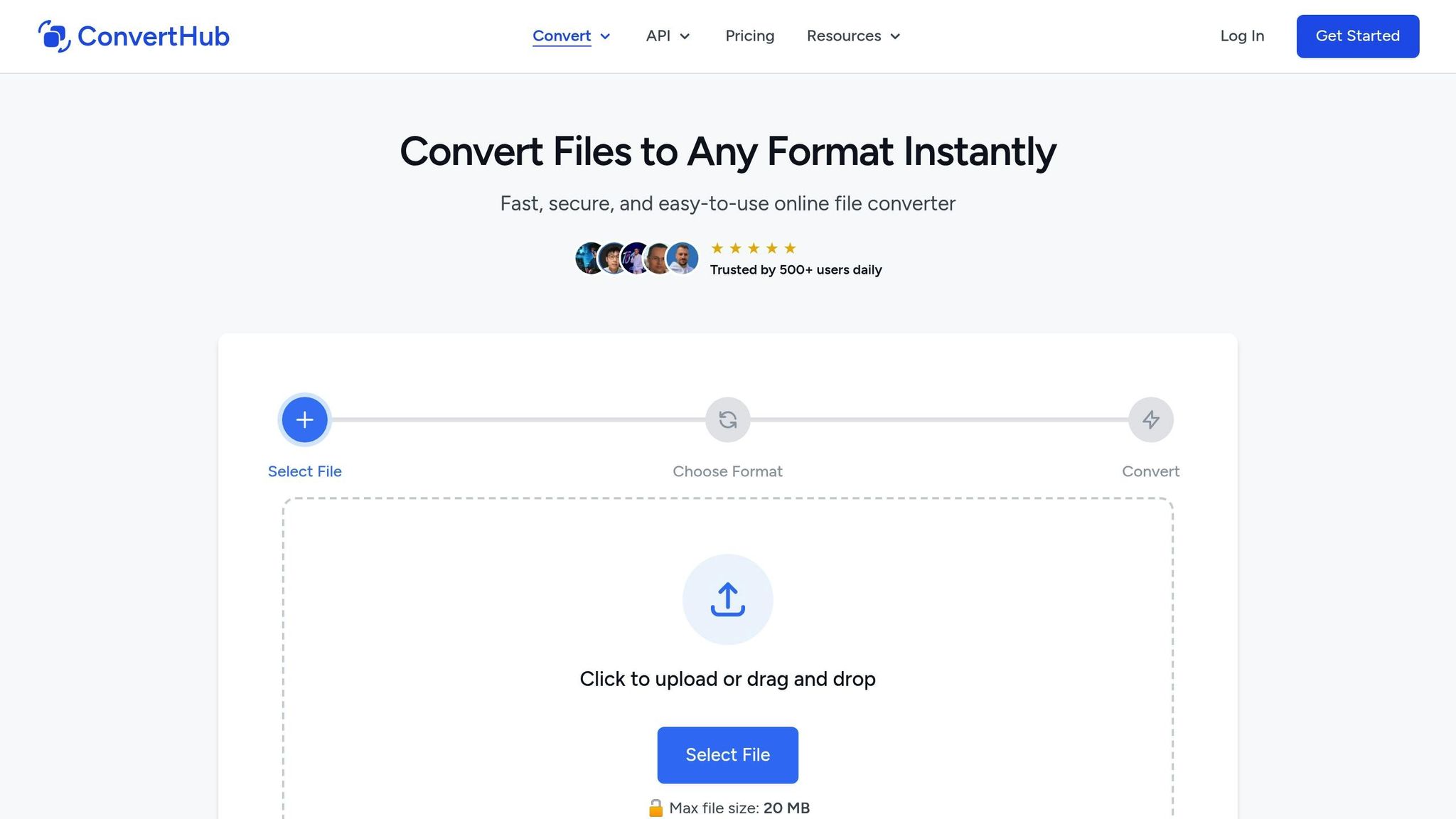
For more complex needs, ConvertHub is a handy option. It supports over 800 file formats and makes converting files easy with features like batch processing, drag-and-drop uploads, and even URL-based conversions. Security is a priority, too - ConvertHub uses 256-bit encryption and automatically deletes files after processing.
Conclusion
File compatibility varies depending on the platform's strengths. Windows dominates in business applications, macOS shines in creative industries thanks to its stable UNIX foundation and seamless Apple ecosystem, while Linux offers unmatched customization and efficiency - though it requires a bit more technical expertise.
These differences highlight the common hurdles users face when sharing files across platforms. For instance, Windows uses backslashes in file paths, while macOS and Linux rely on forward slashes. Additionally, macOS can read Windows NTFS drives but requires extra tools to write to them. On Linux, file naming is case-sensitive, meaning "File.txt" and "file.txt" are treated as entirely different files.
With about 75% of computer users switching between operating systems daily, practical solutions are a must. Opting for universal formats like PDF for documents and exFAT for external drives can simplify the process. For more complex needs, tools like ConvertHub support over 800 file types, offering batch processing and 256-bit encryption for secure and efficient conversions.
"The key lies in understanding your team's needs and the tools available before deciding on an effective strategy." - Keith Madden, Computer Science Expert, Hex Browser
FAQs
What is the most compatible file system for external drives across Windows, macOS, and Linux?
The exFAT file system stands out as an excellent option for external drives, especially when you need smooth compatibility across Windows, macOS, and Linux. It handles large files and drive sizes with ease, making it a practical choice for today's storage demands.
Other file systems, such as NTFS or HFS+, might work in some cases, but they often come with limitations. These can include needing extra software or reduced functionality on certain operating systems. With exFAT, you can transfer files effortlessly between all three platforms without running into compatibility headaches.
Why can macOS only read NTFS drives but not write to them?
macOS can read NTFS-formatted drives out of the box, but writing to them is a different story. Apple’s operating system doesn’t include native write support for NTFS, which is a proprietary file system created by Microsoft.
If you want full read-and-write access to NTFS drives on macOS, you’ll need to rely on third-party software or drivers. These tools make it possible for macOS users to interact with NTFS drives without restrictions, ensuring smooth functionality.
How does Linux's case-sensitive file system affect sharing files with Windows or macOS?
Linux’s case-sensitive file system can sometimes cause hiccups when files are shared with Windows or macOS. Why? Because Linux treats File.txt and file.txt as two completely different files, while Windows and macOS typically see them as the same file.
This mismatch can create headaches, like files being accidentally overwritten or becoming inaccessible during transfers between systems. A simple way to sidestep these issues is to adopt consistent naming practices - such as using all lowercase letters for filenames - especially when working across multiple platforms. Paying attention to these differences can make file sharing and collaboration between Linux, Windows, and macOS much smoother.