How to Convert PowerPoint to PDF Online
To make your PowerPoint presentations easier to share and ensure they display correctly on any device, using a PPT to PDF converter is a smart choice. PDFs maintain your layout, fonts, and design, preventing unwanted changes. ConvertHub simplifies this process with a secure, browser-based tool that requires no installation or registration. Here's how it works:
- Upload your file: Drag and drop your PowerPoint into the tool or browse to select it.
- Automatic conversion: The process starts immediately, with strong encryption safeguarding your data.
- Download your PDF: Save the converted file to your device, with options for extra privacy.
ConvertHub supports files up to 100MB for free users and up to 2GB for premium plans. It also offers batch processing, priority speeds, and a credit-based pricing system for flexibility. For consistent formatting, embed fonts in your PowerPoint before conversion and test the PDF on multiple devices.
ConvertHub ensures your files are secure, with 256-bit encryption, GDPR compliance, and automatic deletion after 24 hours. Whether for business or personal use, it’s a reliable way to convert PowerPoint files to PDF quickly and safely.
Why Use ConvertHub for PowerPoint to PDF Conversion
ConvertHub offers a secure, fast, and hassle-free way to convert PowerPoint files to PDF directly from your browser. With support for over 800 file formats and a track record of converting more than 40,000 files, it’s built to handle everything from quick tasks to large-scale projects.
The platform boasts an impressive 99.9% uptime, so you can rely on it even during tight deadlines. Most conversions are completed in seconds, and since everything runs in your browser, there’s no need to download or install software. These speedy conversions are backed by strong security measures, ensuring your files remain safe throughout the process.
Secure and Private Conversions
ConvertHub prioritizes your privacy and data security. It uses 256-bit end-to-end encryption - the same level of protection used by banks - to safeguard your files during every step of the conversion process. With its Zero Access Policy, all conversions are fully automated, ensuring that no staff members can access your files.
For added peace of mind, guest uploads are automatically deleted after 24 hours. If you’re working with sensitive materials, you can also delete files immediately after conversion. ConvertHub operates on Cloudflare R2 infrastructure, hosted in ISO 27001-certified data centers, and adheres to GDPR standards. Plus, there are no tracking pixels or data sharing practices.
Batch Processing and Large File Support
Premium users can save time by converting multiple PowerPoint files at once. While free users can upload files up to 100MB, premium plans accommodate files as large as 2GB - perfect for presentations loaded with images and videos. Premium subscribers also get priority processing, making large batch conversions faster and more efficient.
No Installation or Registration Required
ConvertHub makes it easy to get started without any setup. You can convert files instantly without creating an account or providing an email address. This is especially convenient for quick, one-time tasks where you don’t want to share personal details.
If you do sign up for a free account, you’ll unlock 10 bonus credits (no credit card needed) and gain access to your conversion history for easier file management.
sbb-itb-ba72479
How to Convert PowerPoint to PDF with ConvertHub
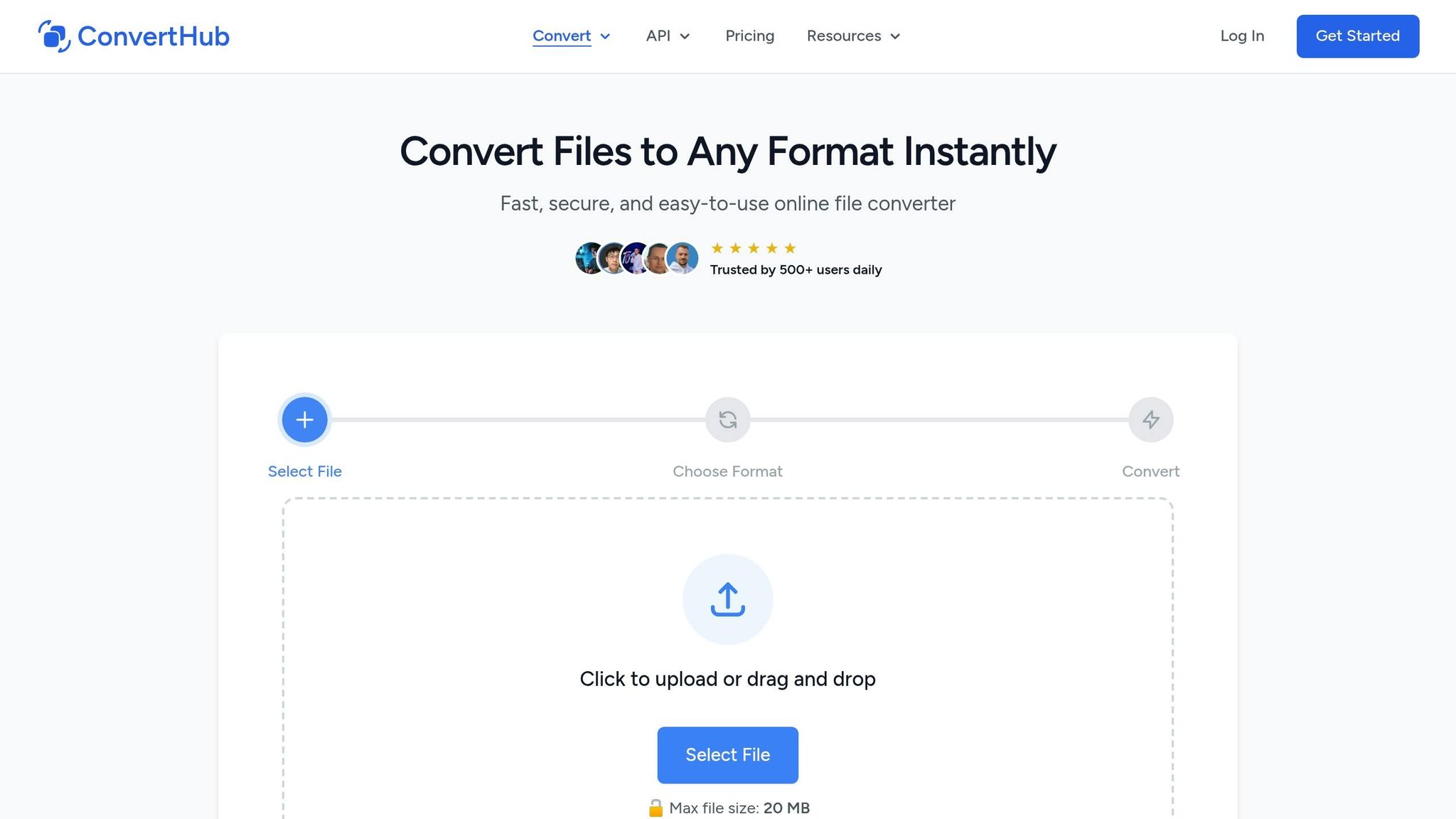
Turning your PowerPoint presentation into a PDF using ConvertHub is fast and hassle-free. There’s no need for technical expertise or software downloads - just follow these simple steps.
Step 1: Open ConvertHub's PowerPoint to PDF Tool
Head over to the ConvertHub website and select the "PPTX to PDF" option from the document conversion menu. If you’ve bookmarked the tool’s page, you can jump straight to it. The tool works with various PowerPoint formats, including PPT, PPTX, and PPTM.
Step 2: Upload Your PowerPoint File
On the tool’s page, you’ll find an upload section. You can either drag and drop your file into this area or click to browse and select it from your device. Keep in mind that file size limits may apply.
Step 3: Let the Conversion Begin
Once your file is uploaded, the conversion kicks off automatically - no need to hit any extra buttons. The process only takes a few seconds, and your file is protected with strong encryption throughout, reflecting ConvertHub’s focus on secure handling.
Step 4: Download Your PDF
When the conversion wraps up, a "Download Complete!" message will pop up. Click the download button to save the PDF to your device. If you’re a guest user, the download link will remain active for 24 hours before the file is deleted automatically. For extra privacy - especially on shared computers - use the "Delete immediately" option. Want more features? Check out the registration step below.
Optional: Unlock Extra Features by Registering
Sign up for a free ConvertHub account to enjoy additional perks. New users get 10 free conversion credits right after registering - no payment details required. You’ll also gain access to your conversion history, making it easy to revisit and re-download past files anytime.
ConvertHub Plans and Pricing
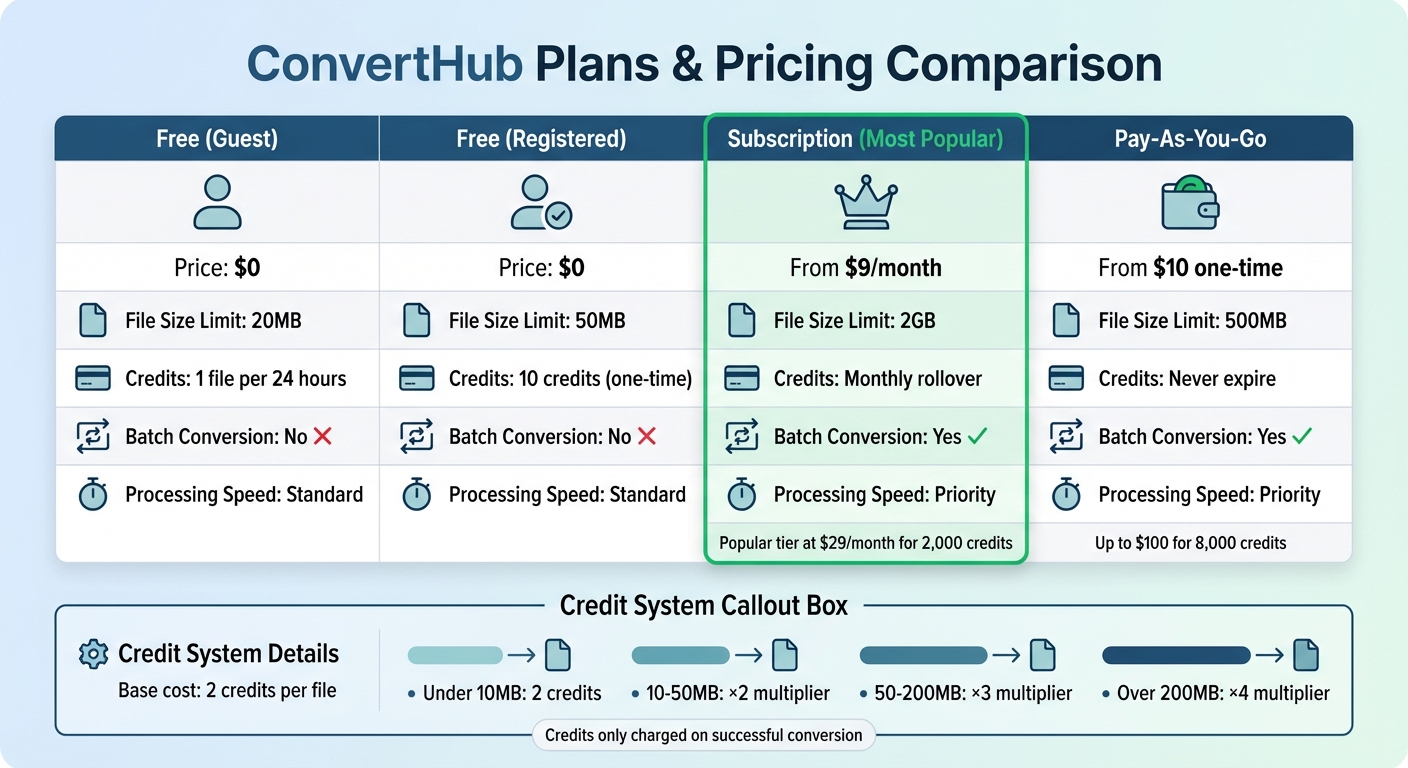
ConvertHub PowerPoint to PDF Pricing Plans Comparison
ConvertHub operates on a credit-based system where each file conversion starts at 2 credits, with the total cost depending on the file size. For files under 10MB, you'll use 2 credits. Larger files require more credits, applying multipliers: ×2 for 10–50MB, ×3 for 50–200MB, and ×4 for files over 200MB. The good news? You're only charged when your file is successfully converted and ready to download.
ConvertHub offers three options to suit different users:
- Guest users can convert one file per day for free, with a maximum file size of 20MB.
- Registered free users get a one-time allocation of 10 credits, which can handle files up to 50MB.
- Subscription plans start at $9/month for 300 credits, allowing conversions of files up to 2GB. The most popular tier is $29/month for 2,000 credits. Subscription credits roll over each month as long as you remain subscribed.
For those who only need occasional conversions, the Pay-As-You-Go plan starts at $10 for 200 credits and scales up to $100 for 8,000 credits. These credits never expire, making it a flexible choice for sporadic use. This plan supports files up to 500MB and includes 1GB of storage.
Paid plans come with added perks like priority processing, batch conversions, and encrypted storage. If you're using both subscription and pay-as-you-go credits, ConvertHub will automatically use your subscription credits first. Not sure how many credits a specific file might need? The Credits Calculator on the pricing page can help you estimate costs for larger or more complex PowerPoint files.
Plan Comparison Table
| Plan Name | Price | File Size Limit | Credit Expiration | Batch Conversion | Processing Speed |
|---|---|---|---|---|---|
| Free (Guest) | $0 | 20MB | 1 file per 24 hours | No | Standard |
| Free (Registered) | $0 | 50MB | 10 credits (one-time) | No | Standard |
| Subscription | From $9/month | 2GB | Monthly rollover | Yes | Priority |
| Pay-As-You-Go | From $10 one-time | 500MB | Never expire | Yes | Priority |
Pick the plan that matches your needs and enjoy hassle-free, secure PowerPoint to PDF conversions with ConvertHub.
How to Maintain PowerPoint Formatting in PDF
Converting a PowerPoint file to a PDF might seem simple, but keeping the formatting intact requires some preparation. Fonts, animations, and layout elements can sometimes shift or disappear during the process. By making a few adjustments before uploading your file to ConvertHub, you can ensure your PDF looks just like your original presentation.
Adjust Animations and Fonts
Since PDFs are static, they only capture the final state of each slide. This means animations, transitions, and embedded videos won’t carry over. If your presentation relies on step-by-step reveals, such as animated bullet points, try duplicating slides to show each stage of the animation. This way, viewers can still follow the flow of your content without needing the animations.
To keep your fonts consistent, embedding them is essential. PowerPoint presentations that use custom or non-standard fonts can run into issues when converted, as these fonts may be replaced by system defaults like Times New Roman or Arial. To avoid this, go to File > Options > Save in PowerPoint (Windows), check the box for "Embed fonts in the file," and select "Embed all characters". While this increases file size slightly (2–5MB per font family), it ensures the PDF converter has access to the necessary font data.
Here’s an example: A fintech startup’s pitch deck had font issues on iOS devices. To solve this, the design team converted header slides into SVG vectors. This preserved the sharpness of the text and avoided font embedding problems entirely.
If you encounter a "Read-Only" or "Restricted License" warning, consider switching to open-source fonts like Google Fonts (.ttf version) or converting text to an SVG image using Paste Special > Picture (SVG). While this guarantees perfect rendering, it does make the text uneditable.
Test the PDF on Different Devices
Once you’ve converted your PowerPoint to a PDF using ConvertHub, it’s critical to test the file on various devices - especially ones that don’t have your custom fonts installed. Try viewing it on a smartphone, tablet, or a colleague’s computer. This helps confirm that fonts, spacing, and layouts remain consistent across different PDF readers and operating systems. Sometimes, what looks flawless on your desktop may appear misaligned or distorted on an iPad or Android phone if fonts weren’t embedded or if the layout shifted during conversion. Testing ensures your PDF accurately reflects your original PowerPoint design.
Conclusion
Converting PowerPoint files to PDFs is a breeze with ConvertHub. There's no need to download software or create an account - just upload your file and get your PDF in seconds.
Security is a top priority. ConvertHub uses encryption, automated file deletion, and a Zero Access Policy to ensure your presentations stay private throughout the process. With ISO 27001 certified data centers and GDPR compliance, your files are handled with care and protected at every step.
For those who need more advanced options, ConvertHub offers premium plans and API integration. These include batch processing, faster conversion speeds, and support for larger files. With 99.9% uptime, it’s a reliable choice for both personal and professional use.
What sets ConvertHub apart is its ability to preserve your original formatting, layouts, and embedded elements with precision. Whether you're converting a single presentation or automating tasks with the API, you can count on ConvertHub to deliver accurate results quickly and securely.
FAQs
Will my PDF look the same on Mac, Windows, and mobile?
When you convert a document to PDF, how it looks on Mac, Windows, and mobile devices often depends on the conversion tool you use. Most tools strive to keep the original formatting intact, but small differences can pop up. These variations usually come down to factors like font availability, screen resolution, or the specific PDF viewer being used. To minimize these issues, opt for a dependable tool like ConvertHub. If you want to be extra sure everything looks right, review the PDF on a few different devices.
Why do my fonts change after converting to PDF?
When converting a PowerPoint to a PDF, fonts might look different if they aren’t embedded correctly. This issue often arises if the fonts have embedding restrictions or if the systems involved use different font versions. To prevent this, make sure fonts are embedded in the PowerPoint file before conversion. Alternatively, use software that supports font embedding to preserve the original design and layout.
Can I convert multiple PowerPoint files at once?
Yes, you can convert multiple PowerPoint files at once with online tools like ConvertHub. It supports batch processing, allowing you to handle several files at the same time, which saves both time and effort. For developers, ConvertHub also provides an API to automate bulk conversions within a single workflow. This makes it easy to convert multiple PPTX files to PDFs quickly, without the hassle of uploading each file individually.