How to Convert PDFs for Client Projects
PDF conversion can save you hours of manual work and improve client collaboration. Whether you need to edit contracts, extract data from invoices, or transform presentations, using the right tools and strategies is key. Here's what you need to know:
- Why Convert PDFs? PDFs are great for preserving layouts but can be hard to edit. Converting them to formats like Word, Excel, or PowerPoint makes them editable and easier to work with.
- Key Tools: Modern AI-powered converters maintain formatting, handle batch processing, and support OCR for scanned documents.
- Client Needs: Always confirm the required format (e.g., Word for contracts, Excel for data analysis) and ensure files meet quality standards like 300 DPI for printing.
- Security: Protect client data by following a strict privacy policy and using tools with encryption and compliance certifications (e.g., GDPR, HIPAA).
- High-Volume Projects: Batch processing and structured workflows save time when handling large numbers of files.
Quick Tip: Test a few sample files before converting in bulk to ensure accuracy. Tools like ConvertHub simplify the process with support for over 800 formats, batch processing, and secure file handling.
Let’s dive into how you can streamline your PDF conversion process while meeting client expectations.
Understanding Client Requirements for PDF Conversions
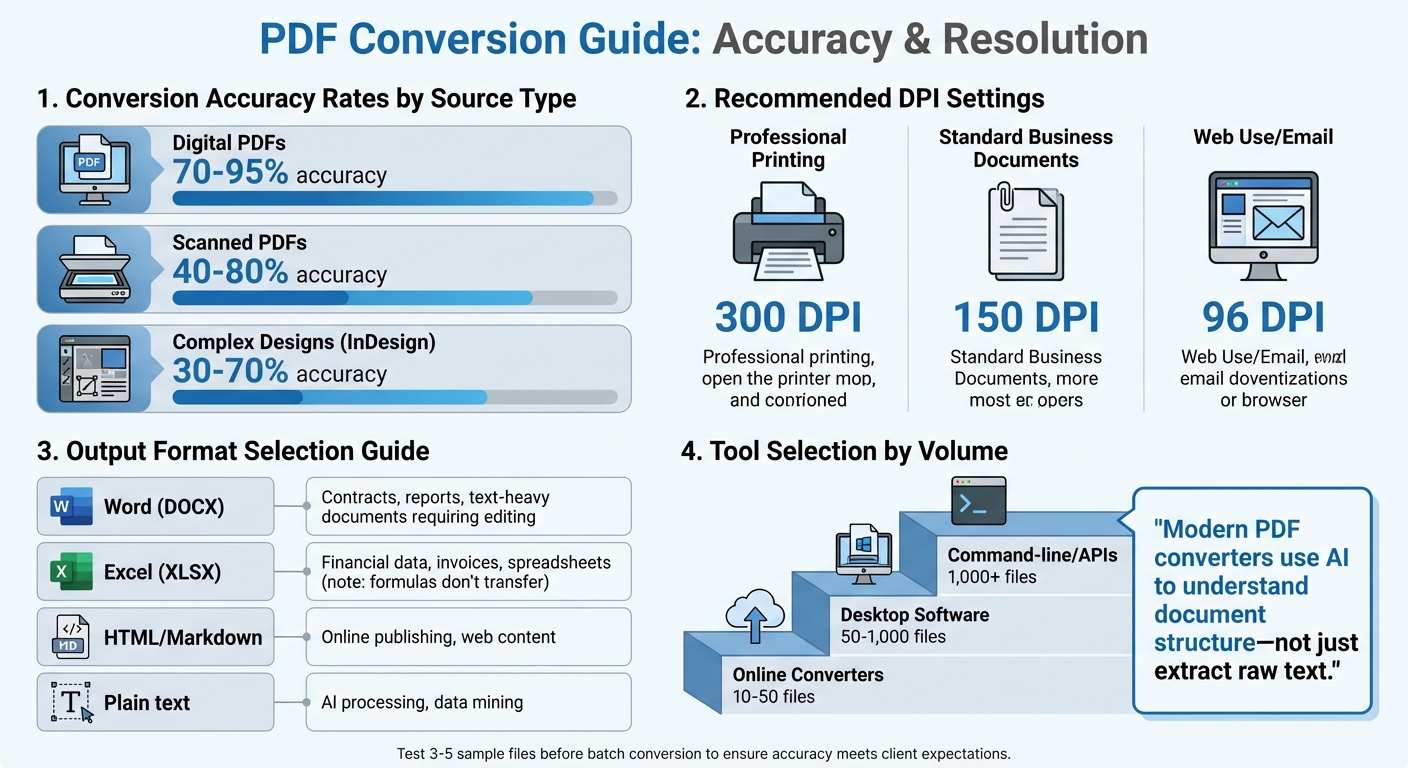
PDF Conversion Accuracy Rates and Recommended DPI Settings by Document Type
Meeting client requirements is the cornerstone of successful PDF conversion projects. Choosing the wrong output format can lead to major setbacks - imagine delivering an editable Word document when the client needed Excel for data analysis. Or providing a low-resolution image when high-quality printing demands 300 DPI. Such missteps waste time and erode trust. To avoid these pitfalls, it's essential to nail down the correct output formats while ensuring security and a smooth workflow.
Determining the Right Output Formats
The type of content in the PDF should guide your choice of output format:
- Word (DOCX) is ideal for text-heavy documents like contracts or reports that require editing or collaboration.
- Excel (XLSX) works well for financial data, invoices, or spreadsheets, though keep in mind that formulas don’t carry over during conversion.
- For online publishing, HTML or Markdown preserves structure for web use, while plain text offers high accuracy for AI processing or data mining tasks.
The quality of the source document also plays a big role. PDFs created digitally often convert with 70-95% accuracy, while scanned PDFs may drop to 40-80%, depending on the scan quality and OCR technology used. Complex designs, like those from InDesign, can fall even further, with accuracy ranging from 30-70%. Testing a few sample files (3-5) before committing to a full batch is a smart way to ensure the settings align with client expectations.
"Modern PDF converters use AI to understand document structure - not just extract raw text." - Lekhak
Resolution also matters. Use 300 DPI for professional printing, 150 DPI for standard business documents, and 96 DPI for web use or email attachments. If you're working with scanned PDFs, remember they need OCR before becoming editable.
Security and Compliance Considerations
When handling client files, security is a non-negotiable priority. Depending on the project, you may need to comply with specific regulations like GDPR for data protection, HIPAA for healthcare records, SOX for financial documents, or PCI SSC for payment-related information. Each regulation comes with its own rules for encryption, access control, and audit trails.
"Security must be a multi-layered approach throughout the entire enterprise document management." - Uniquesdata
If you’re using third-party tools, make sure they meet strict security standards. Look for certifications like ISO, ensure encrypted file transfers (256-bit SSL/TLS), and confirm that files are automatically deleted after processing. For example, ConvertHub deletes files immediately after conversion, prioritizing privacy.
Always remove password protection before starting the conversion process and work within a secure, encrypted environment. For highly sensitive documents, prioritize them based on their importance and use systems designed to meet your industry’s compliance needs.
Handling File Volumes and Deadlines
Converting a single PDF is simple enough, but large-scale projects demand a different approach. Start by taking inventory: count the files, note their formats, and check file sizes to understand the scope. The tools you choose should match the workload:
- Online document converters are suitable for 10-50 files.
- Desktop software can handle 50-1,000 files.
- For 1,000+ files, command-line tools or APIs are your best bet.
"Converting a single PDF is straightforward, but when you're facing 10, 50, or 200 files, manual one-by-one conversion becomes tedious, time-consuming, and error-prone." - FileConvertLab
Batch processing is a lifesaver - it can handle 50 files in the time it takes to manually convert one. For very large volumes, schedule jobs overnight or during off-hours to free up resources during the workday. Use a structured folder system (Input → Processing → Output → Archive) to keep files organized and avoid overwriting originals.
After conversion, make sure the number of output files matches the input count. Spot-check 5-10% of the files to confirm formatting and data integrity. And don’t forget to unlock password-protected files before starting, as they can disrupt automated workflows.
sbb-itb-ba72479
Using ConvertHub for PDF Conversions
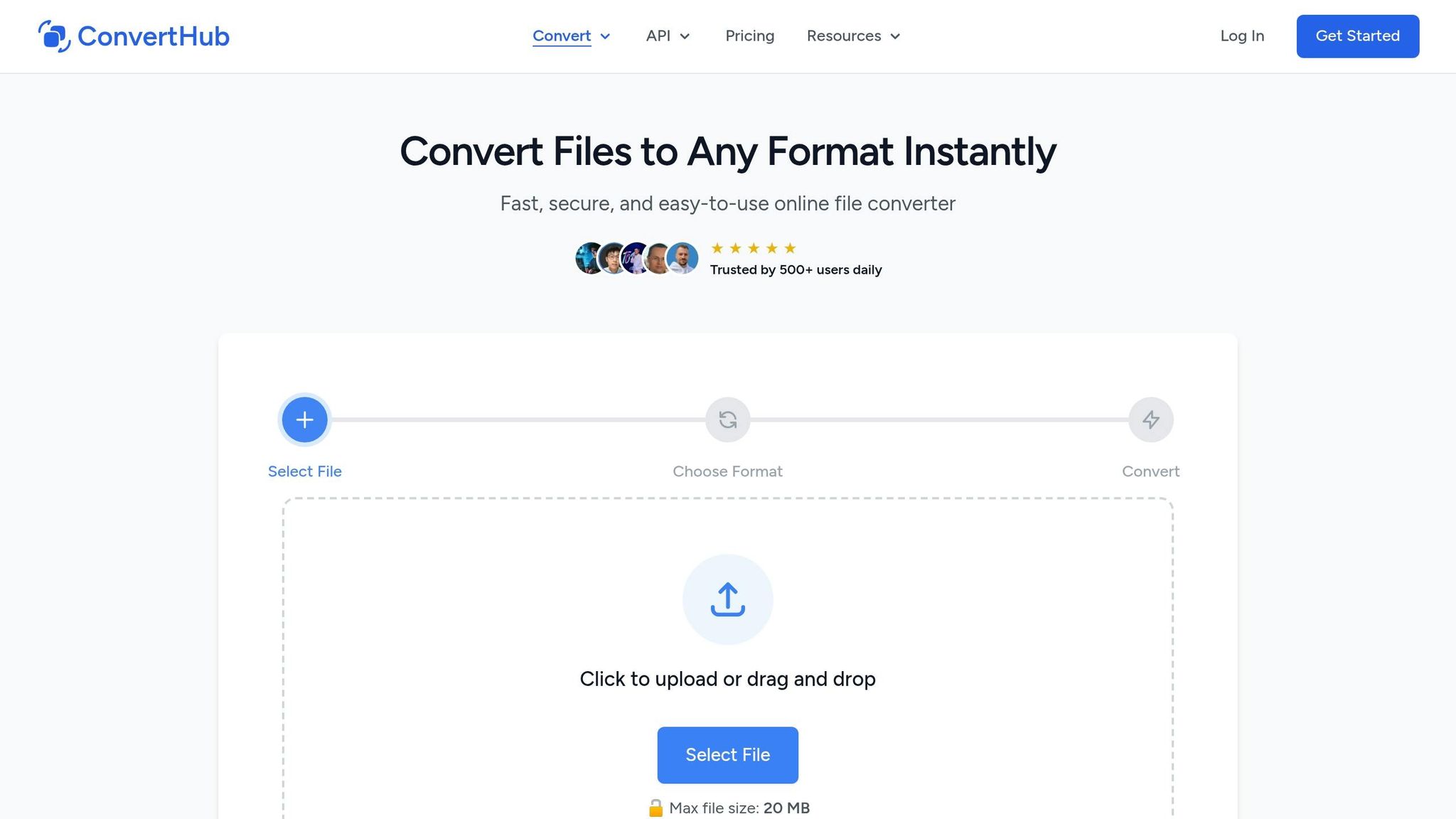
ConvertHub is a reliable choice for handling your PDF conversions. Supporting over 800 file formats - including documents, images, e-books, and more - it’s designed to meet the needs of diverse projects without requiring software installation. With over 40,000 files processed for more than 3,000 users and a 99.9% uptime, ConvertHub ensures dependable service. Whether you need to convert a single contract to Word or batch-process 50 invoices into Excel, the platform’s drag-and-drop interface and automated workflows make the process simple. Plus, its security features, including 256-bit encryption and GDPR compliance, provide peace of mind.
ConvertHub Features Overview
ConvertHub’s user-friendly interface and automation tools streamline the conversion process. You can upload files using drag-and-drop functionality or convert directly from URLs for files up to 2GB. With over 100 target formats to choose from, the platform caters to a wide range of needs. Paid users can take advantage of batch processing and download converted files as a ZIP archive. For developers, webhook notifications via the API provide instant updates when conversions are complete.
"ConvertHub API saved us hours of manual processing. The integration was easy and the format coverage is impressive."
- Petar Ivanov, Developer, petarivanov.tech
However, keep in mind that ConvertHub does not include OCR capabilities for scanned PDFs. If you’re working with image-based documents, you’ll need to process them with OCR software before using ConvertHub.
Selecting a Plan
ConvertHub offers flexible pricing options to suit different project needs. The Free Plan is a great starting point, allowing 1–10 conversions per day with a file size limit of 50MB - perfect for occasional use. For ongoing projects, the Subscription Plan starts at $9/month for 300 credits and scales up to $99/month for 12,000 credits. The $29/month tier, for instance, works out to $0.014 per credit and includes perks like a 2GB file size limit, priority processing, and batch conversion. Unused credits roll over as long as your subscription stays active.
If your workload varies or you have a one-time project, the Pay-As-You-Go option might be the best fit. Prices range from $10 (200 credits) to $100 (8,000 credits), and credits never expire. This plan also supports batch processing with a 500MB file size limit. Conversion costs depend on complexity: converting a PDF to TXT uses 1 base credit, while converting to Word or Excel uses 3 base credits. File size multipliers - ×1 for up to 10MB, ×2 for 10–50MB, ×3 for 50–200MB, and ×4 for files over 200MB - affect the total cost.
| Plan Type | Price | File Size Limit | Ideal For |
|---|---|---|---|
| Free | $0 | 50MB | Occasional conversions, testing |
| Subscription | $9–$99/month | 2GB | Regular client work |
| Pay-As-You-Go | $10–$100 (one-time) | 500MB | Variable workloads, one-off projects |
Preparing Files for Conversion
To get started, organize your PDFs with clear and consistent file names, such as "ClientA_Report1.pdf", to keep everything easy to track. Open ConvertHub, set PDF as your input format, and either drag and drop your files or paste a URL if they’re stored online. Then, choose your output format: DOCX/XLSX for editable files, HTML/Markdown for web content, or JPG/PNG for image-based needs. You can also adjust settings like quality levels for lossy formats or assign custom output file names.
For batch processing, upload multiple files at once, and ConvertHub will queue them for simultaneous conversion. It’s a good idea to test a few sample files (3–5) first to ensure the formatting and data integrity meet your expectations. Use the on-site Credits Calculator to estimate costs based on file sizes and conversion types before starting larger projects. If you’re handling sensitive files, you can select the "Delete immediately" option to remove files from the server right after download. While guest files are stored for 24 hours, paid users can store files for longer periods based on their plan, with limits up to 5GB.
Converting and Managing PDF Files
Converting Files with ConvertHub
With ConvertHub, converting files is straightforward. Simply upload your PDFs using the drag-and-drop interface or paste a URL. Then, choose from over 800 output formats, including DOCX for editing contracts, XLSX for extracting invoice data, PPTX for reworking presentations, or JPG/PNG for creating web graphics. Once you've selected your format, hit "convert", and the platform will process your files in seconds or minutes. To ensure security, all transfers use 256-bit SSL/TLS encryption, and you can opt to delete files immediately after downloading - perfect for handling sensitive client documents.
For larger projects, you can upload multiple PDFs at once. ConvertHub will queue them for simultaneous processing, saving time. Paid users benefit from receiving all their converted files bundled into a single ZIP archive. Before starting, double-check the credit cost displayed for the conversion. Once files are converted, take time to organize them systematically to ensure a smooth workflow for client revisions.
Organizing Converted Files
Keeping your files organized is key to efficiency. Use a consistent naming convention, like "AcmeCorp_Report_03-11-2026_Word_v1.docx", to make files easy to identify. Create dedicated folders for both original and converted files, such as /Clients/AcmeCorp/Conversions/Originals/ and /Converted/Word/. Before converting, back up your original PDFs in a "Pre-Conversion" subfolder to avoid accidental loss. After conversion, review 10–20% of the files to ensure hyperlinks, images, and tables are preserved, and check that compression quality meets your standards. These steps make it easier to locate files during revisions and ensure timely delivery for high-volume tasks.
Using Conversion History
ConvertHub’s conversion history feature is a game changer for managing client projects. Registered users can track every job, complete with details like input/output formats, dates, and download links. This makes it simple to retrieve earlier versions of a document without needing to re-upload files. The history dashboard also provides real-time updates, showing whether files are queued, processing, completed, or failed. For added convenience, paid users can store files until they choose to delete them, while guest and free users have their files automatically deleted after 24 hours. If you're handling sensitive data, it’s a good idea to delete files immediately after downloading. Signing up for a free account unlocks this feature, giving you better control over file versions and revisions.
Quality Checks and Workflow Integration
Checking Output Quality
To ensure your converted files meet professional standards, open each one in its native application - whether it's Word, Excel, or PowerPoint. Verify that fonts, margins, and spacing align with the original source. Be on the lookout for distorted images, misaligned tables, or broken page breaks, as these can detract from the overall quality of your deliverables. For accuracy, spot-check around 10–20% of the batch, focusing on critical details like financial figures or hyperlinks in reports. If you're working with scanned PDFs, remember that ConvertHub doesn't support OCR, so you'll need to verify searchability separately.
Accuracy is key, so compare essential sections side-by-side with the original PDF. For example, if you've converted an invoice into Excel, check that formulas and totals remain intact. Custom fonts can be tricky - when the original file uses a unique typeface, the converted version might reformat text unexpectedly. Addressing these issues early saves time and ensures client satisfaction. ConvertHub's conversion history feature is a handy tool for quick visual comparisons, especially when managing revisions across multiple versions of a project. Once you're confident in the quality, integrate the files into your client’s workflow without delay.
Connecting with Client Tools
After completing quality checks, the next step is integrating the files into the client’s systems. For one-time projects, upload files to platforms like OneDrive, Google Drive, or SharePoint. Use clear naming conventions and organize them into dedicated folders for easy access. If you're working on recurring workflows, leverage ConvertHub's API to streamline file conversions. The API supports automation and can connect directly with client systems through webhooks or deliver files to AWS S3 or Cloudflare R2 buckets.
"The API is well-documented, easy to integrate, and respects privacy. If you're looking for a file conversion API that just works, ConvertHub is a smart choice." - Marko Denic, markodenic.tech
For developers, ConvertHub offers separate API pricing tailored to B2B teams managing high volumes. When handling sensitive client data, you can use the API's destroy endpoint to delete files from ConvertHub’s servers immediately after delivery, ensuring compliance with strict data retention policies.
Conclusion
Turning PDFs into client-ready formats doesn't have to be complicated or time-consuming. By clearly understanding your client's format preferences, security expectations, and deadlines upfront, you can ensure a smooth process. Tools like ConvertHub make this even easier, offering support for over 800 file formats, drag-and-drop uploads, and automated workflows that handle high-volume tasks effortlessly. Whether it's converting a single invoice to Excel or processing multiple reports under tight deadlines, automation simplifies even the most complex projects.
For those managing ongoing client work, ConvertHub's API integration brings an extra layer of convenience. Developers can seamlessly integrate file conversion capabilities into their existing systems, ensuring a streamlined workflow. With 99.9% uptime and robust security features, including GDPR compliance and automatic file deletion within 24 hours (or immediately upon request), client data remains safe and meets strict retention policies.
By combining automated workflows with quality controls, you can consistently deliver polished results. Features like conversion history, organized file management, and integrations with tools like OneDrive or SharePoint help reduce time spent on logistics, letting you focus on adding value. Quick quality checks - such as comparing key sections of converted files to their originals - ensure formatting stays intact. Plus, flexible pricing plans make it easy to scale for projects of any size.
Start with ConvertHub's free tier to explore its capabilities, and as your workload expands, take advantage of its speed, security, and extensive format support to keep meeting deadlines with confidence.
FAQs
How do I pick the right output format for a client?
When deciding on the output format, think about the document's purpose and the client's requirements. For content that needs to be editable, formats like Word (DOCX) are a solid choice. On the other hand, if a fixed layout is more appropriate, PDFs are the way to go.
Take the client's workflow into account as well - formats like XML or Excel might be better suited for data-heavy tasks, while image or archive formats work well for visuals or long-term storage. The key is to strike a balance between editability, accessibility, and the document's intended function.
What should I check before converting PDFs in bulk?
Before diving into bulk PDF conversion, it's crucial to pay attention to a few key details to avoid headaches later. Start by ensuring all file extensions are compatible with the conversion tool you’re using. Next, check that none of the files are corrupted, as this can disrupt the process. It’s also important to confirm that file sizes fall within the platform's limits to prevent errors.
Don’t forget to review the files for any formatting issues that could carry over during the conversion. Lastly, if any files are locked with DRM restrictions, make sure to remove them beforehand. These simple checks can save time and ensure your conversions are smooth and accurate.
How can I keep client PDFs secure during conversion?
To keep your PDFs safe during conversion, stick to trustworthy platforms that prioritize data protection. Choose services that use SSL/TLS encryption and automatically delete files after processing. Stay away from unverified tools, and if you're working in a professional setting, explore APIs that offer encrypted workflows. Always double-check a platform's security protocols before uploading any sensitive files.