
WOFF2 to TTF: Simplified Conversion Guide
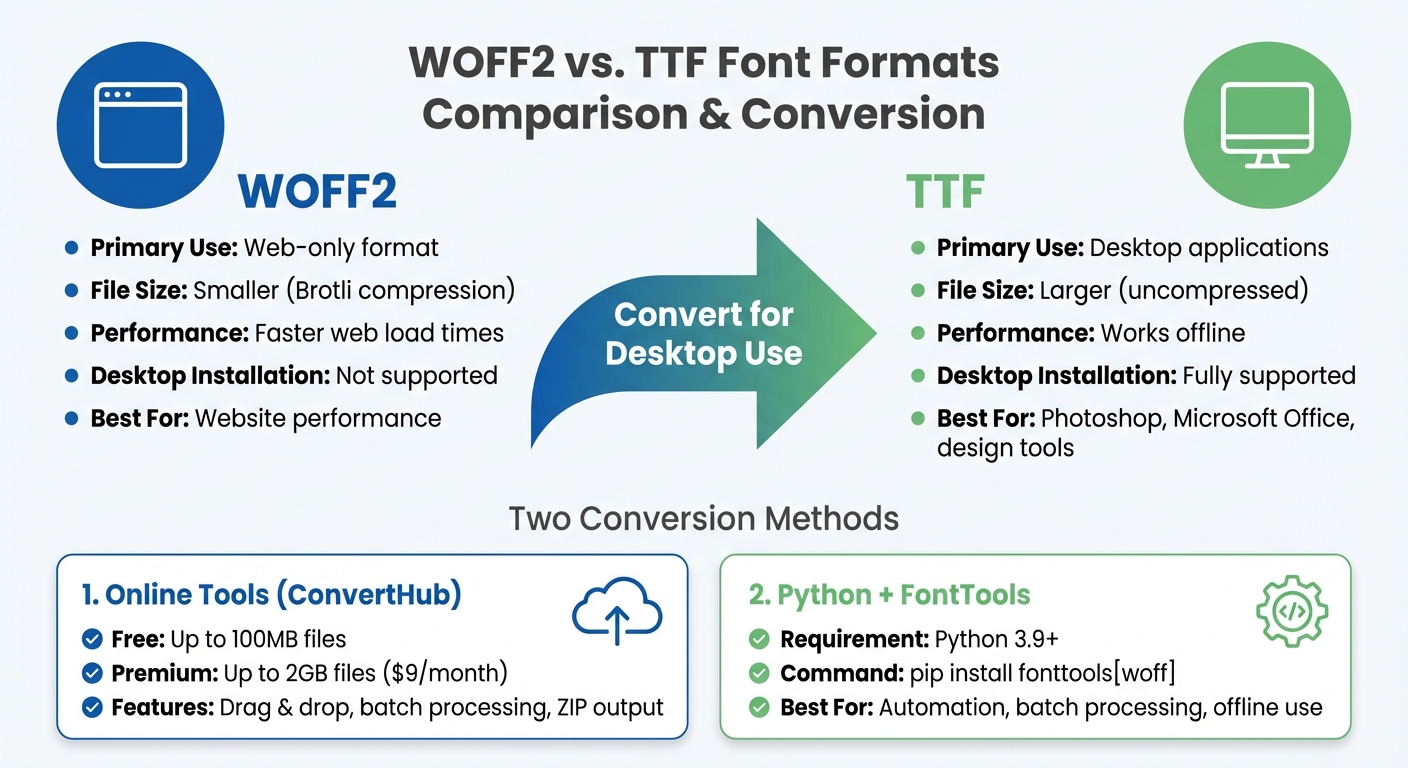
Need to use a web font in desktop applications? Converting WOFF2 to TTF is the solution. WOFF2 is a web-focused font format, optimized for smaller file sizes and faster load times, but it can't be installed on your computer. TTF, on the other hand, is designed for desktop use, making it compatible with design tools like Photoshop, Microsoft Office, and more.
Key Takeaways:
- WOFF2: Web-only format, smaller in size due to Brotli compression, ideal for faster web performance.
- TTF: Desktop-friendly, scalable, and works offline with various applications.
- Why convert? To use web fonts in offline tools or ensure compatibility with software that doesn't support WOFF2.
Conversion Methods:
- Online Tools: Platforms like ConvertHub make the process quick and simple - upload, convert, and download your TTF file.
- Python with FontTools: For more control, use Python scripts to convert files locally, especially for batch processing.
After conversion, test the TTF file in applications to ensure proper rendering and kerning. Always keep your original WOFF2 file as a backup. Whether you prefer online tools or coding solutions, converting WOFF2 to TTF is straightforward and ensures your fonts are ready for any project.
WOFF2 vs TTF Font Format Comparison
How to Convert a woff2 Font to ttf Using Python and FontTools
Preparing Your File for Conversion
Before diving into the conversion process, it's important to ensure your WOFF2 file is valid and decide which method of conversion works best for you. Taking these steps ahead of time can save you from unnecessary errors and wasted effort.
Check Your File
Start by verifying your WOFF2 file. Look for the header signature 0x774F4632 (or "wOF2"), as outlined by the W3C Web Fonts Working Group. You can use their WOFF2 validator, available on GitHub, to confirm the file's structure.
Keep in mind that ConvertHub allows free users to upload files up to 100MB, while premium accounts can handle files as large as 2GB. Make sure your file doesn't include any unwanted data between blocks - files with such issues will be rejected by compliant decoders.
If you're converting a file from a URL, check that the server provides the correct MIME type (like font/woff2 or application/font-woff2) and that the file is accessible via HTTPS. For local files, ensure the file path is accurate and you have the necessary permissions to write to the output directory. These verification steps are essential for avoiding hiccups during the conversion process.
Choose Your Conversion Method
Once your file checks out, it's time to decide how to convert it. You have two main options: using an online tool or a local script.
Online tools, such as ConvertHub, are user-friendly and efficient. They allow you to drag and drop files and even handle batch processing automatically. If you're converting multiple fonts, the platform typically returns the results as a neatly packaged ZIP archive, making file management easier.
For those who prefer more control, using Python with FontTools is a great option. This approach is particularly useful for batch conversions and custom processing. To streamline the process, place all your WOFF2 files in a single folder. Be sure to wrap file names containing spaces in double quotes (e.g., "$file") to avoid syntax errors. Choose the method that aligns best with your workflow and technical comfort level.
Converting WOFF2 to TTF with ConvertHub
Access ConvertHub
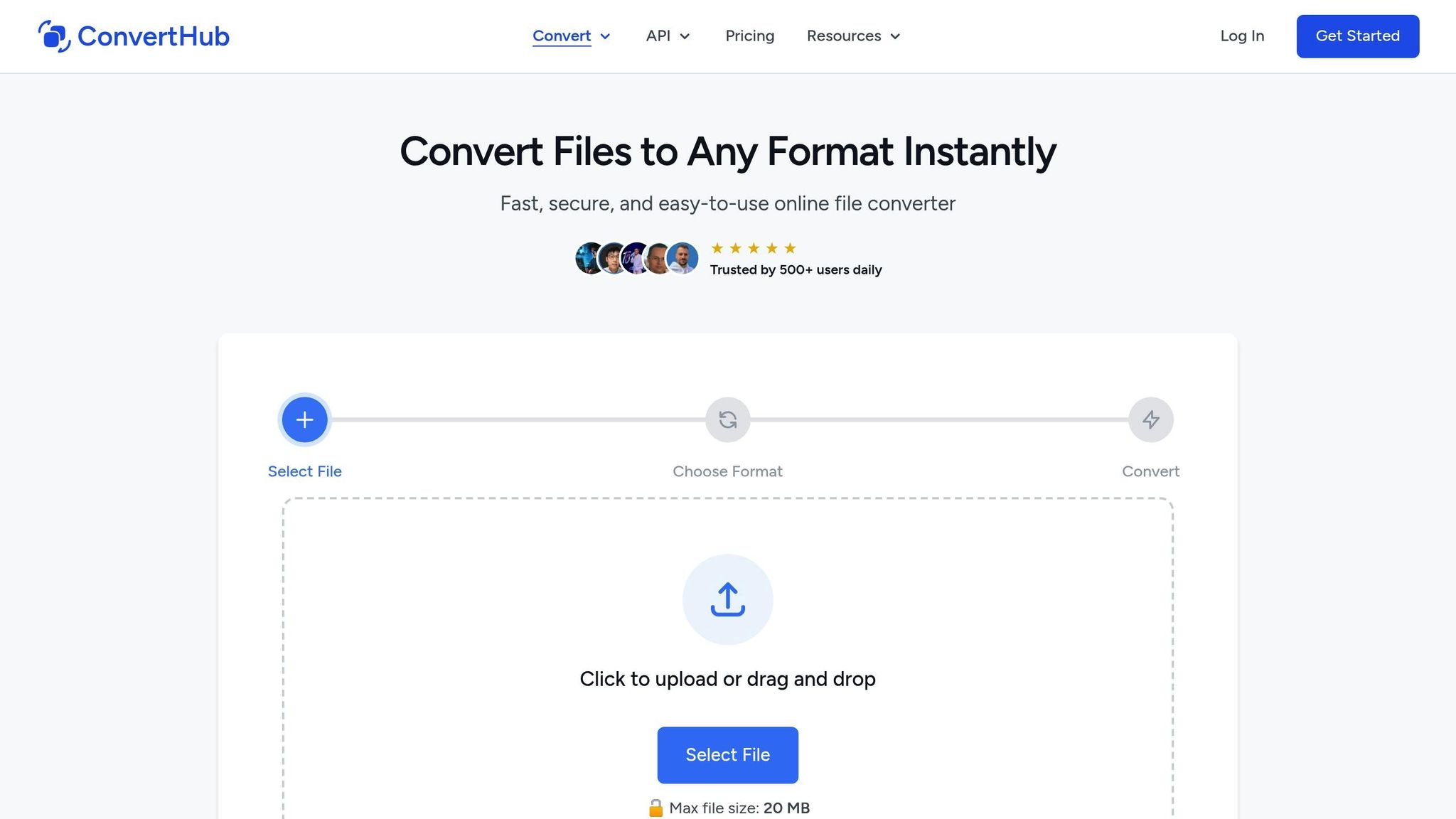
To convert your WOFF2 files to TTF, head over to ConvertHub. This web-based tool doesn’t require any software downloads or technical expertise, and it works effortlessly across all devices - whether you're on a desktop, tablet, or mobile.
For added peace of mind, ConvertHub employs strong encryption to keep your files secure during both upload and download.
Upload and Convert Your File
Once you're on the site, converting your file is straightforward:
- Either click the upload button or drag and drop your WOFF2 file into the designated area.
- As soon as your file is uploaded, the system automatically processes it, converting the WOFF2 font into a TTF format. The tool ensures that key font details like kerning, ligatures, and OpenType features are retained during the conversion process.
Download Your TTF File
After the conversion, which typically takes only a few seconds, you can preview the font to ensure its quality before downloading. Once satisfied, click the download button to save the TTF file to your device.
For privacy, files processed as a guest are deleted from the server after 24 hours. If you're handling sensitive fonts, you can select the "Delete immediately" option. Plus, if you're converting multiple files, the batch processing feature conveniently compiles all your converted fonts into a single ZIP file for easy organization.
sbb-itb-ba72479
Converting with Python and FontTools
Install Python and FontTools
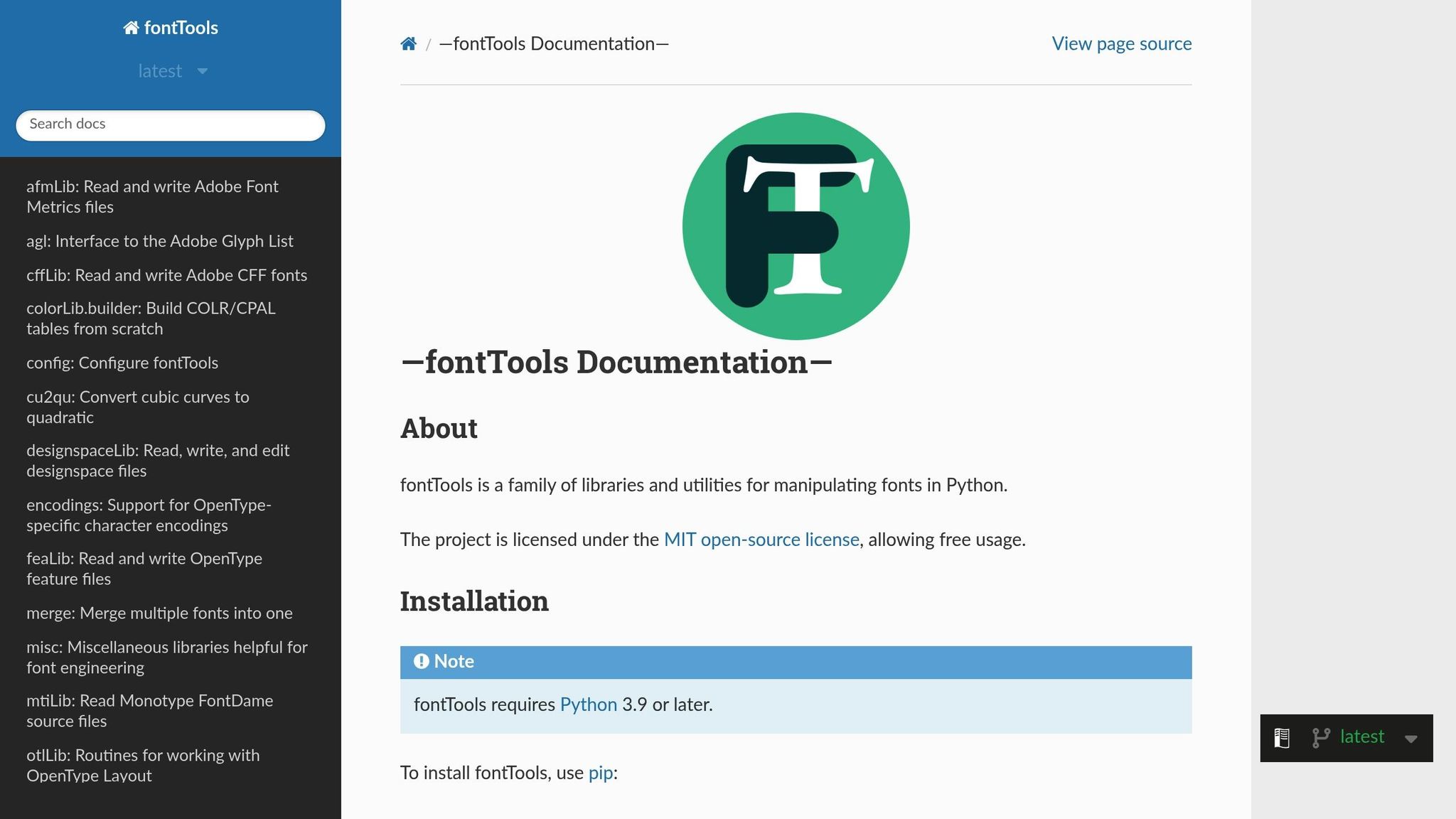
If you're looking for offline or automated font file conversions, Python and FontTools are great tools to use. First, ensure you have Python 3.9 or later installed. You can check your version by running:
python --version
Next, install FontTools with WOFF2 support by running this command:
pip install fonttools[woff]
This installation includes all necessary dependencies, like the Brotli compression library, which is essential for working with WOFF2 files.
Here’s a quick reference for installation commands:
| Target | Command |
|---|---|
| Standard FontTools | pip install fonttools |
| FontTools with WOFF2 Support | pip install fonttools[woff] |
| Brotli Dependency Only | pip install brotli |
Once installed, you’re ready to proceed with the conversion process.
Run the Conversion Script
With FontTools set up, you can use Python to convert WOFF2 files to TTF. The fontTools.ttLib.woff2 module simplifies the decompression process. Here’s an example script:
from fontTools.ttLib import woff2

def convert_woff2_to_ttf(input_path, output_path):
    with open(input_path, 'rb') as infile:
        with open(output_path, 'wb') as outfile:
            woff2.decompress(infile, outfile)

convert_woff2_to_ttf('font.woff2', 'font.ttf')
For quick, one-off conversions, you can use this single-line command:
python -c "from fontTools.ttLib import woff2; woff2.decompress('font.woff2', 'font.ttf')"
This approach is perfect for converting a single file without writing a full script.
If you encounter any errors related to Brotli, ensure it’s installed by running:
pip install brotli
Note for Windows users: When specifying file paths, use forward slashes (/) instead of backslashes (\) to avoid issues with escape characters in strings.
Checking Your Converted TTF File
Test in Font Viewers and Applications
Once you've converted your file, it's time to ensure that the TTF version maintains the design's integrity. Start by using online font viewers like FontVS or Jumpshare to preview the file. These tools let you inspect individual glyphs, kerning pairs, and custom text directly in your browser.
Run tests on both Windows and macOS systems to see how the font performs. On Windows, where TrueType hinting plays a bigger role in readability, open your TTF file in apps like Microsoft Word or Chrome to check its appearance at different sizes. On macOS, use Font Book to inspect the file. Navigate to View > Show Font Info and confirm that the "Kind" field lists it as "OpenType TrueType".
Make sure to evaluate OpenType features such as ligatures and variable font axes. If your original WOFF2 file included these features, double-check that they carried over during the conversion process. Additionally, confirm that font families like Regular, Bold, and Italic are grouped correctly in applications. If only the Regular version is installed, some software might try to simulate other styles by slanting or stroking the font, which can compromise quality.
If any issues arise during these tests, there are steps you can take to resolve them.
Fix Common Issues
Start with the basics: clear your font caches, uninstall older versions, restart your software, and reinstall the updated TTF file. This often resolves rendering problems.
For icon fonts, check that glyphs remain properly centered. Misalignment can happen if horizontal offsets reset to zero during conversion. If you're working with variable fonts, avoid generic online converters, as they may disrupt interpolation axes. Instead, rely on command-line tools like Google's woff2_decompress utility to ensure everything functions as expected.
In Microsoft Office, you might need to manually enable kerning. By default, Word applies kerning only to text sized 8pt or larger on Windows, and 5pt or larger on Mac. Adjust these settings in the advanced font options if necessary to improve text spacing.
Conclusion
Key Points
Converting WOFF2 to TTF is a straightforward process. Platforms like ConvertHub offer a free and easy way to handle files up to 100MB in size. This tool ensures that essential font details remain intact during the conversion. For those requiring unlimited conversions, a $9 monthly subscription is available.
For developers, Python's FontTools provides a command-line solution. This option is ideal for integrating conversions into automated workflows or managing batch processing with precision.
Both methods maintain the design integrity of your fonts by accurately decompressing the Brotli-compressed WOFF2 data and reconstructing important font tables, such as "glyf" and "loca". The choice between these methods depends on your specific needs and technical expertise.
Next Steps
Based on the methods outlined, select the approach that aligns with your workflow. First, clarify why you need the conversion. If you’re working with desktop applications or legacy systems that don’t support web fonts, converting to TTF ensures broader compatibility. Simply upload your WOFF2 file to ConvertHub, select TTF, and download the converted file instantly.
Once the conversion is complete, test the TTF file in your target applications to confirm proper character rendering and functionality, including features like ligatures. Pay special attention to kerning and alignment, and refer back to the earlier troubleshooting steps if needed. Always keep your original WOFF2 file as a backup. These final checks will ensure your conversion process is successful.
FAQs
Why should I convert WOFF2 to TTF for desktop use?
WOFF2 is designed with web usage in mind, but many desktop applications and design tools work best with TTF (TrueType Font) files due to their broader compatibility. TTF files are supported across most operating systems and older software, making them a go-to choice for non-web environments. By converting WOFF2 to TTF, you ensure your fonts retain their original design while remaining usable in desktop applications.
What’s the difference between using an online tool and Python for converting fonts?
Using an online tool like ConvertHub is a straightforward and hassle-free option. These platforms are built with convenience in mind, offering features such as drag-and-drop uploads, secure processing, and compatibility with various file formats. They’re perfect for anyone looking for quick results without the need for technical skills or software installation.
In contrast, opting for Python to handle font conversion gives you greater control and flexibility. Libraries like fonttools enable custom workflows, advanced automation, and detailed adjustments to font files. That said, this approach requires programming knowledge, setting up a development environment, and more time to implement. It’s a choice best suited for developers or individuals with a technical background.
How can I make sure the TTF file looks and works as expected after conversion?
When your TTF file is ready after conversion, the next step is to test it in the application or platform where it will be used. Pay attention to how it renders, whether the spacing looks correct, and if the overall design aligns with your expectations.
If the conversion tool allows, tweak the settings to maintain the font's original quality and ensure it works smoothly. It’s also smart to compare the converted file side-by-side with the original to catch any visible changes in appearance or functionality.