
Convert Password-Protected ZIP Files Online
Struggling with password-protected ZIP files? ConvertHub simplifies the process by letting you unlock and convert these files directly in your browser - no software downloads required. With support for over 800 formats, secure encryption, and flexible file size options, it’s a practical solution for both personal and professional use.
Key Features:
- File Formats: ZIP, 7Z, TAR, GZ, and more.
- Security: 256-bit encryption, GDPR compliance, and automatic file deletion.
- Free Plan: Convert 1 file/day (up to 20 MB).
- Paid Plans: Handle files up to 2 GB with priority processing.
How It Works:
- Upload your ZIP file.
- Enter the password and choose the output format.
- Download the converted file securely.
Whether you’re fixing compatibility issues or optimizing file compression, ConvertHub ensures your data stays safe and accessible.
What You Need Before Starting
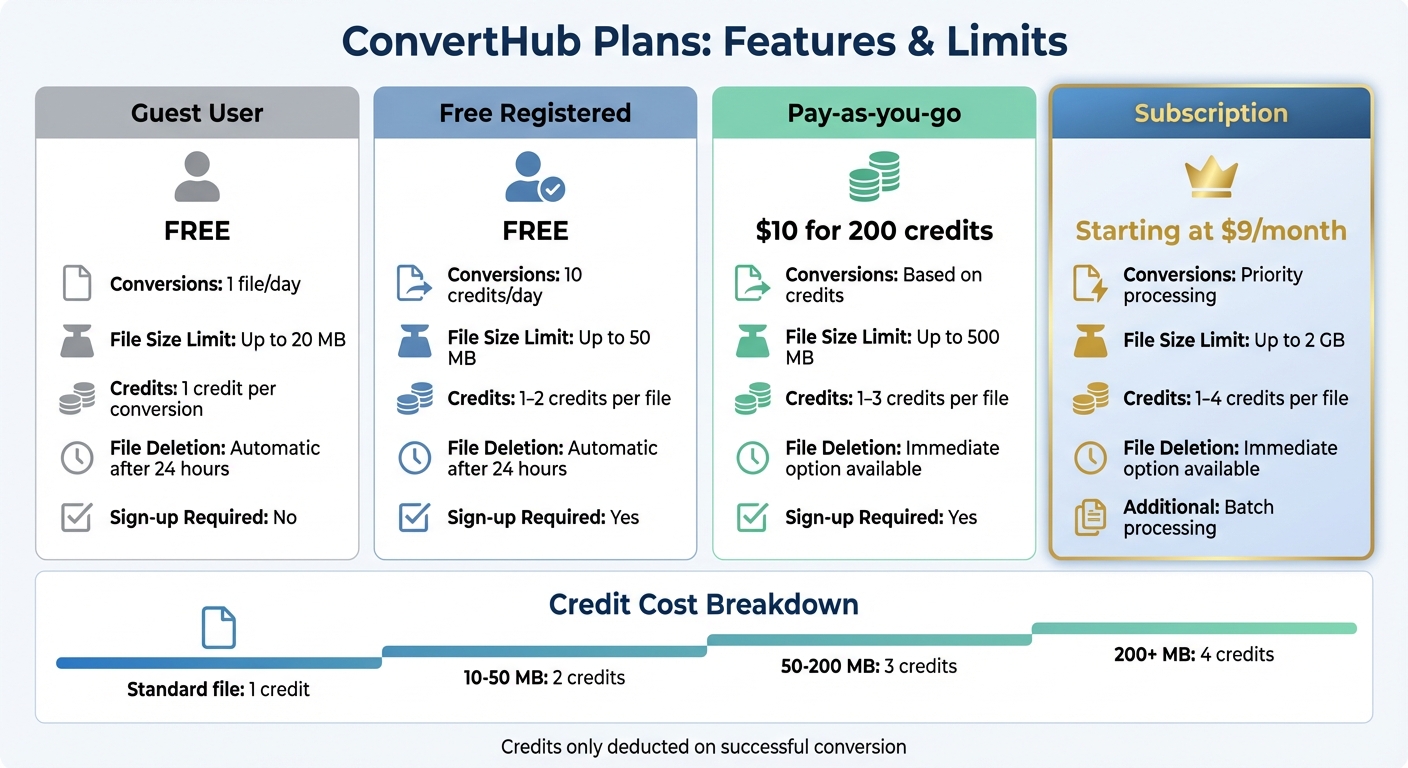
ConvertHub Pricing Plans and File Size Limits Comparison
You don’t need any special software to get started - just make sure you have an up-to-date browser like Chrome, Firefox, Safari, or Edge, along with a stable internet connection for uploading and downloading files.
Make sure you have the correct password for the file you’re converting. Without it, the process won’t work. Once you’ve got that ready, review the key details and requirements for a smooth conversion.
Required Items and Information
First, decide on your target format. ConvertHub supports a variety of archive types, such as converting ZIP to 7Z, beyond standard ZIP files, including RAR, 7Z, TAR, GZ, CAB, ISO, DEB, and RPM. It also handles specialized Linux formats like TAR.GZ, TAR.BZ2, TAR.XZ, TGZ, and TXZ. If you’re unsure, ZIP is a safe choice as it works across most systems, but TAR formats are often better suited for Linux or Unix users.
Guest users can convert one file per day (up to 20 MB), while registered users get 10 conversion credits daily, allowing for files up to 50 MB each. If you’re dealing with larger files or need multiple conversions, you might want to explore a plan that matches your needs.
File Size Limits and Supported Formats
ConvertHub’s file size limits depend on your plan. Guest users can upload files up to 20 MB, while free registered accounts allow up to 50 MB. For larger files, pay-as-you-go plans support sizes up to 500 MB, and subscription plans can handle files as large as 2 GB. Be sure to check your file size to avoid errors during the upload.
The platform operates on a credit-based system. A standard conversion costs one credit, but larger files require more. For instance, files between 10-50 MB use 2 credits, files between 50-200 MB need 3 credits, and anything over 200 MB requires 4 credits (e.g., a 150 MB file would cost three credits). Knowing these limits can help you plan your conversions and manage your credits efficiently.
sbb-itb-ba72479
How to Convert Password-Protected ZIP Files with ConvertHub
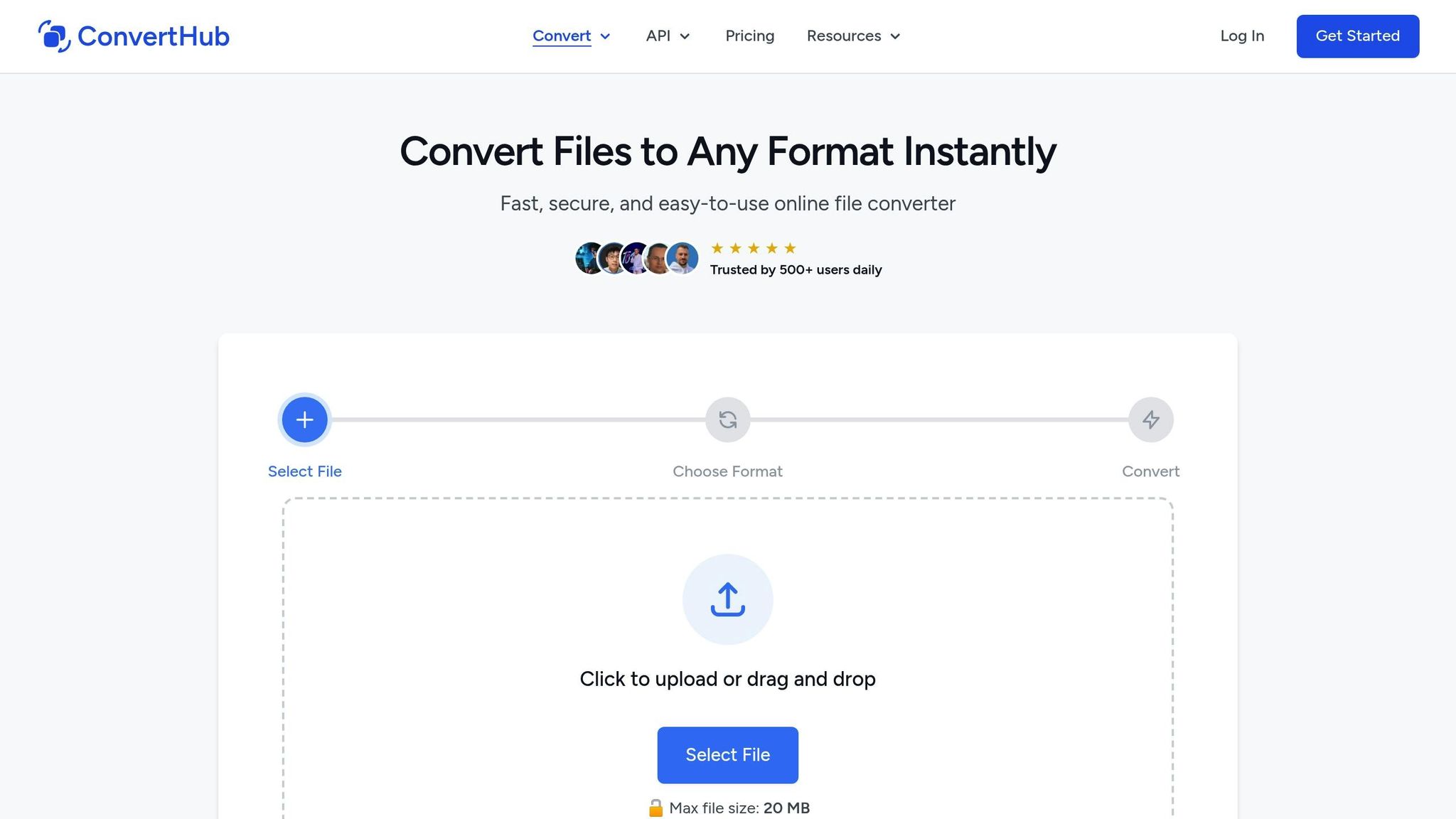
Converting password-protected ZIP files with ConvertHub is quick and straightforward. Just upload your file, enter the password, choose your output format, and download the converted file. All file transfers use secure HTTPS connections, and your data is encrypted while stored.
Step 1: Upload Your ZIP File
Start by accessing ConvertHub's archive converter and upload your password-protected ZIP file. You can either drag and drop the file directly into the browser or paste a URL if the file is hosted online. Make sure your file size is within your plan's limits to avoid upload issues.
The interface will also display the number of credits required for the conversion. Standard conversions typically cost one credit, but larger files may require more.
Step 2: Enter Password and Choose Output Format
Once your file is uploaded, you'll be prompted to enter the archive's password. Be sure to input it correctly, as an incorrect password is the most common reason for conversion issues. After entering the password, select your desired output format from the dropdown menu. ConvertHub supports formats like 7Z, TAR, TAR.BZ2 to 7Z, and TAR.GZ for ZIP conversions.
The platform preserves your original directory structure and file permissions during the process. Before proceeding, you'll see a confirmation of the credit cost. ConvertHub assures users:
"Credits are only deducted when your file is successfully converted and ready for download. If something goes wrong on our end, your credits remain untouched".
Once confirmed, move on to the download step.
Step 3: Download Your Converted File
When the conversion is complete, download your file through a secure link protected by 256-bit SSL/TLS encryption. For added privacy, you can delete the converted file immediately using the "Delete immediately" option, instead of waiting for the automatic 24-hour deletion available to free users.
If your file is large and takes time to process, you can enable email notifications to receive an alert when your download is ready. ConvertHub also follows a strict "Zero Access Policy", meaning no staff can view or share your files during the automated process.
Security Tips for Online File Conversion
ConvertHub's Security Features
When converting password-protected ZIP files, ensuring your data stays secure is critical. ConvertHub prioritizes this by employing 256-bit SSL/TLS encryption for file transfers and encrypting files at rest, all under a strict Zero Access Policy. The platform is fully GDPR compliant, avoids tracking pixels, and never sells user data. To bolster security further, ConvertHub operates on ISO 27001-certified data centers and uses Cloudflare R2 for hosting. For added peace of mind, files uploaded by guest and free users are automatically deleted after 24 hours, while paid users can choose to delete files immediately after conversion.
Working with Large Files and Multiple Conversions
If you often handle large password-protected ZIP files (over 500 MB), ConvertHub offers subscription plans starting at $9/month. These plans provide priority processing and higher file size limits, making it easier to manage bigger projects. Paid users also gain access to batch processing, which allows multiple ZIP files to be converted simultaneously and downloaded as a single archive. This is especially useful when managing several files from the same project. Despite these added conveniences, ConvertHub ensures that robust security measures remain in place.
Common Security Mistakes to Avoid
Protecting your files requires vigilance. Avoid sharing ZIP passwords through unsecured channels; instead, enter them directly into ConvertHub's secure interface. Before uploading sensitive files, check your device for malware to prevent local data theft. Additionally, steer clear of unverified password-cracking tools if you've forgotten your ZIP password - these tools can expose you to malware risks. For sensitive information, consider using the immediate deletion option to minimize exposure.
Fixing Common Conversion Problems
Wrong Password Errors
One of the most frequent issues with converting password-protected ZIP files is entering the wrong password. Online tools require the exact password to unlock and process these files - they can’t recover or guess forgotten passwords. Passwords are case-sensitive and often include special characters, so double-check that Caps Lock is off and characters are entered exactly as intended.
If a conversion fails due to a password error or technical issue, ConvertHub won’t deduct credits from your account. If re-entering the password doesn’t work, you might want to check the file’s format or size, as explained below.
File Format or Size Issues
Another common problem arises when files exceed the size limits of your plan. For example, free accounts have a 20 MB limit, but creating a free registered account increases this to 50 MB and grants 10 free conversion credits. If your file is larger, upgrading to a pay-as-you-go plan ($10 for 200 credits, supporting files up to 500 MB) or a monthly subscription (starting at $9/month for files up to 2 GB) might be necessary.
To avoid issues, confirm your file meets the size and format requirements before starting the process. ConvertHub supports more than 800 file formats, including ZIP to 7Z, TAR, TAR.BZ2, and TAR.GZ. If your file still fails to convert despite being in a supported format, the ZIP file itself could be corrupted. Try opening it locally to confirm.
Download Failures
Even after a successful conversion, download issues can occur if your internet connection isn’t stable. A strong and reliable connection is vital during both the upload and download stages. If you encounter problems, clear your browser cache or switch to a different browser, as cached data can sometimes interfere with downloads. Additionally, browser extensions like ad-blockers may block download pop-ups, so consider disabling them temporarily if needed.
Summary
Why ConvertHub Works for ZIP File Conversion
ConvertHub makes converting password-protected ZIP files simple and effective while keeping the structure, permissions, and various file formats intact. With a 99.9% uptime, you can count on the platform to be available whenever needed. Plus, it works seamlessly across desktops, tablets, and mobile devices - no software downloads or mandatory sign-ups required for basic use. For those handling larger archives or frequent conversions, subscription plans start at just $9/month, offering perks like priority processing and batch conversion.
But ConvertHub isn’t just about performance - it also takes file security seriously.
Protecting Your Files During Conversion
ConvertHub pairs high-quality conversion with strong security measures. It uses 256-bit end-to-end encryption and bank-level SSL/TLS protocols to secure your files throughout the upload, conversion, and download process. Thanks to its Zero Access Policy, even staff cannot access your files.
"All archive files are transmitted over secure HTTPS connections and are automatically deleted from our servers after conversion. We never share or access your files." – ConvertHub
For extra privacy, you can use the "Delete immediately" option, skipping the standard 24-hour automatic deletion window. Files are stored in ISO 27001 certified data centers, protected with encryption at rest, and the platform fully complies with GDPR standards. Just make sure the password you enter is correct - incorrect credentials will stop the process, but you won’t lose credits for failed attempts.
FAQs
Can ConvertHub recover a ZIP password I forgot?
ConvertHub doesn't offer a way to recover passwords for password-protected ZIP files. If you need to access such files, you'll likely have to turn to tools or services specifically built for ZIP password recovery.
Will my ZIP’s folders and file permissions stay the same after conversion?
When converting a ZIP file, the folder structure and file permissions usually remain intact. ConvertHub takes extra care to ensure that these elements are preserved throughout the process. However, not all tools offer the same reliability. Some might extract and recompress files, which can potentially alter the original settings. Choosing a dependable platform like ConvertHub helps ensure your ZIP file keeps its original configuration.
How many credits does my file conversion use based on file size?
The number of credits you use varies based on your plan and the size of the file. If you choose the pay-as-you-go option, prices start at $0.20 per conversion, with credit packages ranging from 50 credits ($10) to 2,500 credits. For subscription plans, you can get 300 credits for $9.00 or 2,000 credits for $29.00 per month. Larger or more complex files typically require more credits. However, if you're on a subscription plan, any unused credits will roll over to the next month. The service supports files up to 2GB in size.