Archive Formats: Compatibility Tips for File Sharing
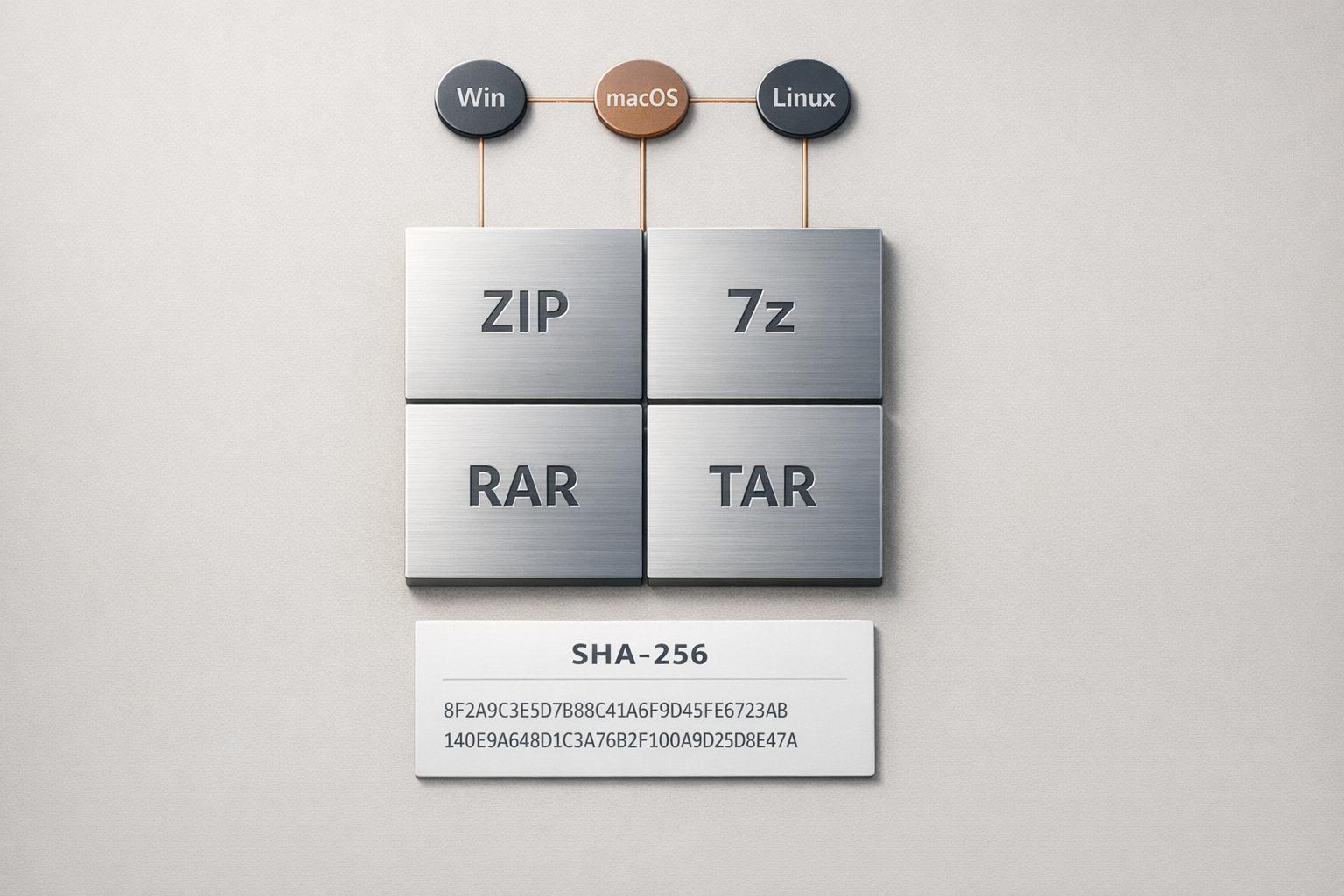
When sharing files, choosing the right archive format can save time and avoid headaches. ZIP is the best all-around option, working seamlessly on Windows, macOS, Linux, iOS, and Android without extra tools. For highly compressed backups, 7z offers better space savings but requires additional software. RAR provides strong compression and error recovery but is less accessible due to licensing. TAR is ideal for Linux projects, preserving file structures and permissions, especially when paired with GZIP for compression.
Key points to consider:
- ZIP: Universal support, fast, moderate compression (60–70%).
- 7z: High compression (30–50%), slower, requires third-party tools.
- RAR: Strong compression, error recovery, but limited by paid tools.
- TAR: Best for Linux, preserves metadata, works with GZIP for compression (up to 80%).
To ensure smooth file sharing:
- Use ZIP for general sharing.
- Convert 7z or RAR to ZIP if recipients lack compatible tools.
- Verify file integrity with SHA-256 or tools like JHOVE before sending.
- Test archives on the recipient's platform to prevent issues.
Pro Tip: Use tools like ConvertHub for quick format conversions and secure sharing. It supports over 800 formats and offers encryption for extra safety.
Every File Archive Format Explained in 8 Minutes
sbb-itb-ba72479
Selecting Archive Formats for Maximum Compatibility
Picking the right archive format can make or break a file transfer. The choice hinges on the recipient's device capabilities and their comfort with technology. Once you've chosen a format, using an archive converter can help ensure files work seamlessly across platforms.
Best Universal Archive Formats
ZIP is your go-to option for universal compatibility. It’s supported natively on Windows, macOS, and Linux, meaning no extra software is needed. With reliable compression and ease of use, ZIP is ideal for sharing files via email or web downloads.
TAR is the favorite in Unix and Linux circles. It’s particularly good at bundling files while preserving system details. When paired with GZIP, it can compress files by up to 80%. This makes TAR a top choice for software distribution, system backups, and Linux-based projects.
Archive Formats with Limited Compatibility
7z and RAR deliver impressive compression - often 30–70% better than ZIP - but they’re not as widely supported. Neither format works natively on major operating systems, requiring third-party tools like 7‑Zip or WinRAR to open them. This can be a hassle, especially for mobile users who may struggle to find compatible apps.
RAR, in particular, is a proprietary format that requires paid software (WinRAR) to create archives, although free extraction tools exist. It does offer perks like error recovery and the ability to compress audio files by up to 90%. Still, for everyday file sharing, its compatibility issues often outweigh these benefits.
"For backups I don't touch often, I use 7z. For sending files, I stick to ZIP". - Abdul Basit, Tech Author
Up next: how to convert these formats for better compatibility.
Converting Archive Files for Cross-Platform Use
Converting RAR and 7z Files to ZIP
To convert RAR or 7z files into ZIP format, start by extracting the files from the original archive and then repackage them into a ZIP file. This process doesn’t alter the files themselves - only the container they’re stored in.
For an easier approach, many online tools can handle the conversion for you. Simply upload your RAR or 7z file, select ZIP as the desired output format, and download the new archive.
Before you delete the original file, make sure the conversion worked correctly. Test the new ZIP archive by extracting a few files to confirm everything transferred as expected. If you’re looking for a quick and secure option, tools like ConvertHub can simplify the process.
Using ConvertHub for Archive Conversions
ConvertHub takes the hassle out of manual conversions, offering a simple three-step process: drag and drop your file, select ZIP as the output, and download the converted archive. The tool supports over 800 file formats and handles thousands of files daily. This ensures smooth file sharing across different platforms, no matter your operating system.
Security is a top priority. ConvertHub uses 256-bit end-to-end encryption and automatically deletes files uploaded by guest users within 24 hours. It operates from ISO 27001-certified data centers and enforces a zero-access policy, meaning all conversions are handled by automated systems without human involvement.
The platform offers free conversions for files up to 100MB once per day. For larger files, batch processing, or unlimited conversions, subscriptions start at $9 per month.
"I highly recommend giving ConvertHub a go. Used it in one of my recent projects and it works really well!" - Stefan Rows, @StefanRows
Archive Format Comparison for File Sharing
Archive Format Comparison: ZIP vs 7z vs RAR vs TAR
Comparing ZIP, TAR, RAR, and 7z
When it comes to file sharing, choosing the right archive format depends on your priorities - whether it's compatibility, compression efficiency, or specific features. Here's a breakdown to help you decide.
ZIP is the go-to format for most users. It's supported natively on Windows (since XP), macOS, and many Linux distributions, meaning you don’t need extra software to open or create ZIP files. If you need to change formats, you can use an online file converter to handle the process in your browser. This makes it a top choice for email attachments and general sharing, as it balances ease of use with decent compression.
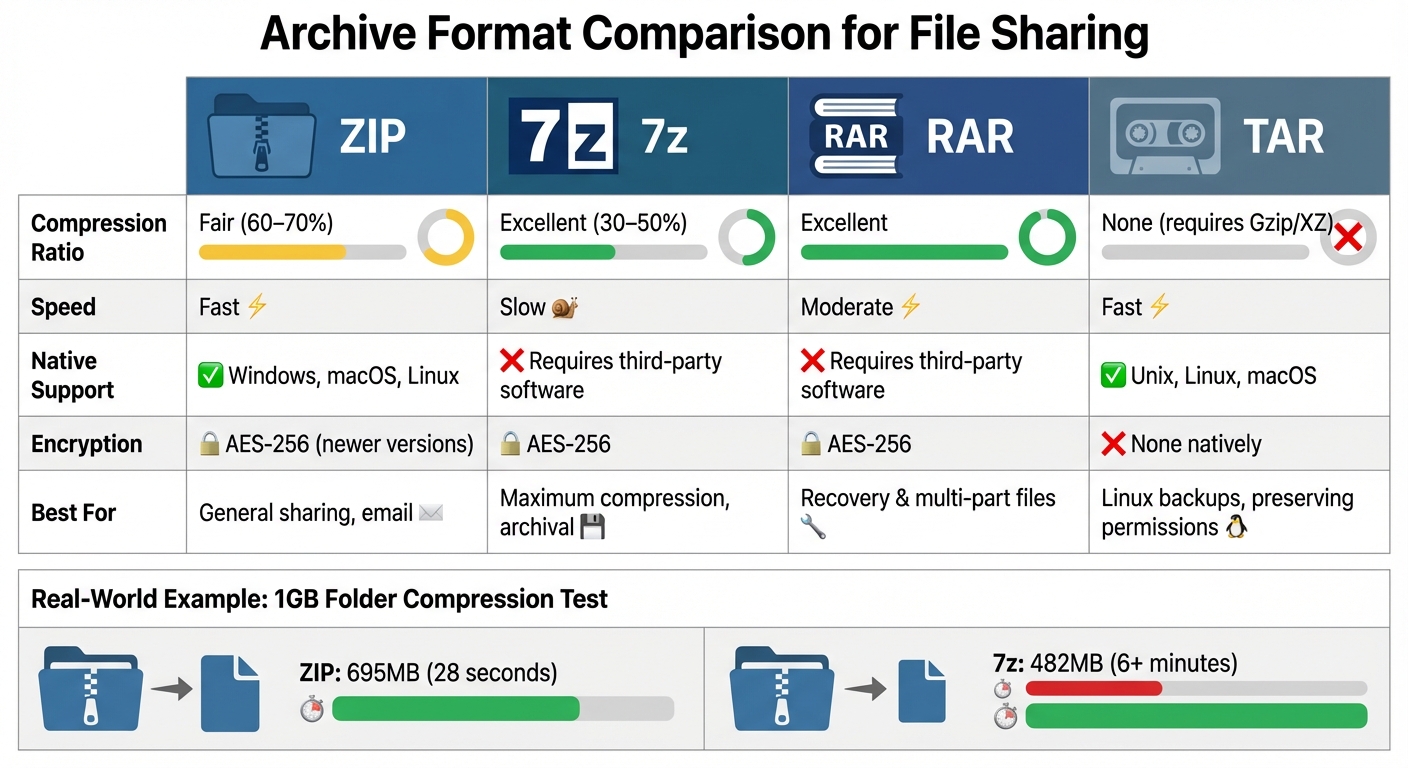
7z, on the other hand, excels in compression efficiency. It can shrink mixed content to as little as 30–50% of its original size, compared to ZIP’s 60–70%. For instance, compressing a 1GB folder resulted in a 695MB ZIP file created in 28 seconds, while 7z reduced it to 482MB but took over 6 minutes. The tradeoff? You’ll need third-party software to use 7z on most platforms, making it better suited for long-term backups where saving space outweighs convenience.
RAR strikes a balance between strong compression and additional features. It can achieve up to 90% compression for audio files and includes built-in recovery records to repair corrupted archives during transfers. However, creating RAR files requires a $29.00 WinRAR license, though extraction tools are usually free.
TAR is unique because it doesn’t compress files on its own - it simply bundles them together. It’s a staple on Unix and Linux systems, preserving file permissions, ownership, and directory structures. Combine it with Gzip (as .tar.gz), and you can achieve compression ratios of up to 80%. While macOS supports TAR files natively, Windows users will need third-party tools. This format is ideal for Linux backups or situations where file metadata needs to stay intact.
Table: Key Differences Between Archive Formats
| Format | Compression Ratio | Speed | Native Support | Encryption | Best For |
|---|---|---|---|---|---|
| ZIP | Fair (60–70%) | Fast | Windows, macOS, Linux | AES-256 (newer) | General sharing, email |
| 7z | Excellent (30–50%) | Slow | Requires third-party software | AES-256 | Maximum compression, archival |
| RAR | Excellent | Moderate | Requires third-party software | AES-256 | Recovery & multi-part files |
| TAR | None (requires Gzip/XZ) | Fast | Unix, Linux, macOS | None natively | Linux backups, preserving permissions |
Verifying Archive Files Before Sharing
Archive File Verification Tools
Before sharing your archive file, it’s crucial to check its integrity and structure to avoid any issues later. One of the most dependable ways to do this is through cryptographic hashing, which generates a unique "fingerprint" for your file. Even the slightest change to the file will alter this fingerprint entirely.
The SHA-256 algorithm is the current go-to for verifying file integrity. It produces a 64-character hash value, which is far more secure than older options like MD5 (32 characters) or SHA-1 (40 characters), both of which are no longer recommended due to security vulnerabilities. You can create a SHA-256 hash using tools like Windows PowerShell (Get-FileHash -Algorithm SHA256 yourfile.zip) or the Terminal on macOS and Linux (shasum -a 256 yourfile.zip). Once you’ve generated the hash, share it through a separate channel, such as a .sha256 file, so the recipient can verify the file’s integrity.
For a deeper level of verification, consider using JHOVE (JSTOR/Harvard Object Validation Environment). Unlike basic integrity checks, JHOVE examines whether the archive is both "well-formed" (meets syntax requirements) and "valid" (adheres to the format’s semantic rules). It supports formats like ZIP and GZIP, among others, and works across Windows, macOS, and Linux since it’s Java-based.
"JHOVE is the most demanding and obsessive of the lot. It covers a small number of formats in a nitpicking way, which is useful for making sure that software in the future won't have problems". - Gary McGath, Software Developer
Once these tools confirm the archive’s integrity and format compliance, you can move on to testing its usability on the intended platform.
Testing Archives on Different Platforms
Verification isn’t complete until you test the archive on the recipient’s operating system. A practical test ensures the archive works as intended and flags any platform-specific issues, such as unsupported compression methods or path-length limitations. For example, if the recipient uses Windows, extract the archive on a Windows machine to ensure compatibility. The same goes for macOS or Linux.
If you’re working with multiple archives, you can streamline the process using automated tools. Generate a checksum file for all your archives at once with shasum -a 256 * > checksums.sha256. This allows recipients to verify all files in one go using shasum -a 256 -c checksums.sha256. For a more visual approach, GUI tools like 7-Zip (right-click → CRC SHA → SHA-256) or QuickHash provide easy-to-use interfaces for verification.
Common reasons for verification failures include incomplete downloads, network transfer errors, or storage media issues like bad sectors. Testing and verifying your archives thoroughly reduces the risk of these problems and ensures a smooth sharing process.
Conclusion
When deciding on archive formats, consider how easily the recipient can access the files. ZIP is often the best option for general file sharing because it works seamlessly across Windows, macOS, Linux, iOS, and Android without requiring extra tools. As Fatima from FileSharer.io succinctly puts it:
"ZIP = the 'safe choice.'"
While formats like 7Z and RAR offer better compression, they require additional software, which can limit accessibility. Striking the right balance between compatibility and compression is key to maintaining efficient workflows.
The impact of choosing the wrong format shouldn't be underestimated. Incompatible files can cost professionals up to 47 hours annually and delay 30% of projects. Spending a few extra minutes selecting the right format and double-checking archives before sharing can save time and prevent unnecessary headaches.
Security is equally important. For sensitive data, opt for formats with strong encryption. Share passwords separately for added safety, and use SHA-256 checksums to confirm file integrity during transfers.
To summarize the approach:
- Use ZIP for sharing files with clients or non-technical users.
- Choose 7Z for long-term storage where compression is a priority.
- Opt for RAR when advanced error recovery is needed for crucial data.
Finally, always test your archives on the recipient's platform before sending. This simple step ensures smooth transfers and avoids any last-minute surprises.
FAQs
Which archive format should I use if I don’t know what device the recipient has?
For the best compatibility across different platforms, stick with the FAT32 archive format. It works effortlessly with Windows, macOS, and Linux, making sure the recipient can open the files no matter what device they're using.
How can I keep file permissions and folder structure intact when sharing with Linux users?
To share files with Linux users while keeping permissions and folder structure intact, the tar command is a reliable option. You can create an archive by running:
tar -cvpf archive_name.tar /path/to/source_directory.
Once transferred, extract it using:
tar -xvpf archive_name.tar -C /destination/path.
This method preserves permissions, ownership, and the directory structure.
If you prefer direct file copying, use rsync with the -a flag:
rsync -a /source/path /destination/path.
This also ensures the attributes are maintained during the transfer.
What’s the easiest way to verify an archive wasn’t corrupted during upload or download?
To verify that an archive hasn’t been altered or corrupted during upload or download, you can compare its hash checksum - such as SHA-256 - generated on your local machine with the checksum provided by the source. This step ensures the file remains intact and matches the original version.